A server is a computer, or a program on a computer, that waits for requests from other devices and answers them. This guide is for anyone who keeps hearing the word, whether you look after a website, are about to rent hosting, or simply want to know what happens when a page loads.
A server is any computer or program whose job is to answer requests from other devices, called clients. Your browser is a client; the machine that sends back the page is a server. The word covers both the software that answers (a web serverWeb server The program that answers visitors’ browsers and sends them your website. Also used for the computer it runs on. More about Web server → such as Nginx) and the hardware it runs on, which is usually an always-on machine in a data centre, often split into several virtual servers.
The client and server idea
Almost everything on the internet works as a conversation between two sides:
- The client starts the conversation. Your browser, your phone’s mail app and a smart TV fetching a film are all clients.
- The server listens and replies. It does not go looking for work; it waits until a client asks for something.
When you visit example.com, your browser first asks a DNS server for the site’s IP address, say 203.0.113.10. It then connects to the server at that address and asks for the page. The server sends back the HTML, then the images, styles and scripts, each in reply to its own request. How DNS works covers the first half of that journey in detail.
A useful way to remember it: “server” describes a role, not a type of box. Your laptop becomes a server the moment you run a program on it that answers other machines. A Raspberry Pi on a shelf can be a server. So can a rack of machines in a data centre.
How one server runs many services
A single machine can answer several kinds of request at once because each service listens on its own port number. The web server takes connections on portsPort A numbered door on a server. Each service listens behind its own door: web pages on 443, email on others, remote login on 22. More about Port → 80 and 443, SSH on port 22, the database on 3306. The IP address finds the machine; the port finds the right program on it.
Server software and server hardware
People use the word in two ways, and it helps to keep them apart.
Server software
This is the program that does the answering. Examples you will meet:
- A web server such as NginxNginx A fast, popular program that sends web pages to visitors and can pass requests on to apps behind it. More about Nginx → or Apache, which sends web pages.
- A database server such as MySQL or MariaDB, which stores and returns data for a site.
- A mail server such as Postfix, which accepts and delivers email.
- An SSHSSH A secure way to type commands on a server from your own computer, as if you were sitting at it. More about SSH → server (OpenSSH), which lets you log in remotely and type commands.
When someone says “restart the server”, they often mean restart one of these programs, not reboot the machine.
Server hardware
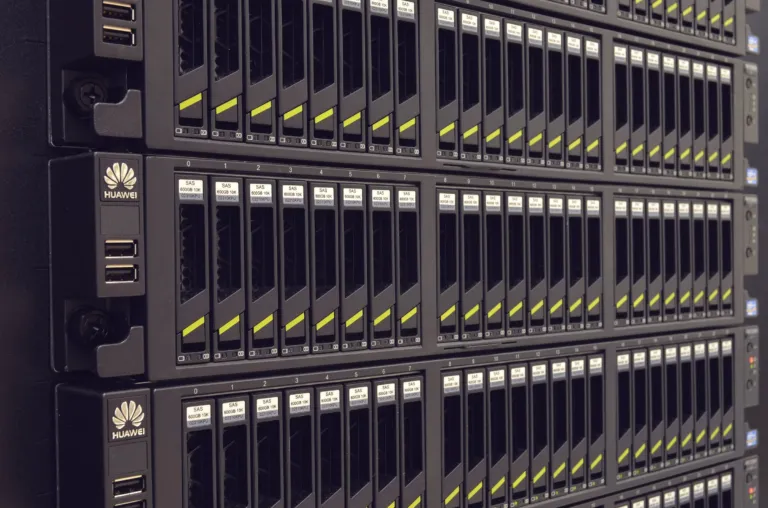
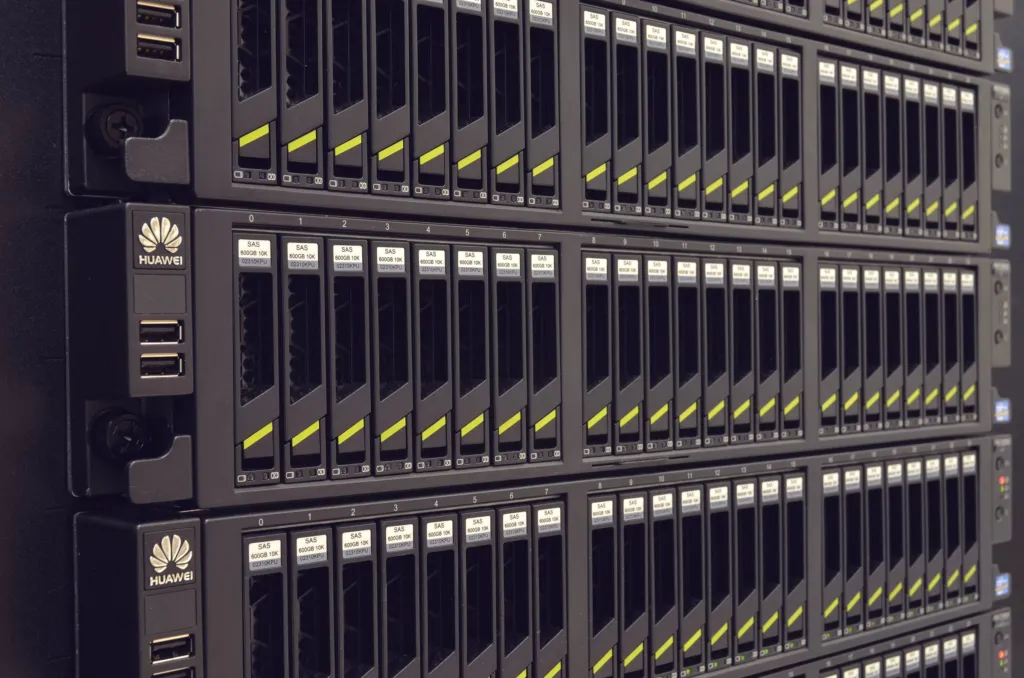
This is the physical computer. Inside, it has the same parts as a desktop PC: processors (CPU), memory (RAM), storage and a network card. The differences are in what it is built for:
| Feature | Typical desktop | Typical server |
|---|---|---|
| Running time | Switched off at night | Runs all day, every day, for years |
| Screen and keyboard | Always attached | Usually none; managed over the network |
| Power supply | One | Often two, so one can fail safely |
| Storage | One drive | Several drives, often in RAID |
| Memory | Standard RAM | ECC RAM, which detects and corrects small errors |
| Shape | Tower case | Flat case that slides into a rack |
None of this is magic. Server hardware is simply designed to keep running when a single part fails, and to be looked after remotely.
Common types of server
Servers are usually named after what they serve. A small website might use several of these on one machine; a large one spreads them across many.
| Type | What it answers | Example software |
|---|---|---|
| Web server | Requests for pages and files | Nginx, Apache, LiteSpeed |
| Application server | Runs the code that builds pages | PHP-FPM, Node.js |
| Database server | Queries for stored data | MySQL, MariaDB, PostgreSQL |
| Mail server | Sending, receiving and storing email | Postfix, Dovecot |
| DNS server | Which IP address belongs to a name | BIND, PowerDNS |
| File server | Shared files on a network | Samba, NFS |
| Proxy server | Requests on behalf of other servers | Nginx, HAProxy |
A nameserver is a DNSDNS The internet’s phone book. It turns a name people can remember, like example.com, into the number address computers use to find the server. More about DNS → server that holds your domain’s records. A reverse proxy is a server that sits in front of other servers and decides which one answers each request.
Physical, virtual and cloud servers
When you rent a server, you rarely get a whole machine to yourself. Modern hardware is powerful enough to be divided.
- Physical (dedicated) server: one whole machine, used by one customer. See dedicated server.
- Virtual server: software called a hypervisor splits one physical machine into several virtual machines. Each behaves like a separate computer with its own operating system and its own share of CPU, memory and disk. A VPS is a virtual server sold to one customer.
- Cloud server: a virtual server you can create, resize and delete in minutes, usually billed by the hour or month.
- Shared hostingShared hosting Hosting where your website shares one server with many others. Cheap and simple; the host looks after the server. More about Shared hosting →: not a server of your own at all, but an account on a server shared with many other sites.
From the inside, a virtual server looks and feels like a real one. You log in, install software and run commands in exactly the same way. Our comparison of hosting types, listed under Related, goes through each option in depth, including who is responsible for keeping it updated.
Where servers live
You can run a server at home, but most public websites live in a data centre: a building designed to keep thousands of machines running. A data centre provides:
- Power with batteries and generators, so a power cut does not take sites offline.
- Cooling, because servers produce a lot of heat.
- Fast network connections to many internet providers at once.
- Physical security: locked rooms, cameras and staff on site.
Home servers are great for learning and for private use, such as a file share for the household. They are less suited to public websites, because home broadband usually changes your IP addressIP address The number address of a device on the internet, like 203.0.113.10. Computers use it to find each other, the way post uses street addresses. More about IP address → from time to time, often blocks incoming connections on common ports, and has far less upload speed than a data centre. What web hosting provides is, in effect, a share of a data centre server with all of that taken care of.
How you work with a server
Most servers run Linux, such as Ubuntu, Debian, AlmaLinux or Rocky Linux, and have no screen. You manage them from your own computer in one of two ways.
With a control panel
On shared hosting and many managed plans, you get a web-based control panelControl panel A website you log into to manage your hosting with buttons and forms, instead of typing commands. cPanel and Plesk are the common ones. More about Control panel → such as cPanel. You click through menus to add email accounts, databases and domains, and the panel changes the server for you.
Over SSH
On a VPSVPS A private slice of a powerful server, with its own guaranteed share of memory and processing and full control, at a fraction of the price of a whole machine. More about VPS → or dedicated server, you usually work from a command line over SSH. You type a command on your computer and it runs on the server. Our guide on how to connect to a server with SSH walks through the first login.
Once connected, a few read-only commands tell you a lot about the machine. They are safe to run on any Linux server and change nothing:
uptime
nproc
free -h
df -h
sudo ss -tlnpuptimeshows how long the server has been running and its recent load.nprocshows how many processor cores it has.free -hshows memory in use and available, in readable units.df -hshows how full each disk is.sudo ss -tlnplists the programs listening for TCP connections and the ports they use. On a typical web server you will see entries fornginxorapache2on ports 80 and 443, andsshdon port 22.
You can also check a server from the outside, from your own computer:
dig +short example.com
curl -I https://example.com
The first asks DNS which IP address the name points to. The second asks the web server for just the response headers. A first line such as HTTP/2 200 means the server answered normally; a code such as 500 or 503 means it answered with an error.
Keeping a server healthy
A server that is reachable from the internet is probed by automated scanners constantly, often within minutes of going online. If you run your own, the basics are not optional:
- Install security updates regularly, or turn on automatic updates.
- Use SSH keys instead of passwords for logging in.
- Run a firewallFirewall A gatekeeper that decides which connections are allowed into a server and blocks the rest. More about Firewall → that only allows the ports you actually use.
- Keep backups on a different machine, and test restoring them.
- Use HTTPSHTTPS The secure version of the web, shown by the padlock. Everything sent between you and the site is scrambled so nobody in between can read or change it. More about HTTPS → for every website on the server.
Each item has its own guide: setting up SSH keys, setting up a firewall on Linux, backing up a Linux server and getting a free SSL certificate with Let’s Encrypt. If you would rather not do this work yourself, a managed plan hands it to the host; see managed or unmanaged hosting.
RAIDRAID Several hard drives working together, usually so that if one breaks, nothing is lost. It is not a backup. More about RAID → protects you from a failed drive, not from deleted files, a hacked site or a fire in the building. Only a copy kept somewhere else counts as a backup.
Common problems
| Symptom | Cause | Fix |
|---|---|---|
| Site does not load at all | Domain points to the wrong IP address, or the server is off | Check with dig +short example.com, then check the server is running |
| Browser shows 502 or 504 | The web server is up but the program behind it is not answering | Check that PHP-FPM or your app is running and read its log |
| Browser shows 500 | The site’s code crashed | Read the error log; see how to fix 500 Internal Server Error |
| SSH connection times out | Firewall blocks port 22, or wrong IP address | Check the IP address and the firewall rules from your host’s console |
| Server is slow | CPU, memory or disk is running out | Run uptime, free -h and df -h to see which |
Official documentation
Related
- What is web hosting?: how renting a server keeps your website online.
- Shared, VPS, dedicated or cloud hosting: the ways a physical server is divided and sold.
- How to install Nginx on Ubuntu: turn a fresh Linux server into a working web server.
- How to point a domain to a server: connect your domain name to a server’s IP address.
Something out of date? Software changes. If a step no longer works, tell us and we will check it and update the page.