Cursor is very good at the jobs that make WordPress owners nervous: finding why a site shows a critical error, changing a template, or adding a small feature without a plugin. The risk is that it edits a live site instantly. This guide shows a workflow where every change is backed up, reviewed and reversible.
Back up the database and files first, open the site in Cursor (a local copy, or the live server over Remote-SSH), and put your changes in a child theme under Git. Use Ask mode to diagnose, mentioning files such as @debug.log, then switch to Agent to make the change. Review the highlighted lines, click Keep, test the site, and commit.
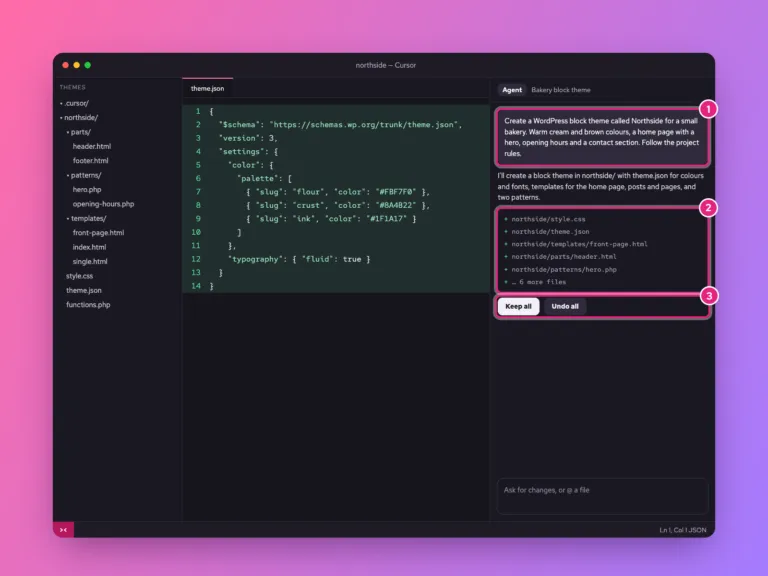
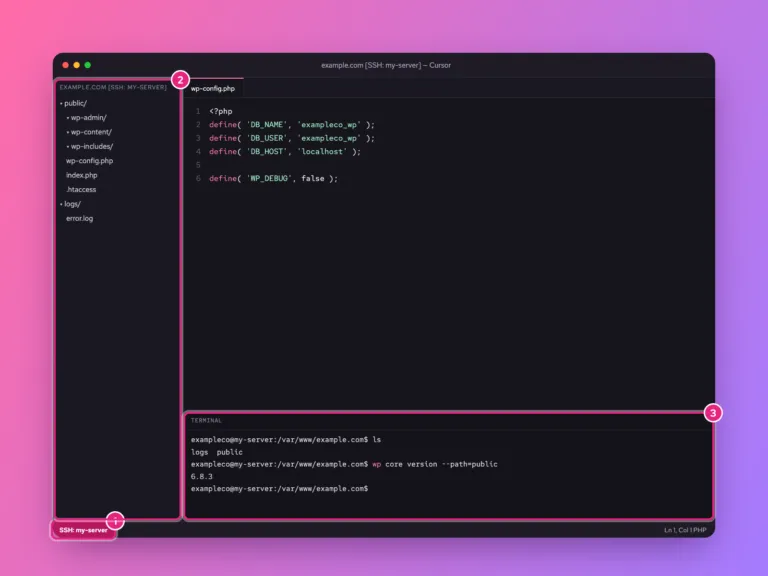
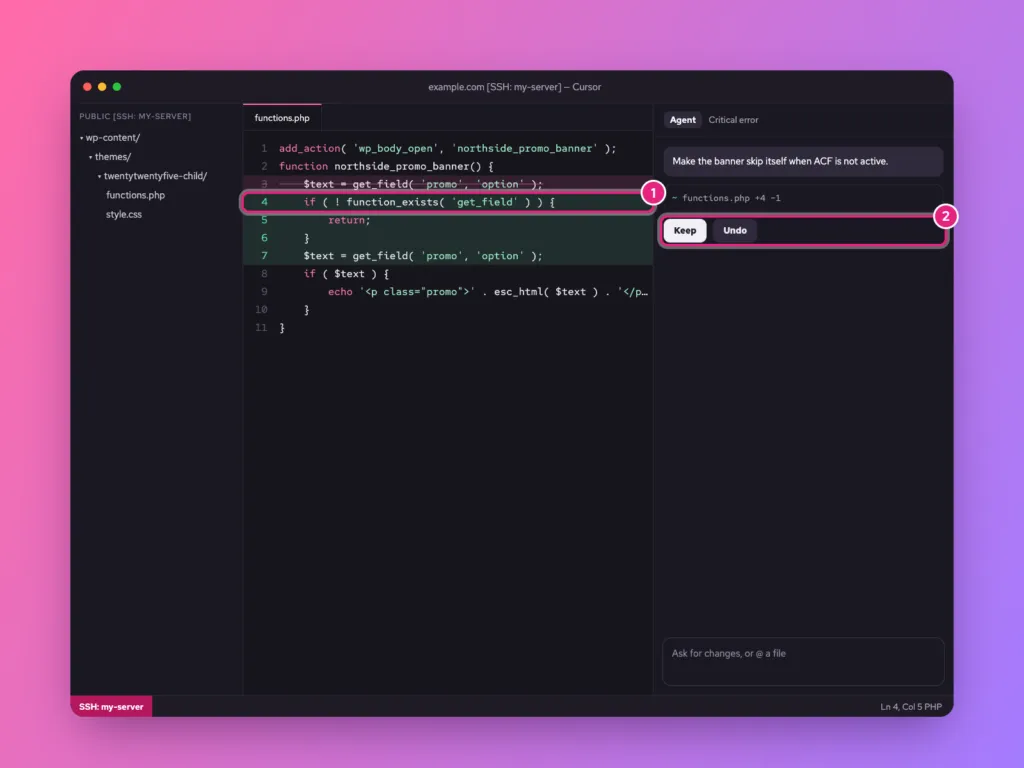
The pictures are illustrations of each step, based on Cursor’s real interface.
Choose where to edit
| Where | Good for | Risk |
|---|---|---|
| A local copy (Studio or Local) | Larger changes, redesigns | None to visitors; you upload when finished |
| A staging site over SSH | Testing on the real server setup | Low; staging is separate |
| The live site over SSH | Urgent fixes, small tweaks | High; changes are live on save |
For the live or staging options, first connect Cursor to the server over SSH. On shared hostingShared hosting Hosting where your website shares one server with many others. Cheap and simple; the host looks after the server. More about Shared hosting → without SSH, download the site, work on it locally, and upload the changed files.
Step 1: Back up and start version control
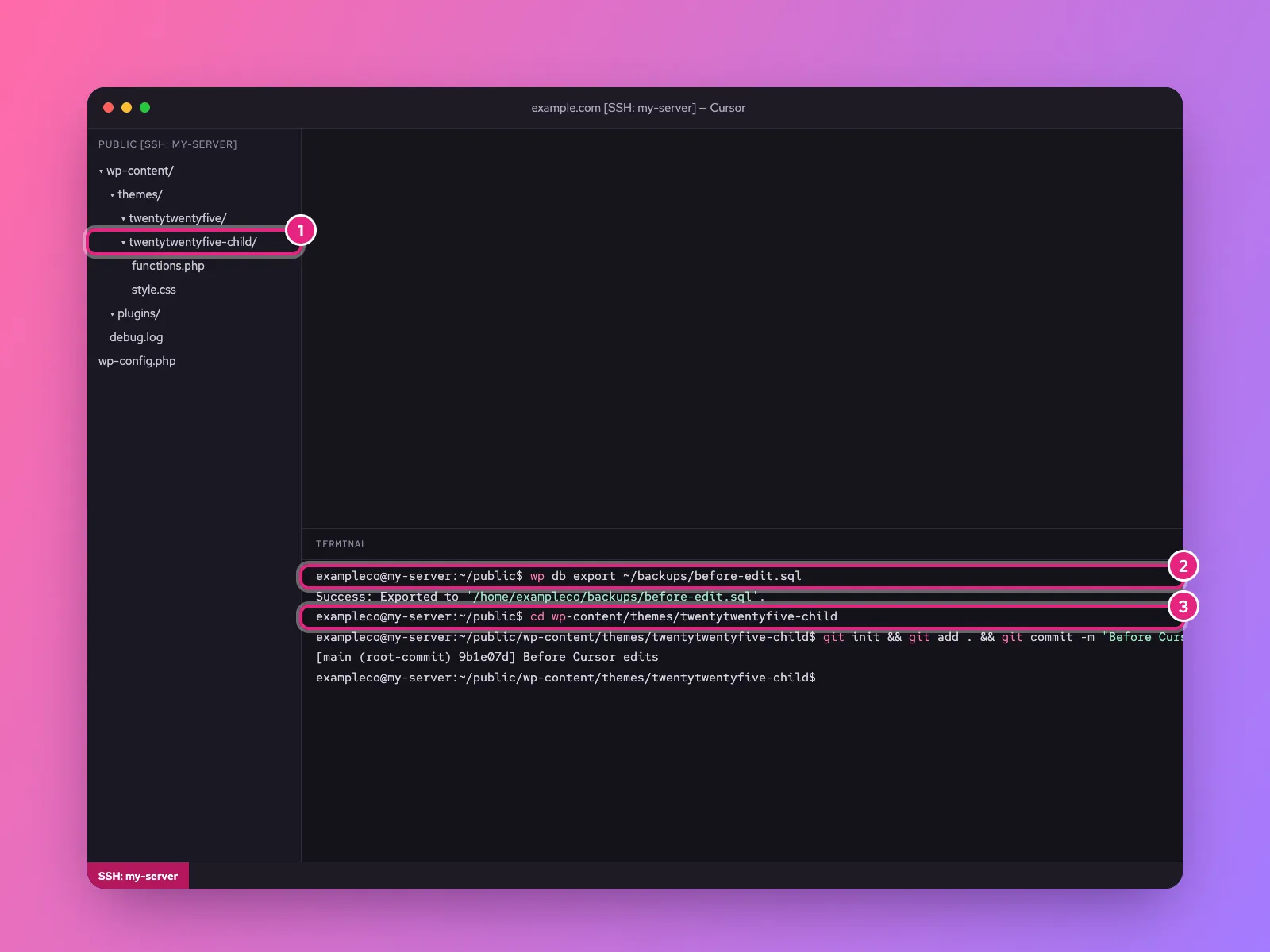
Open the terminal (Ctrl+`) and take a database backup with WP-CLI:
wp db export ~/backups/before-edit.sqlThen put the theme you will edit under Git, so any change can be undone with one command:
cd wp-content/themes/twentytwentyfive-child
git init
git add .
git commit -m "Before Cursor edits"
Make changes in a child theme (1), never the parent theme or a plugin, because updates overwrite those files. If you do not have one, ask Cursor: “Create a child theme of Twenty Twenty-Five called twentytwentyfive-child.” For a full-site backup as well, see backups in cPanel.
Step 2: Diagnose with Ask mode
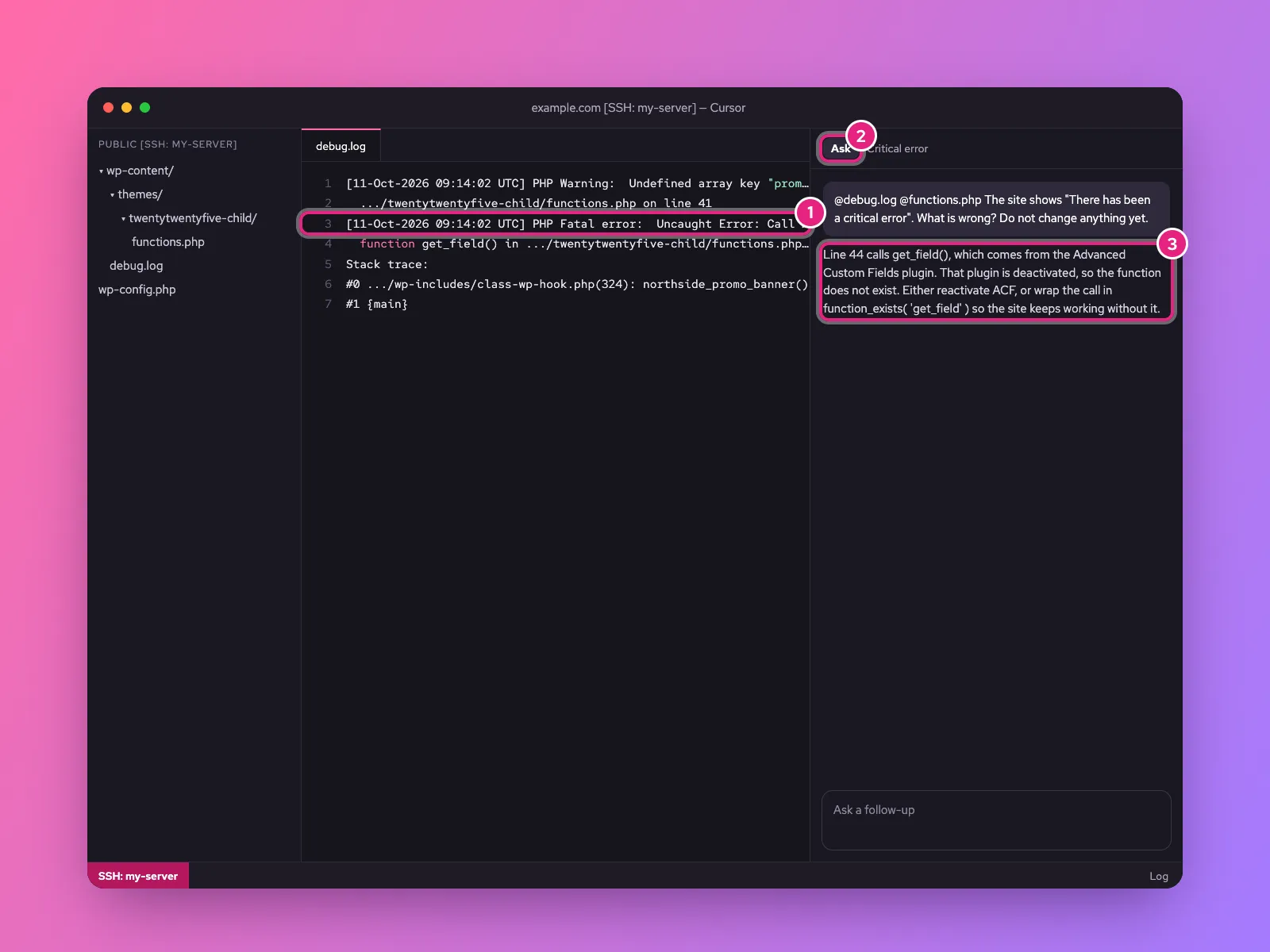
To find a problem without changing anything, switch the AI panel to Ask mode (2). Turn on WordPress’s error log by adding these lines to wp-config.php, above the “That’s all, stop editing” line:
define( 'WP_DEBUG', true );
define( 'WP_DEBUG_LOG', true );
define( 'WP_DEBUG_DISPLAY', false );
Reload the broken page, then ask about the log, mentioning files with @:
@debug.log @functions.php The site shows "There has been a critical
error". What is wrong? Do not change anything yet.
Cursor reads the fatal error (1) and explains it in plain terms (3). Here, the theme calls a function from a plugin that has been deactivated. More causes are in the WordPress white screen guide.
Step 3: Make the change and review it
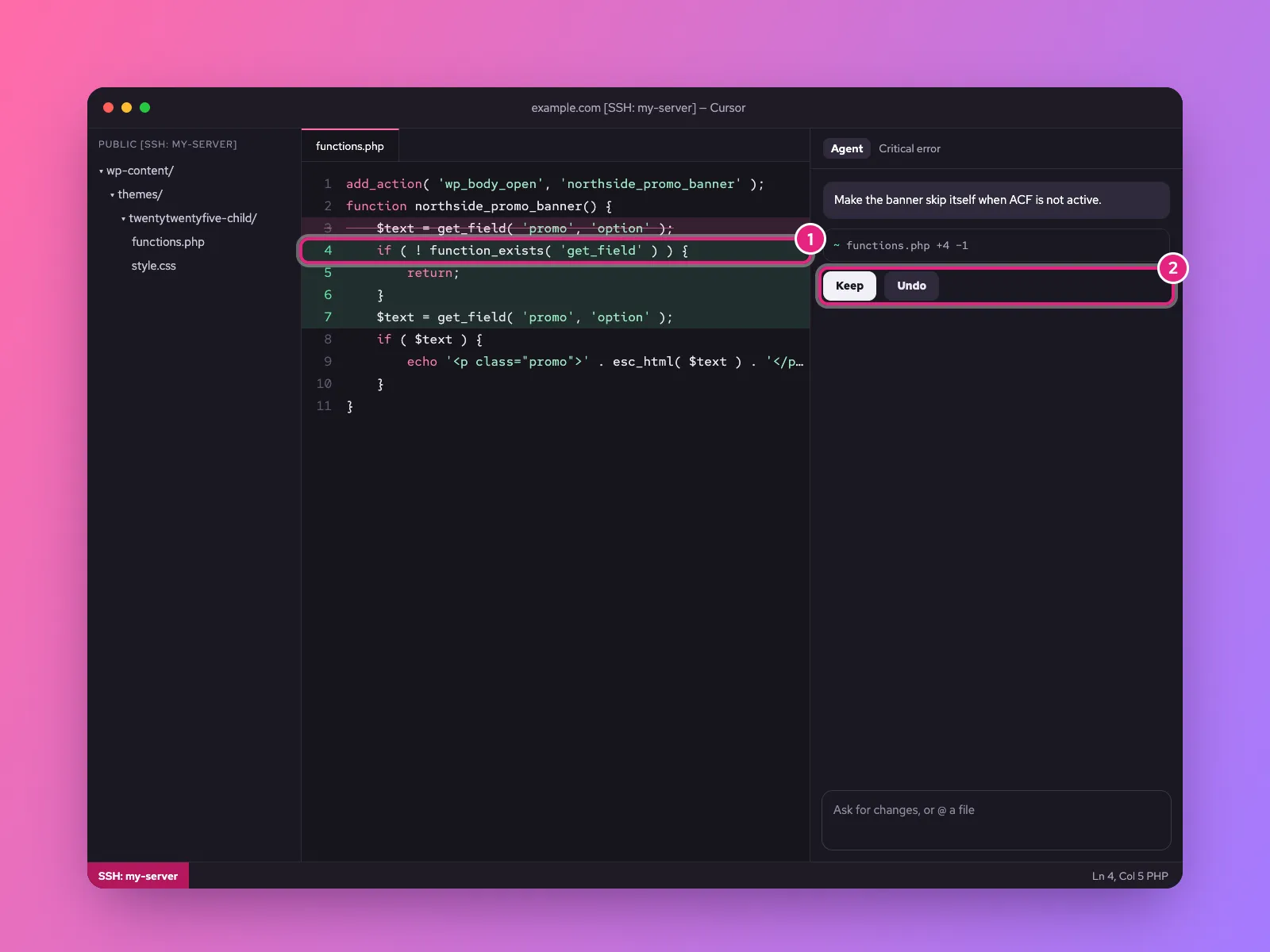
Switch to Agent mode and ask for the fix in one sentence:
Make the banner skip itself when ACF is not active.Read the highlighted lines (1) before accepting. Check that the change is in the file you expected, that it only touches what you asked for, and that any output is escaped with functions like esc_html(). Click Keep to save or Undo to reject (2). On a live site, the saved file is live immediately.
Step 4: Test and commit
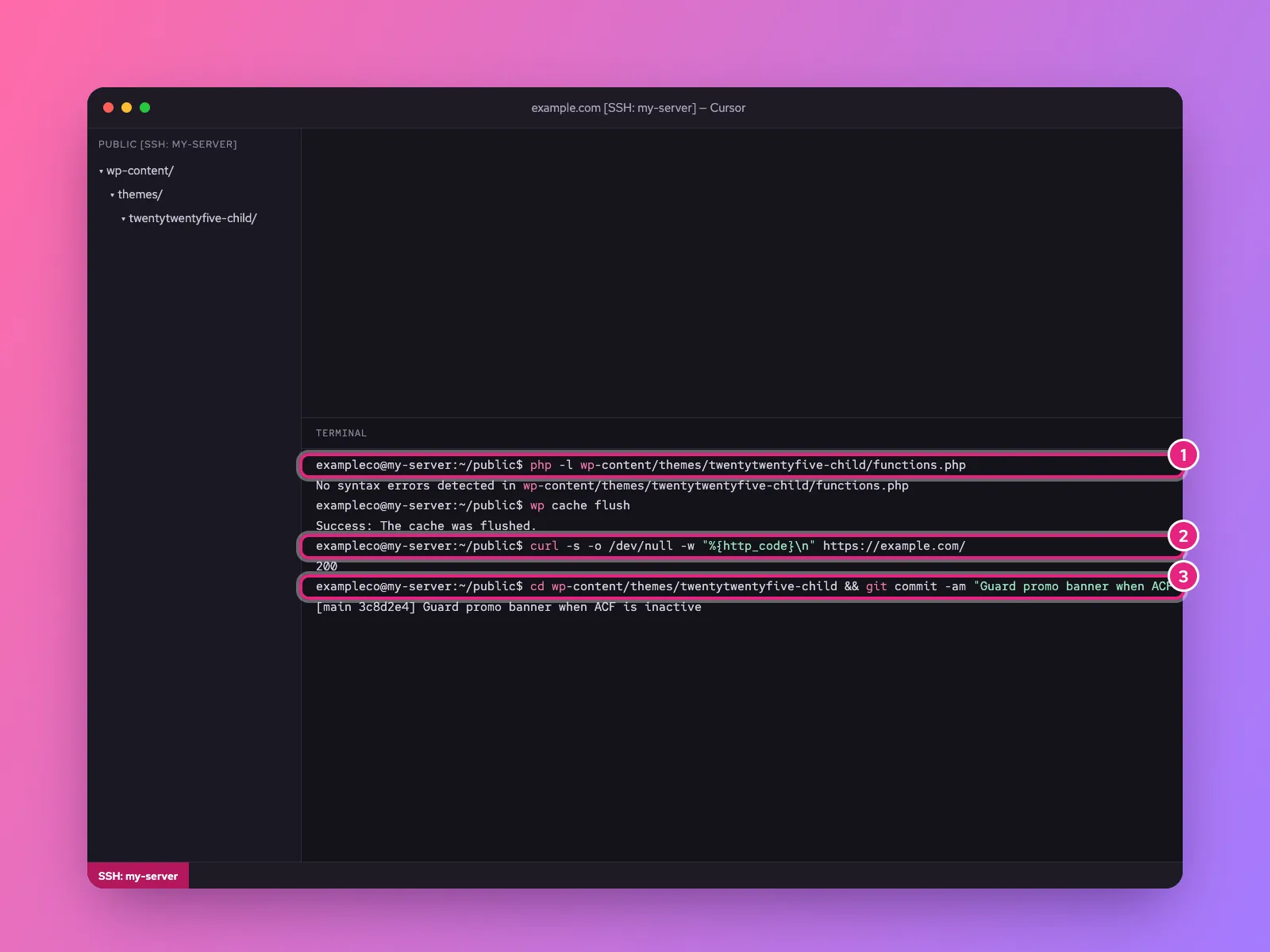
Check the change before you walk away:
php -l wp-content/themes/twentytwentyfive-child/functions.php
wp cache flush
curl -s -o /dev/null -w "%{http_code}\n" https://example.com/
A clean syntax check (1) and a 200 from the home page (2) mean the site is up. Visit the pages you changed in a private browser window, then commit (3):
git commit -am "Guard promo banner when ACF is inactive"If anything is wrong, git checkout . puts every file back as it was at the last commit, and wp db import ~/backups/before-edit.sql restores the database. Turn WP_DEBUG back off when you are done.
What to ask Cursor, and what not to
| Good jobs for Cursor | Do these yourself, or with great care |
|---|---|
Explaining errors in debug.log | Editing WordPress core files |
| Small template and CSS changes in a child theme | Changing plugin files, which updates will overwrite |
| Writing a small custom function or shortcode | Bulk database changes; use wp search-replace --dry-run first |
| Reviewing code for security and escaping | Anything involving payment or user data, without review |
| Writing WP-CLI commands for repetitive tasks | Changing wp-config.php secrets |
Never paste passwords, API keys or customer data into the chat. Cursor’s settings include a Privacy Mode; turn it on for client work.
Common problems
| Problem | Cause | Fix |
|---|---|---|
| Change saved but nothing changes on the site | Page cache or CDN | wp cache flush, purge the cache plugin and CDN |
| Edits disappear after an update | Parent theme or plugin file was edited | Move the change to the child theme |
| Agent wants to edit many unrelated files | Request too vague | Ask for one change, name the file with @ |
| Site broken after Keep | The change had a bug | git checkout . to undo, then ask again with the error |
| “Permission denied” when saving over SSH | Files owned by another user | Connect as the site’s user, or fix ownership |
Related
Something out of date? Software changes. If a step no longer works, tell us and we will check it and update the page.