Cursor’s AI agent can write a complete WordPress theme from a plain-English description. The reliable way to do it is on a local copy of WordPress on your own computer: you see every change instantly, nothing breaks for visitors, and you only upload the finished theme. This guide builds a block theme for an example bakery from start to finish.
Run WordPress locally with WordPress Studio or Local, open its wp-content/themes folder in Cursor, and add a project rule describing how WordPress code should be written. Ask the Agent (Cmd+L) to create a block theme, review the files and click Keep, then activate it in Appearance › Themes. Refine with follow-up prompts, commit to Git, and upload the theme as a zip.
The pictures are illustrations of each step, based on Cursor’s real interface and a real block theme structure.
What you are building
A block theme: the modern kind of WordPress theme, made of a theme.json settings file, HTML templates and patterns. It works with the Site Editor, so after Cursor builds it you can still change text, colours and layouts by clicking, without code.
| File | What it does |
|---|---|
style.css | The theme’s name and details in a comment header |
theme.json | Colours, fonts, spacing and layout widths |
templates/ | Page layouts: index.html, front-page.html, single.html |
parts/ | Reusable pieces such as header.html and footer.html |
patterns/ | Ready-made sections such as a hero or opening hours |
functions.php | Optional PHP, kept small |
Step 1: Run WordPress on your computer
Install one of these free apps and create a new site:
- WordPress Studio, by WordPress.com, for Mac and Windows.
- Local, by WP Engine, for Mac, Windows and Linux.
Both give you a working site at an address like localhost:8881 and a folder on your computer. Find the site’s folder from the app, then open wp-content/themes in Cursor with File › Open Folder. Working inside the themes folder keeps the AI focused and away from WordPress core.
Step 2: Give Cursor rules for WordPress
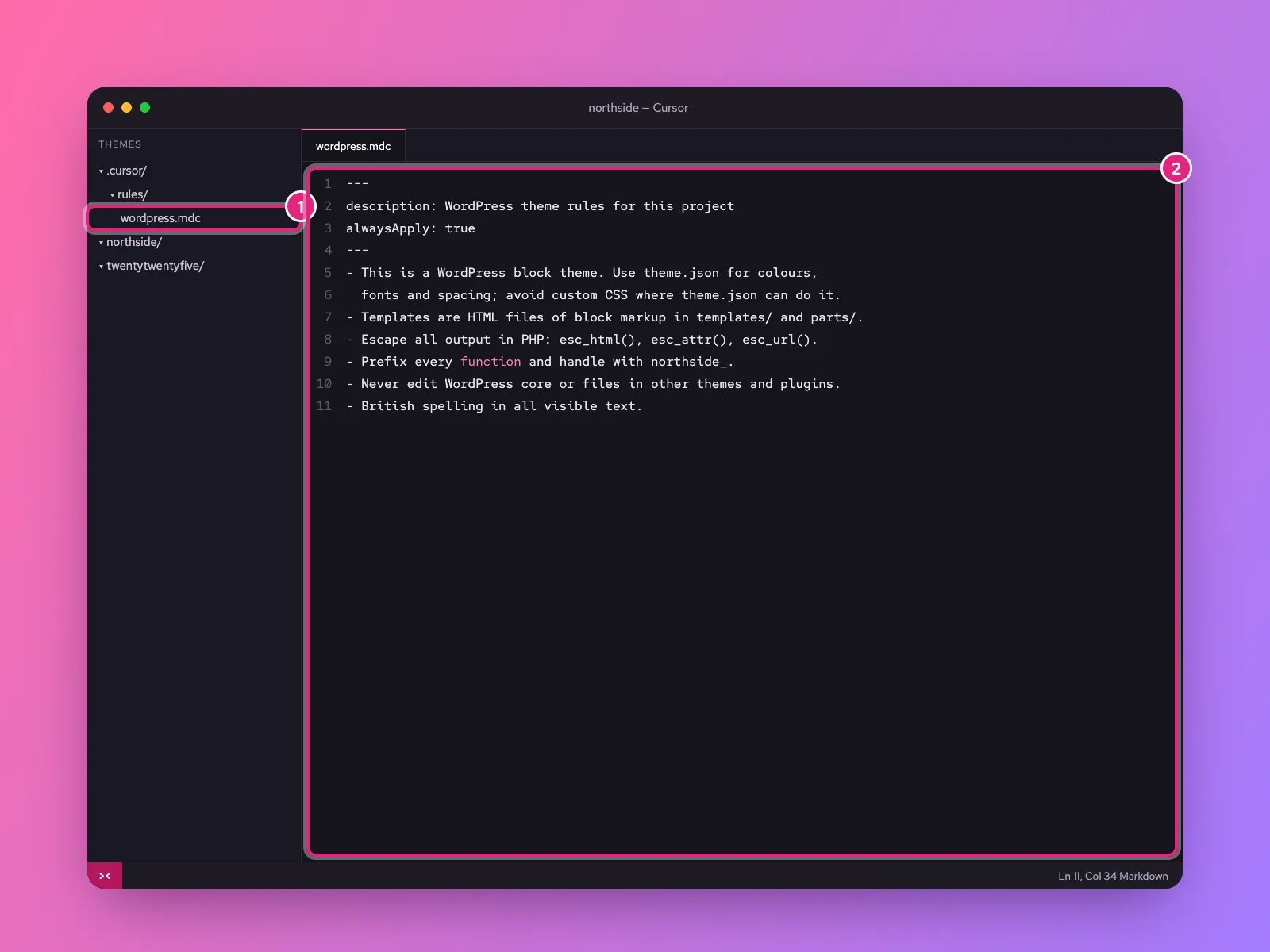
Rules are instructions Cursor follows on every request, so you do not have to repeat them. Create the file .cursor/rules/wordpress.mdc (1) in the folder you opened:
---
description: WordPress theme rules for this project
alwaysApply: true
---
- This is a WordPress block theme. Use theme.json for colours, fonts
  and spacing; avoid custom CSS where theme.json can do it.
- Templates are HTML files of block markup in templates/ and parts/.
- Escape all output in PHP: esc_html(), esc_attr(), esc_url().
- Prefix every function and handle with northside_.
- Never edit WordPress core or files in other themes and plugins.
- British spelling in all visible text.
Change the prefix and the details to suit your project (2). Good rules are the biggest single improvement to what the AI produces.
Step 3: Ask the Agent to build the theme
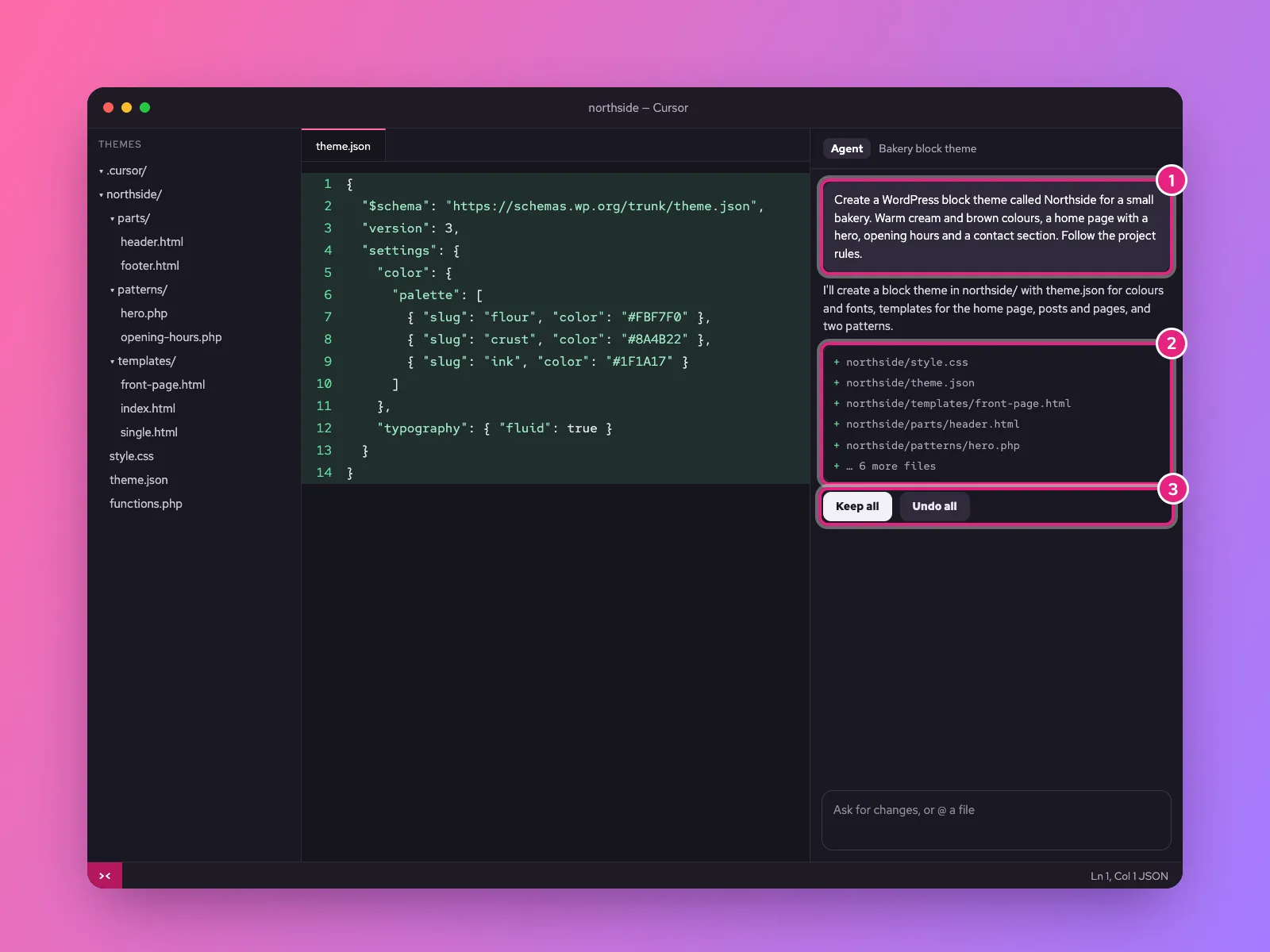
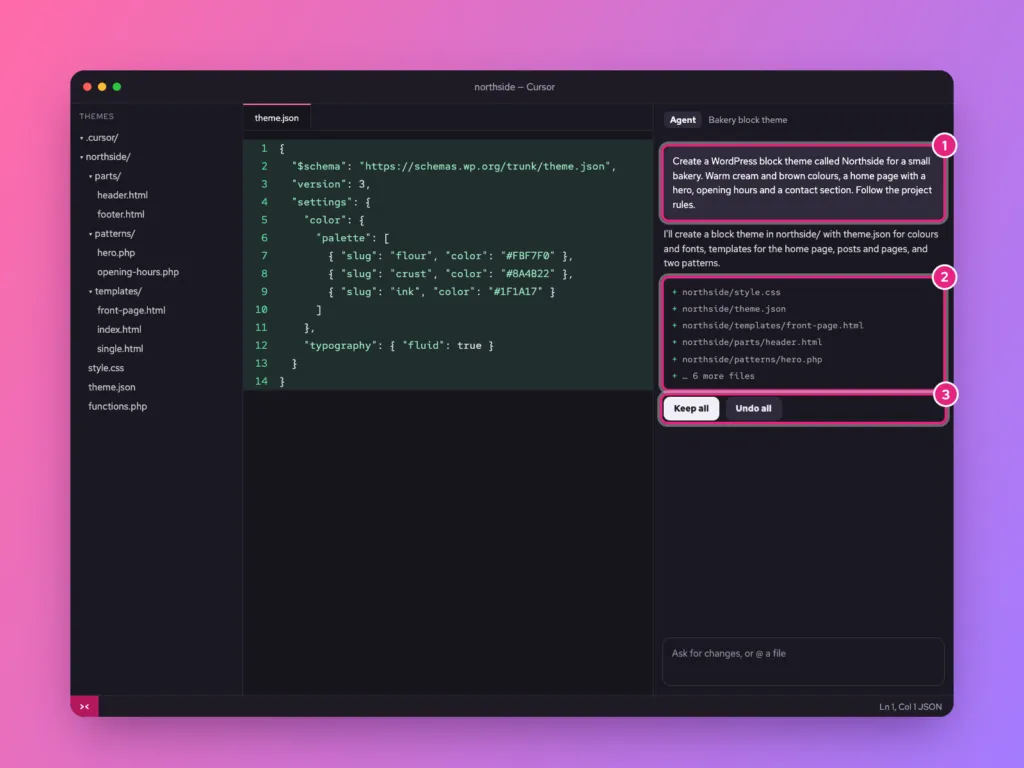
Open the AI panel with Cmd+L (Ctrl+L on Windows and Linux) and make sure the mode is Agent, which can create files. Describe the site as you would to a designer (1):
Create a WordPress block theme called Northside for a small bakery.
Warm cream and brown colours, a home page with a hero, opening hours
and a contact section. Follow the project rules.
The Agent lists every file it creates (2). Open a few and read them; the theme.json palette and the template files are the ones that matter most. Click Keep all to accept or Undo all to throw the attempt away (3). If you change your mind later, every message in the chat has a checkpoint you can restore.
Step 4: Activate it in WordPress
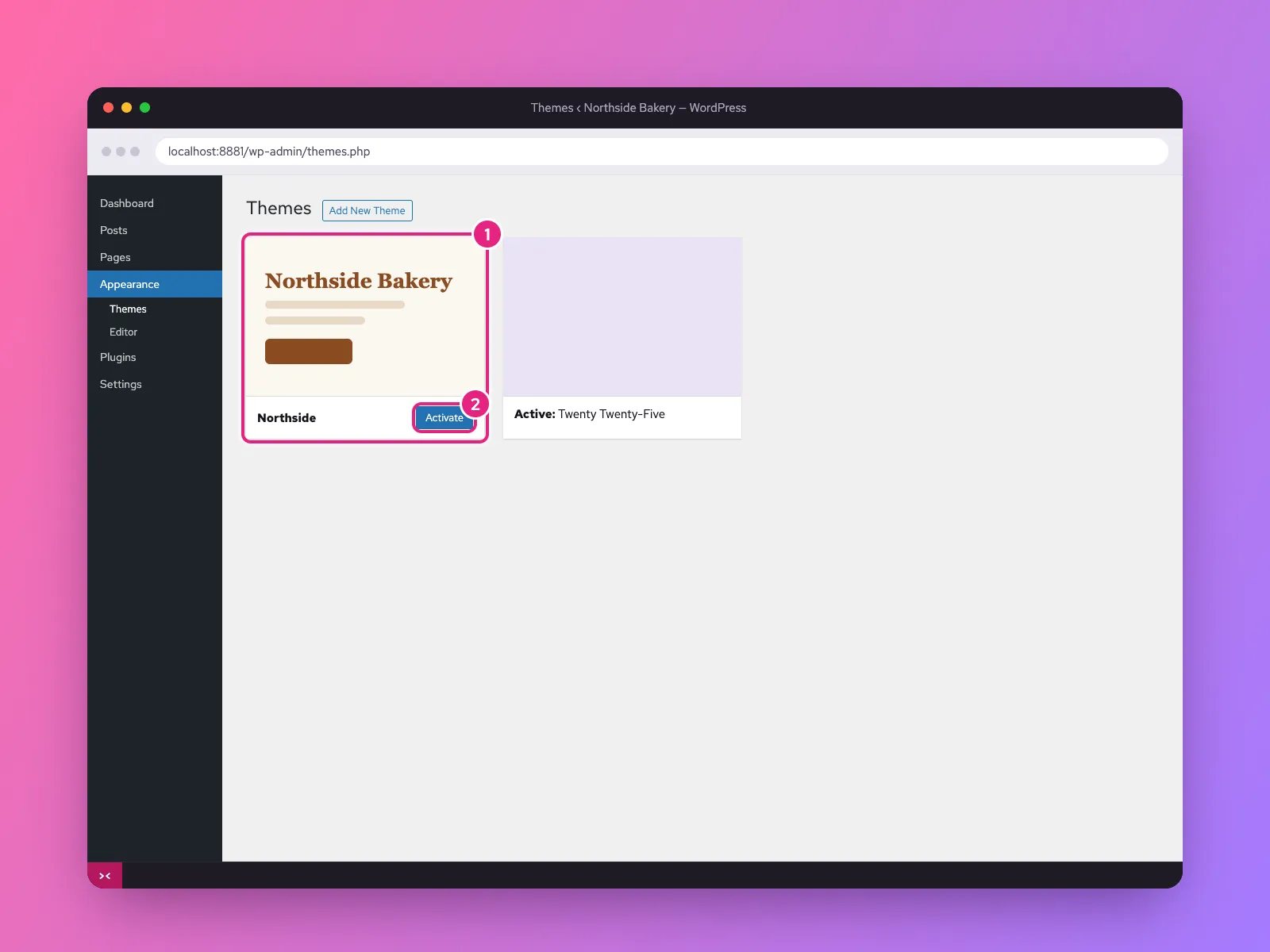
In your local WordPress admin, go to Appearance › Themes. The new theme appears (1) because its folder is in wp-content/themes. Click Activate (2) and view the site. If it does not appear, the style.css header is missing or malformed; ask Cursor to check it.
Step 5: Refine with follow-up requests
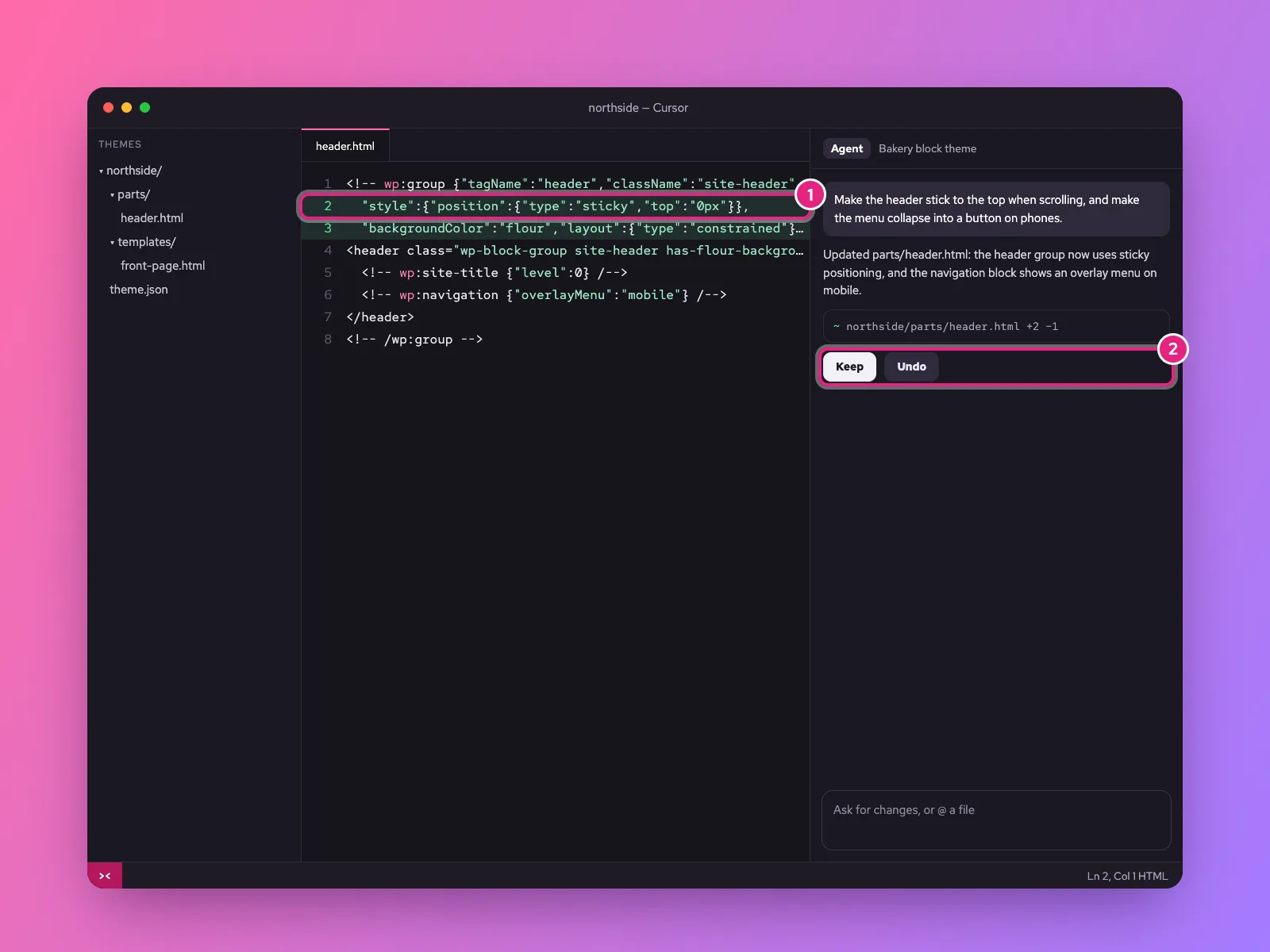
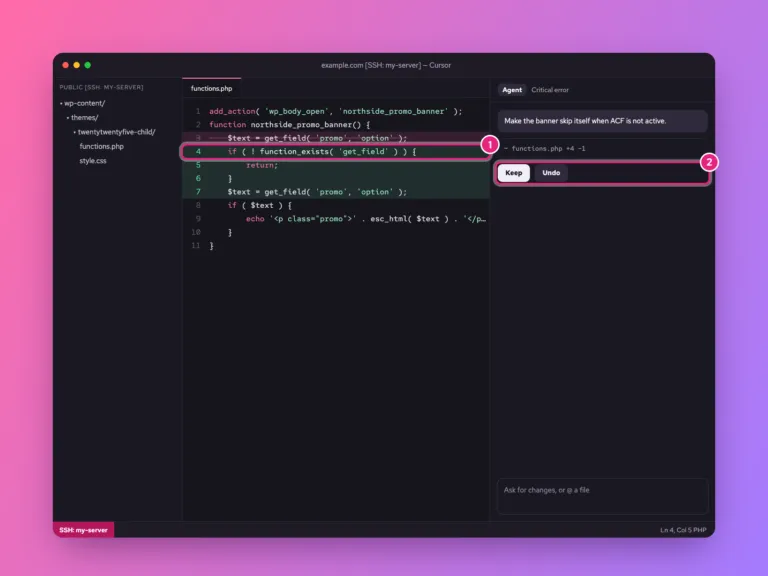
Ask for one change at a time and check it in the browser before the next. Changed lines are highlighted (1), so you can see exactly what moved, then Keep or Undo (2). Prompts that work well:
- “Make the header stick to the top when scrolling, and collapse the menu into a button on phones.”
- “Add a block pattern called Opening hours with a two-column table.”
- “Use the Crust colour for all buttons and add a hover state.”
- “Check every template for accessibility problems: heading order, contrast, missing alt text.”
Mention files with @, such as @theme.json, to point the AI at the right place. If something breaks, paste the error from the browser or from wp-content/debug.log into the chat.
Step 6: Save your work and put it live
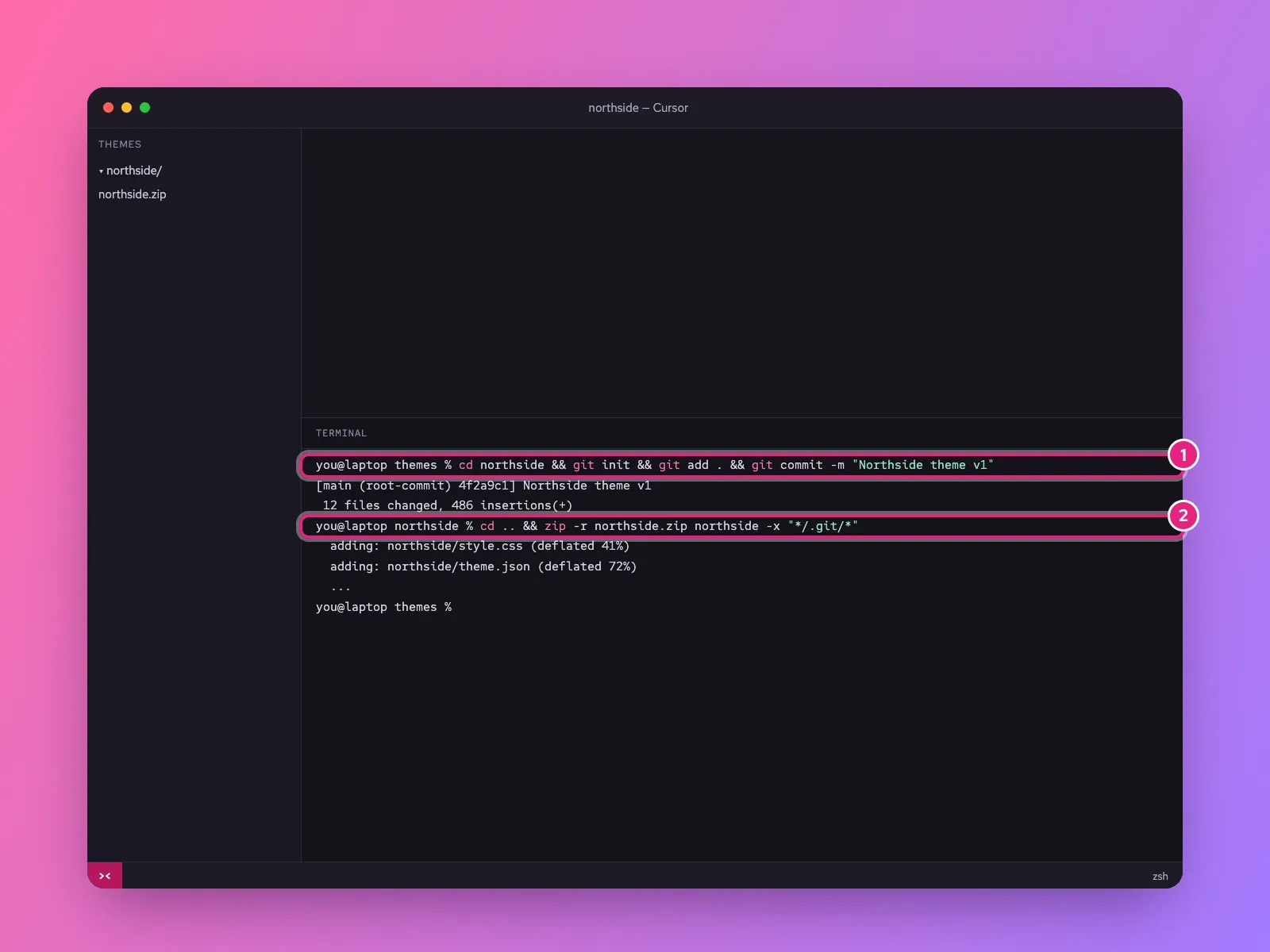
Commit the theme to Git so you can always go back (1), then make a zip of the folder (2):
cd northside
git init
git add .
git commit -m "Northside theme v1"
cd ..
zip -r northside.zip northside -x "*/.git/*"
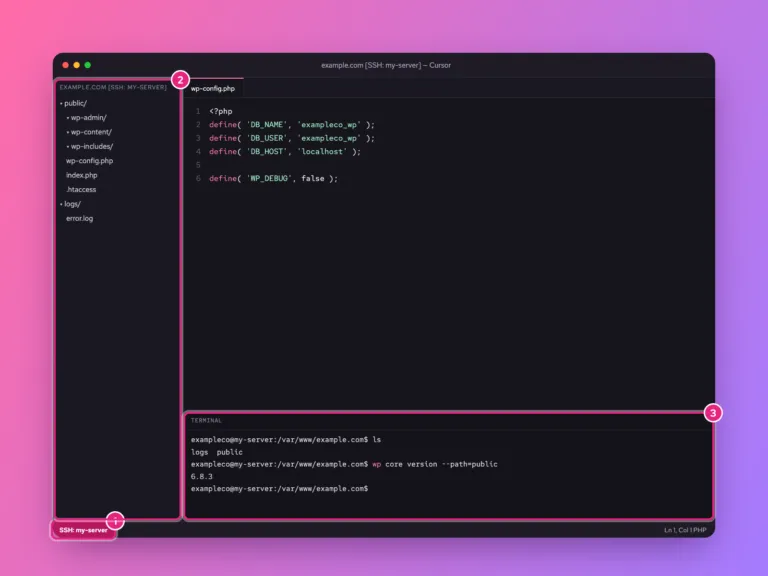
On the live site, go to Appearance › Themes › Add New Theme › Upload Theme, choose the zip, install and activate it. Take a backup of the live site first. On a server you reach over SSHSSH A secure way to type commands on a server from your own computer, as if you were sitting at it. More about SSH →, you can instead connect Cursor directly and copy the folder into wp-content/themes.
Check before you launch
- Every page type looks right: home, a post, a page, search results, the 404 page.
- It works on a phone-sized window.
- Images have alt text and headings go in order (one H1 per page).
- No PHP warnings in
wp-content/debug.logwithWP_DEBUGon. - The site passes a speed test; check compression with the compression checker.
Common problems
| Problem | Cause | Fix |
|---|---|---|
| Theme does not show in Appearance › Themes | Missing Theme Name: in style.css | Ask the Agent to fix the header |
| “The theme is missing the index.html template” | Block themes need templates/index.html | Ask the Agent to add it |
| Blocks show “This block contains unexpected or invalid content” | Hand-written block markup does not match what the editor saves | Open the template in the Site Editor and click Attempt recovery, then let Cursor copy the corrected markup |
| White screen or critical error | A PHP error in functions.php | See WordPress white screen and read debug.log |
| AI edits files outside the theme | Folder opened too high up | Open only wp-content/themes, and keep the rule about core files |
Related
- How to edit a WordPress site with Cursor, for changes to a site that is already live.
- How to install WordPress in cPanel, for the hosting side.
- How to connect Cursor to a server over SSH
Something out of date? Software changes. If a step no longer works, tell us and we will check it and update the page.