cPanelcPanel The most popular hosting control panel: a website where you manage your email, files, databases and domains with point-and-click tools instead of commands. More about cPanel → can make two kinds of backup: a full backup of the whole account, for moving to another server, and partial backups of your files, databases and email settings, which you can restore yourself. This guide covers both, and where each one fits.
For a copy you can restore yourself, use Files » Backup and download a Home Directory backup plus each database. For a complete account archive, for example to move hosts, use Download a Full Account Backup. Store copies somewhere other than the server.
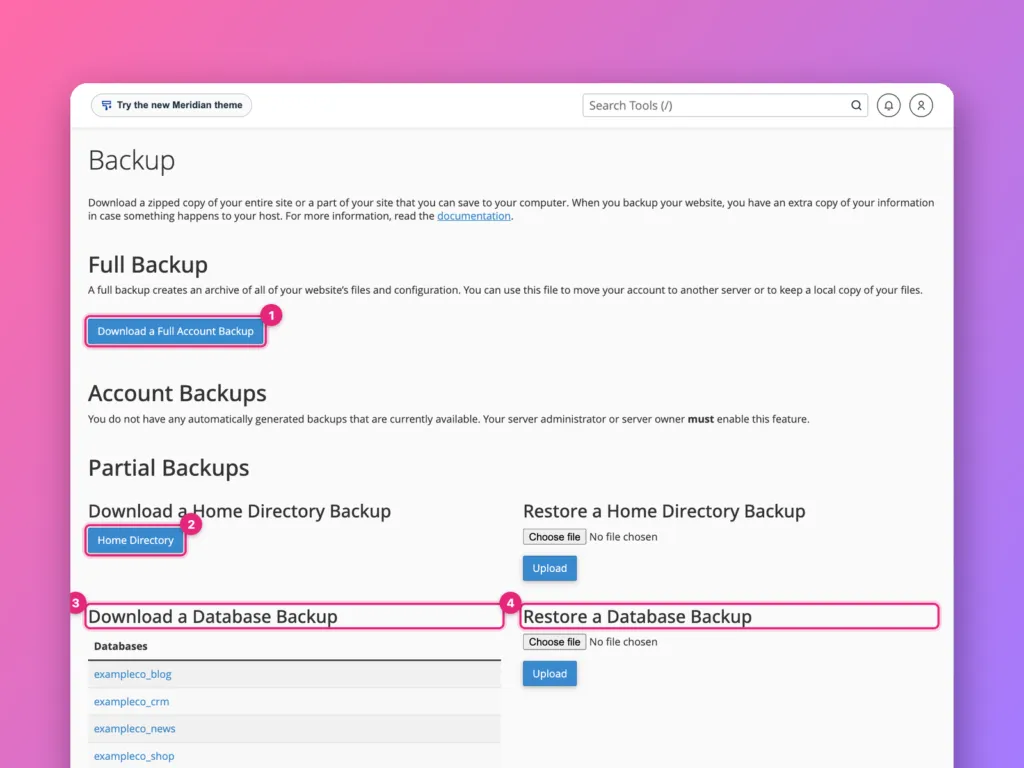
The Backup page
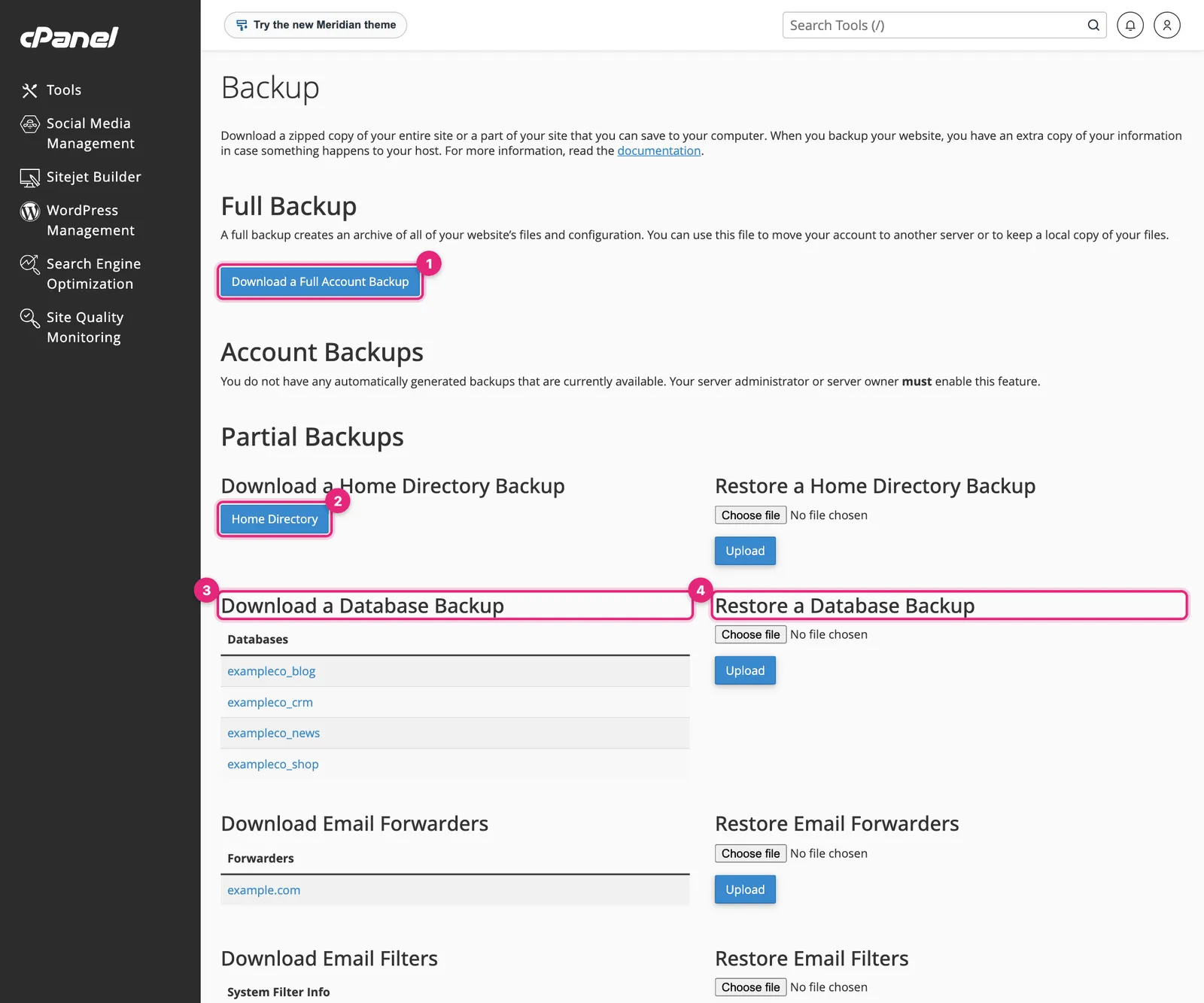
- Download a Full Account Backup creates one archive of everything.
- Home Directory downloads all your files, including websites and email messages.
- Download a Database Backup lists each database; click one to download it.
- Restore a Database Backup uploads a database file back.
Below these are the same download and restore pairs for email forwarders and email filters.
Full account backups
A full backup contains your files, databases, email accounts and messages, DNSDNS The internet’s phone book. It turns a name people can remember, like example.com, into the number address computers use to find the server. More about DNS → records, SSL certificates and settings: everything needed to rebuild the account on another cPanel server.
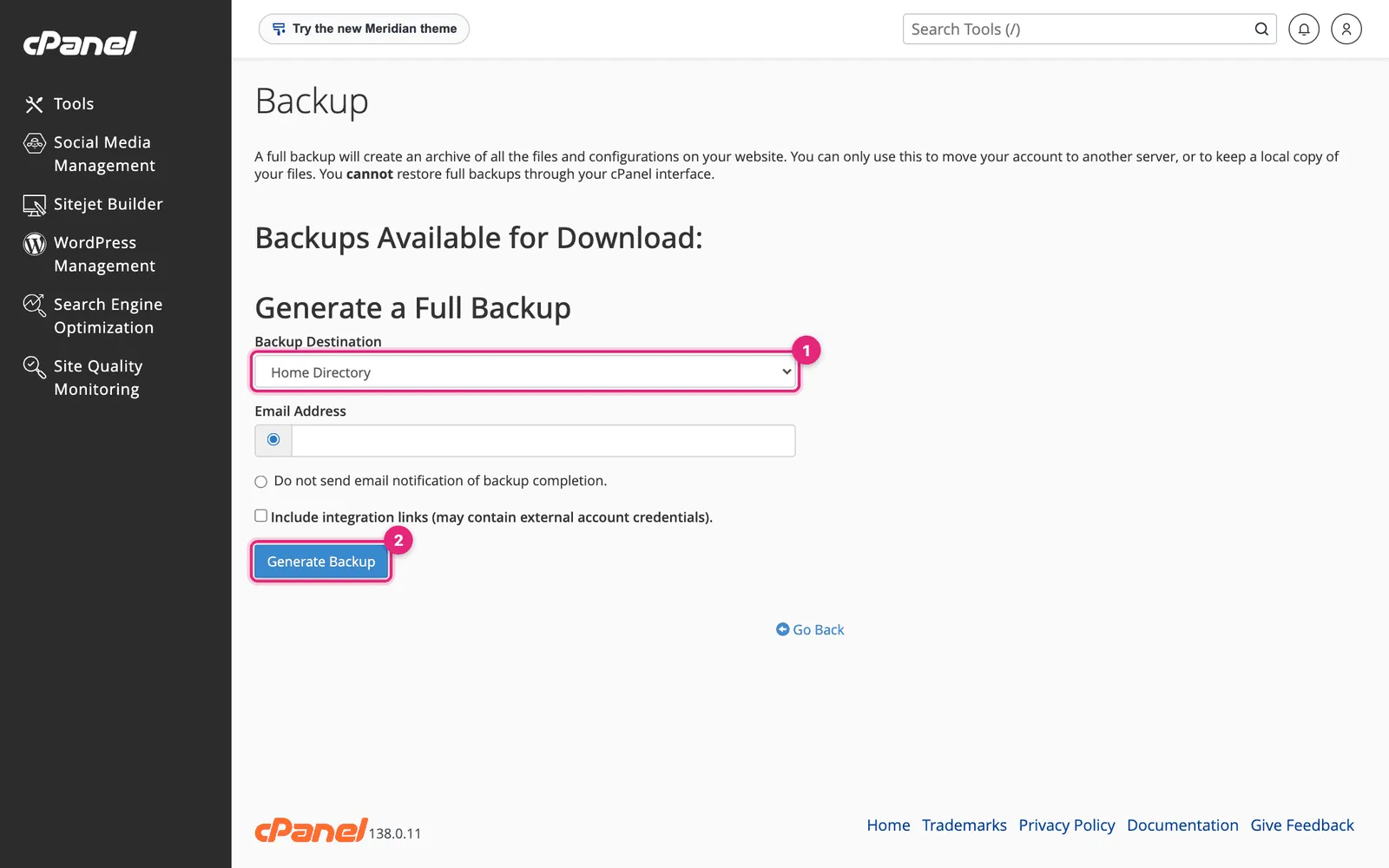
- Backup Destination: choose Home Directory to save it in your account, ready to download. The remote options (FTP, SCP) send it straight to another server.
- Leave an email address to be told when it is ready, then click Generate Backup.
Large accounts take minutes to hours. When it finishes, the archive appears at the top:
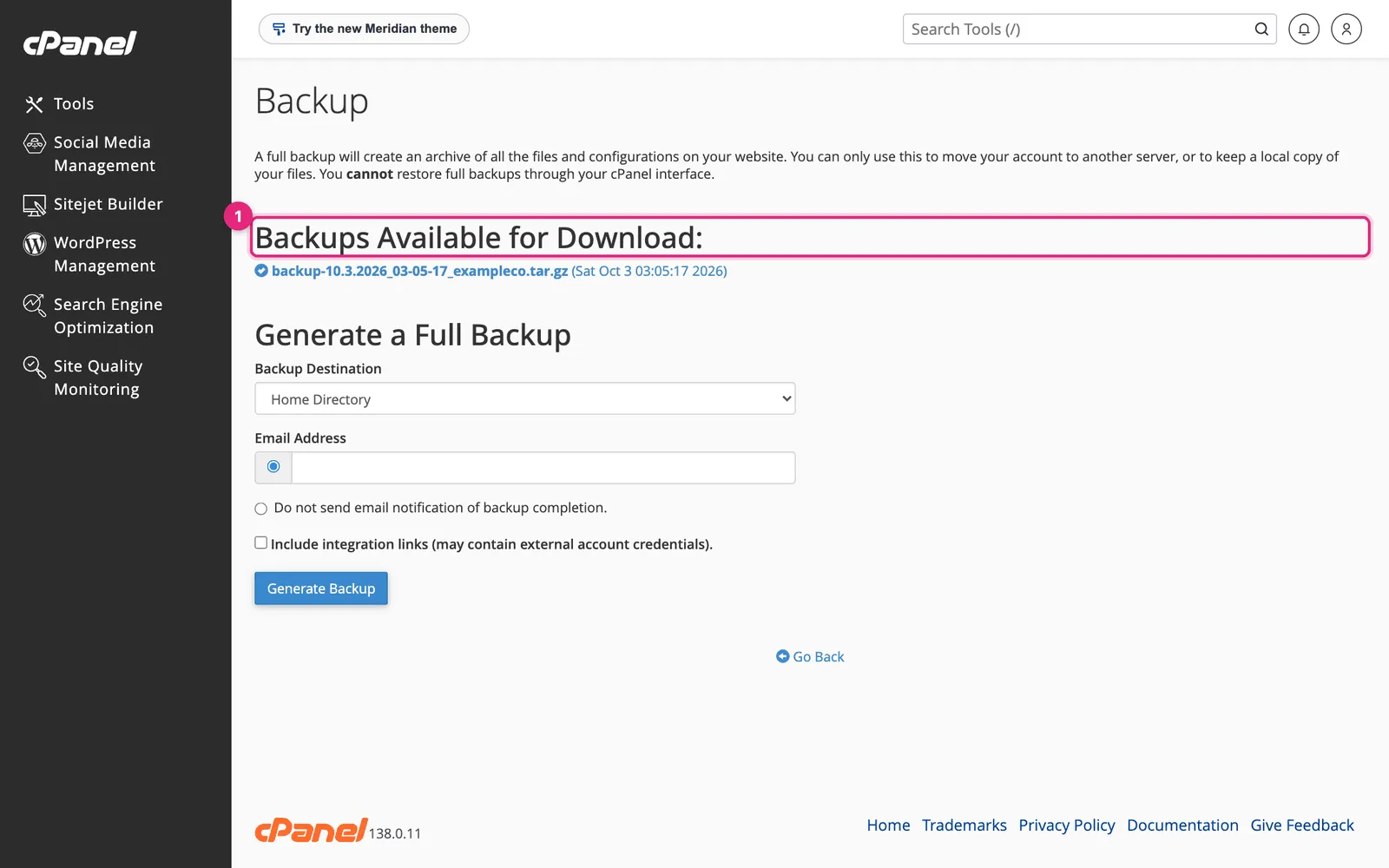
Click it to download, then delete it from the server: it counts against your disk space, and anyone who obtains it gets your whole account, including email.
You cannot restore a full backup yourself from cPanel. Only a server administrator can, in WHMWHM WebHost Manager: the administrator side of cPanel, used by whoever runs the server to create and manage hosting accounts. More about WHM →. A full backup is for moving to another server or for your host to restore in an emergency. For backups you can restore on your own, use the partial backups below.
Partial backups you can restore yourself
For routine safety copies, download two things:
- Home Directory: a compressed archive of all your files.
- Each database: a compressed
.sql.gzfile.
To restore, use the matching Restore section: Choose File, select the backup, and Upload. A home directory restore puts files back over existing ones without deleting extras. A database restore replaces the database’s contents, so restore into the right one.
The Backup Wizard
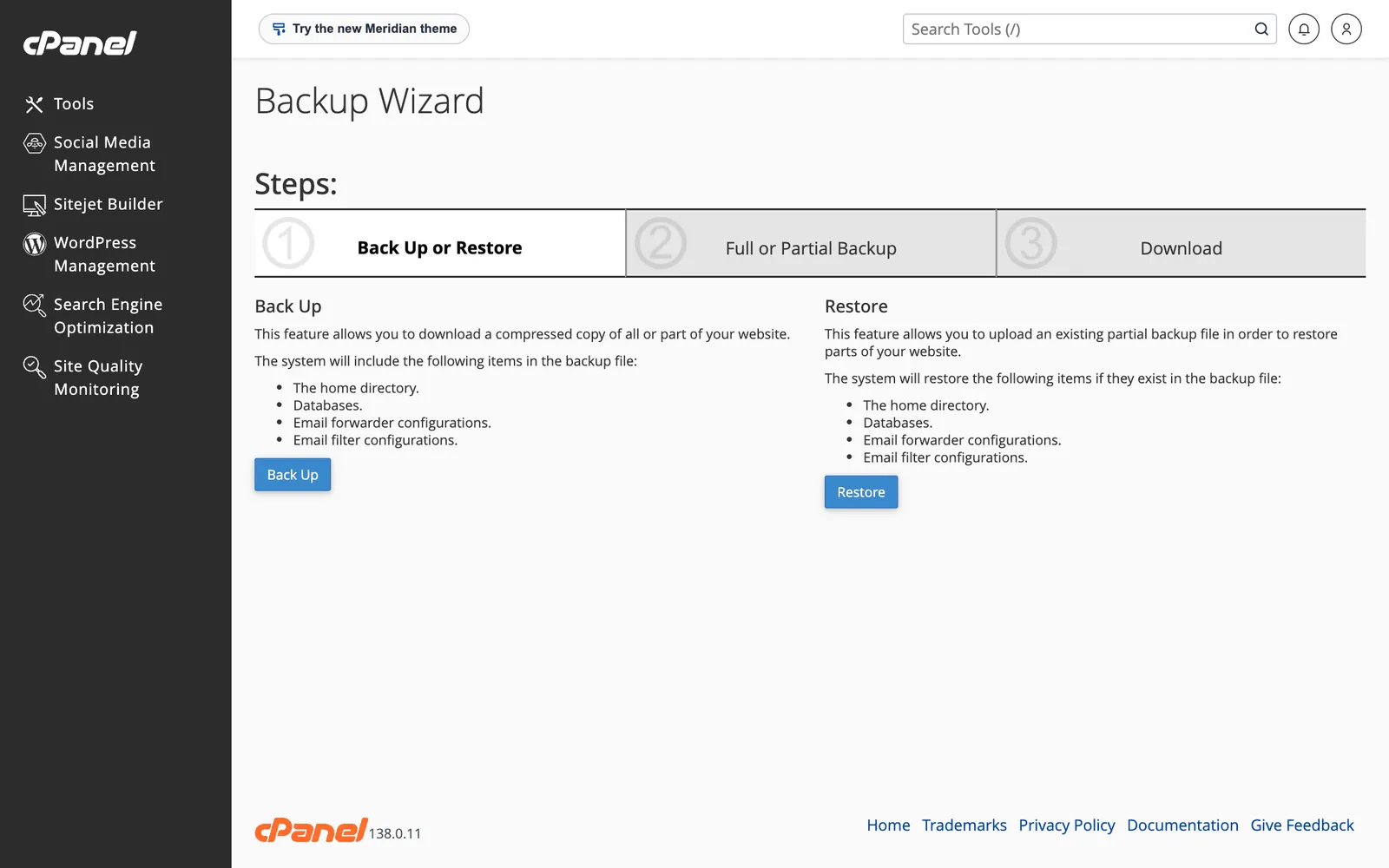
The Backup Wizard offers the same options as steps: Back Up or Restore, then Full or Partial, then the download. It is easier the first time; the Backup page is quicker once you know what you want.
Your host’s backups
Many hosts also take automatic backups. If they do, the Backup page lists them under Account Backups, often with a Restore button, or they appear in a separate tool such as JetBackup. Before relying on them, find out:
- How often they run and how many days are kept.
- Whether they are stored on a different server.
- Whether restoring costs anything or needs a support ticket.
Treat host backups as a bonus. Keep your own copies too, somewhere the host cannot affect.
A sensible routine
| What | How often | Where |
|---|---|---|
| Database download | Weekly, and before every update | Your computer or cloud storage |
| Home directory download | Monthly, and before big changes | Your computer or cloud storage |
| Full account backup | Before moving hosts | Download, then delete from the server |
For WordPress sites, WP Toolkit’s Back Up / Restore makes per-site snapshots that you can restore in one click, which is the quickest safety net before plugin updates. See WordPress in cPanel.
Related
- How to migrate cPanel to cPanel, where full backups are restored.
- How to back up a Linux server, for servers you run yourself.
Something out of date? Software changes. If a step no longer works, tell us and we will check it and update the page.