Sites need a supported PHP version, and sometimes more memory or larger uploads than the defaults allow. cPanelcPanel The most popular hosting control panel: a website where you manage your email, files, databases and domains with point-and-click tools instead of commands. More about cPanel → has two tools for this, and CloudLinux servers add a third. Which one to use depends on how your host set the server up.
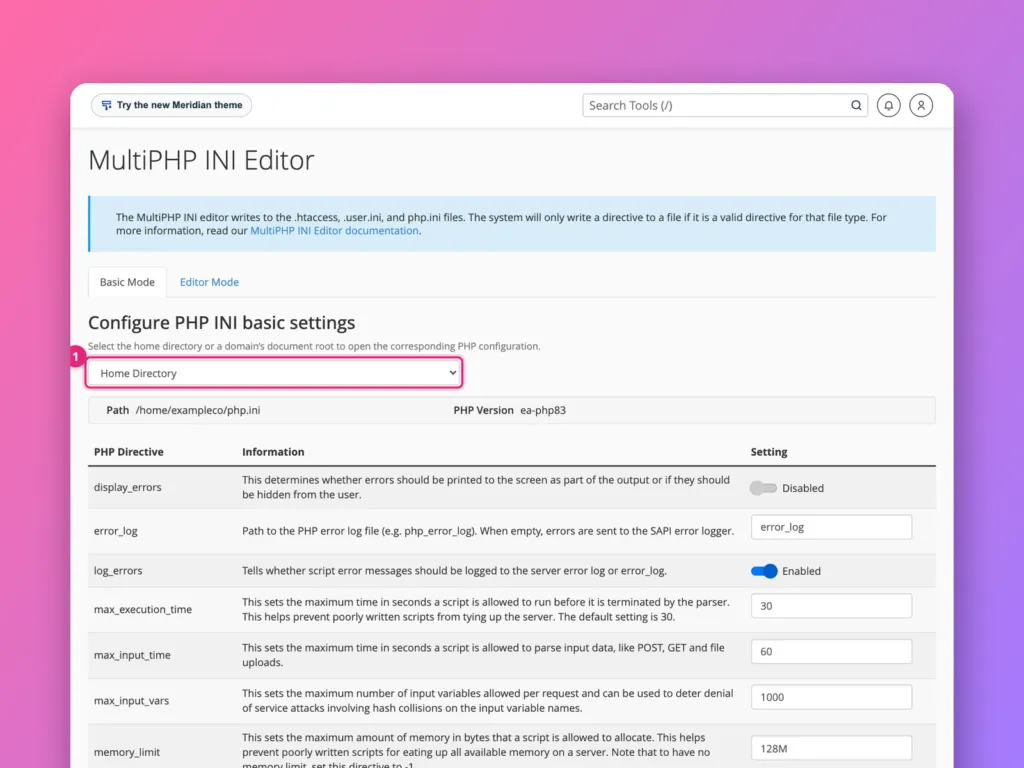
Use Software » MultiPHP Manager to choose the PHP version for each domain, and Software » MultiPHP INI Editor to change settings such as memory_limit and upload_max_filesize. If your host uses CloudLinux, Select PHP Version may be the tool that controls PHP instead.
Which tool controls PHP?
| Tool | Where | Controls |
|---|---|---|
| MultiPHP Manager | Software | PHP version per domain (the ea-php versions) |
| MultiPHP INI Editor | Software | PHP settings per domain or folder |
| Select PHP Version | Software, on CloudLinux servers | Version, extensions and settings (the alt-php versions) |
On CloudLinux servers, sites using a version from MultiPHP Manager ignore Select PHP Version, and the other way round. If a change seems to do nothing, you are probably in the other tool.
Change the PHP version
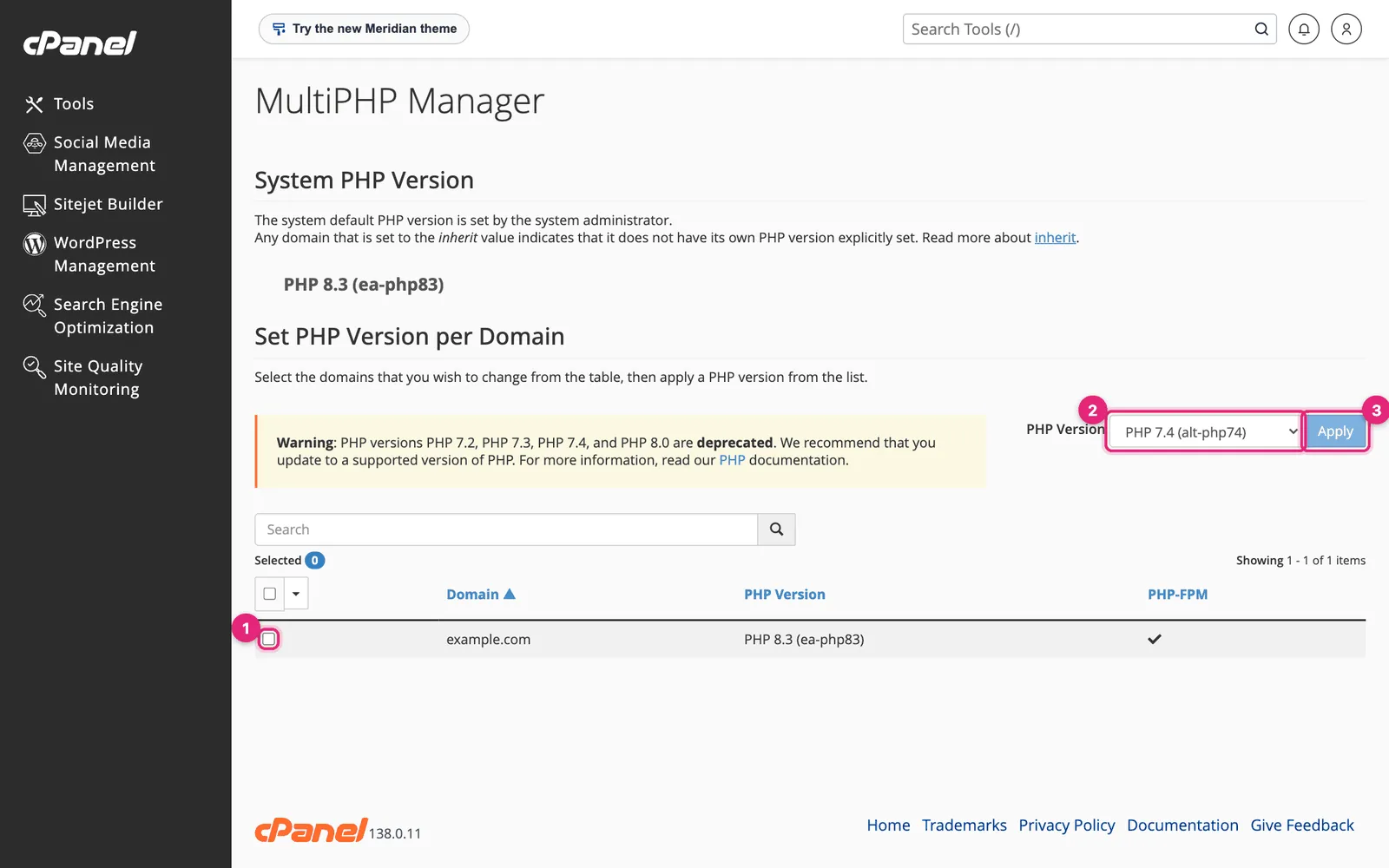
- Tick the domain or domains to change.
- Choose the PHP Version.
- Click Apply.
The change is immediate. Then load your site and its admin area. If something breaks, switch back the same way.
Choose the newest version your software supports. Versions marked deprecated no longer receive security fixes and should only be used while you upgrade old code. For WordPress, check plugins and themes are up to date first; old plugins are the usual reason a site fails on a newer PHP.
Change PHP settings
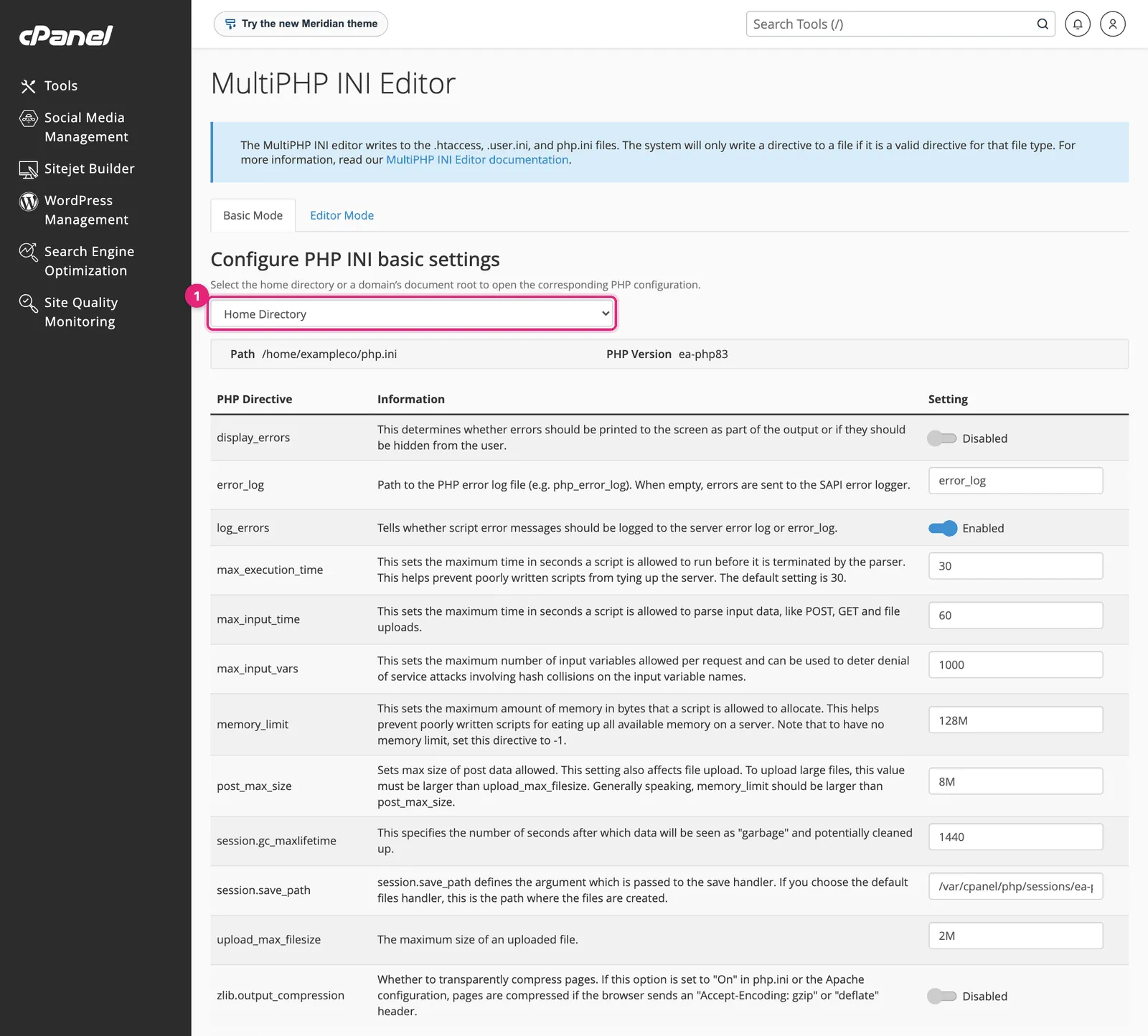
- Choose the location: Home Directory for all sites, or a specific domain.
- Change the values you need.
- Scroll down and click Apply.
The settings people change most:
| Directive | Default here | Raise it when |
|---|---|---|
memory_limit | 128M | “Allowed memory size exhausted” errors; try 256M |
upload_max_filesize | 2M | Uploads of large images, themes or plugins fail |
post_max_size | 8M | Must be at least as large as upload_max_filesize |
max_execution_time | 30 | Imports or reports time out; try 120 |
max_input_vars | 1000 | Large menus or forms lose settings when saved |
Raise values only as far as you need. A very high memory_limit hides a badly written plugin instead of fixing it, and on shared hostingShared hosting Hosting where your website shares one server with many others. Cheap and simple; the host looks after the server. More about Shared hosting → your account’s own memory limit still applies.
Editor Mode shows the raw php.ini text for the chosen location, for settings the basic list does not include.
CloudLinux: Select PHP Version
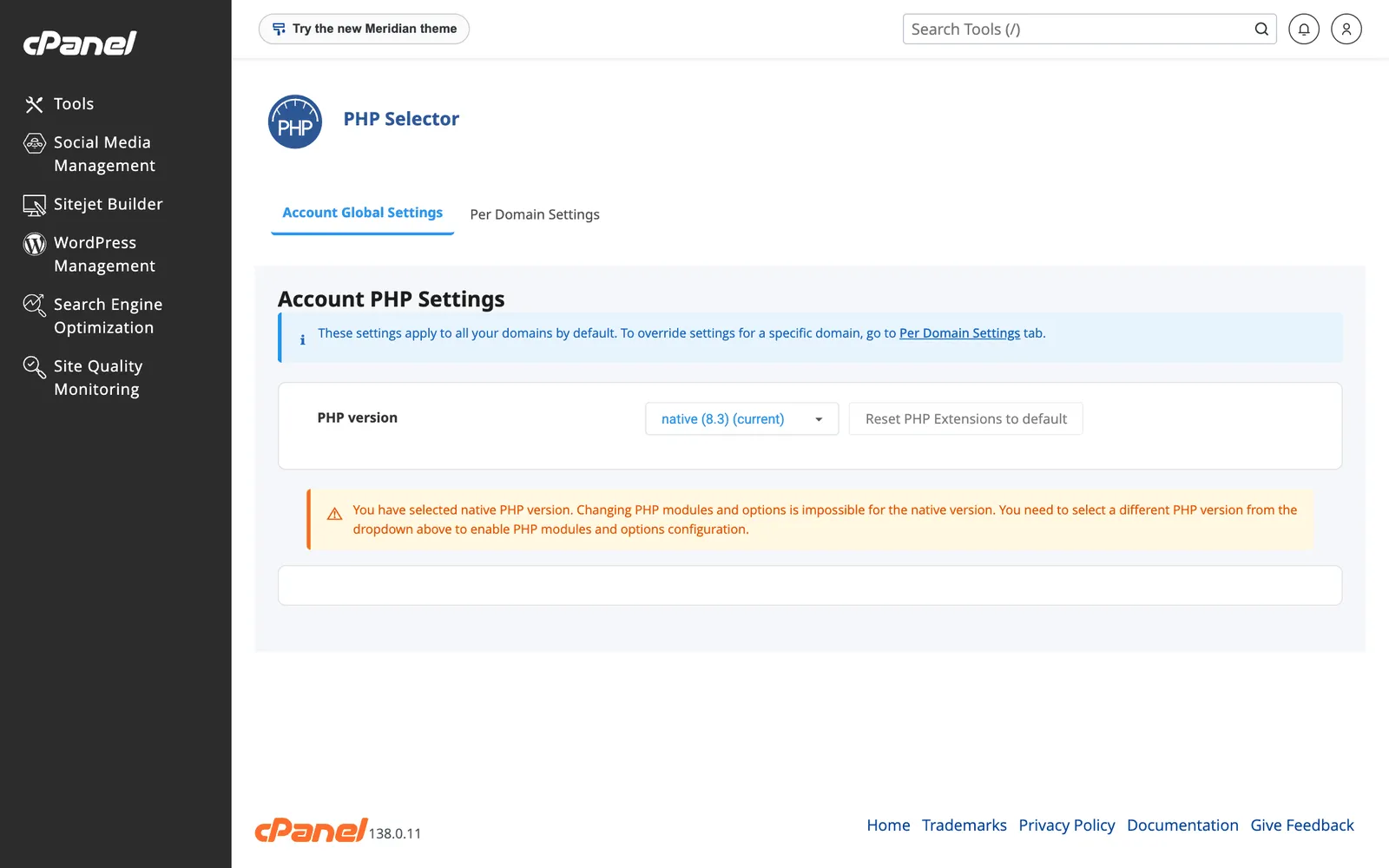
On CloudLinux servers, the PHP Selector offers its own versions and lets you switch individual extensions on and off, such as imagick, intl or redis. While the version is native, PHP follows MultiPHP Manager and the extension list is locked, as the notice here says. Choose a specific version to unlock extensions and an Options tab with settings like those above.
Check what is actually running
Create a file named info.php in the site’s folder containing:
<?php phpinfo();Open https://example.com/info.php, check the version and the settings you changed, then delete the file: it reveals details about the server that attackers can use.
Related
- 500 Internal Server Error, often caused by PHP limits or versions.
- WordPress white screen of death.
- How to check resource usage in cPanel.
Something out of date? Software changes. If a step no longer works, tell us and we will check it and update the page.