WHMWHM WebHost Manager: the administrator side of cPanel, used by whoever runs the server to create and manage hosting accounts. More about WHM →’s Backup Configuration takes automatic backups of every cPanelcPanel The most popular hosting control panel: a website where you manage your email, files, databases and domains with point-and-click tools instead of commands. More about cPanel → account on the server: files, databases, email and settings. Set it up once, send copies off the server, and test a restore before you need one.
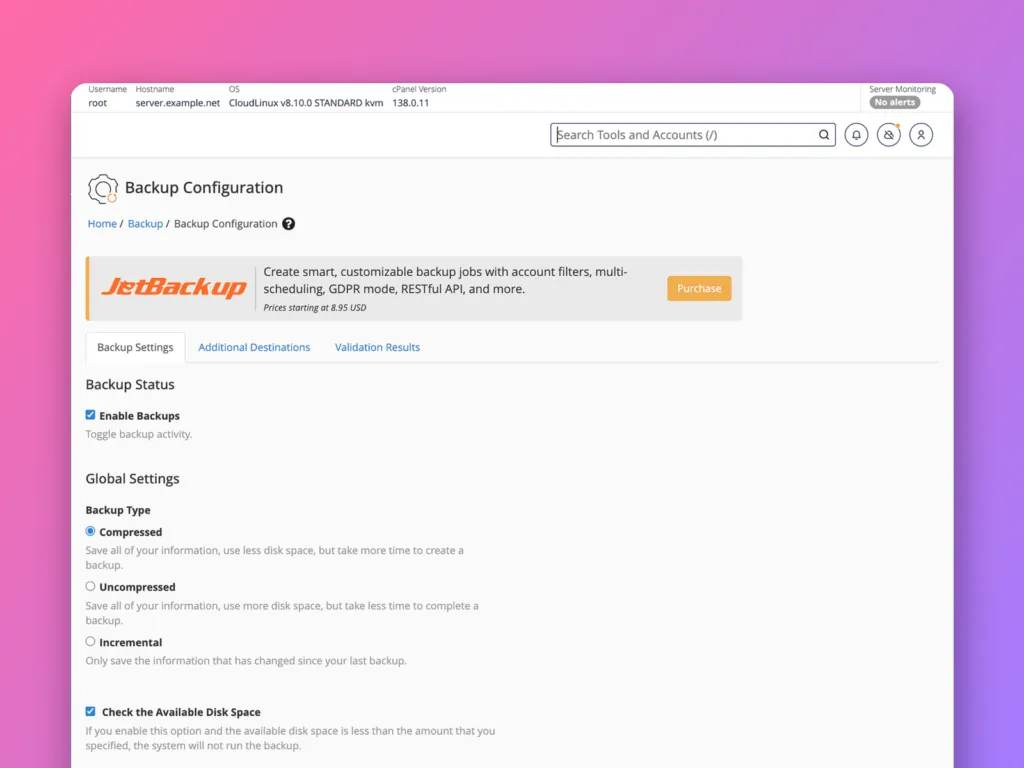
Open Backup » Backup Configuration, tick Enable Backups, choose Compressed (or Incremental), set daily and weekly schedules with retention, include databases, and add an Additional Destination such as S3-compatible storage or SFTPSFTP A secure way to copy files between your computer and a server. Like dragging files into a folder, but the folder is on the server. More about SFTP → so backups are not only on the same server. Click Save Configuration, then test a restore.
Backup settings
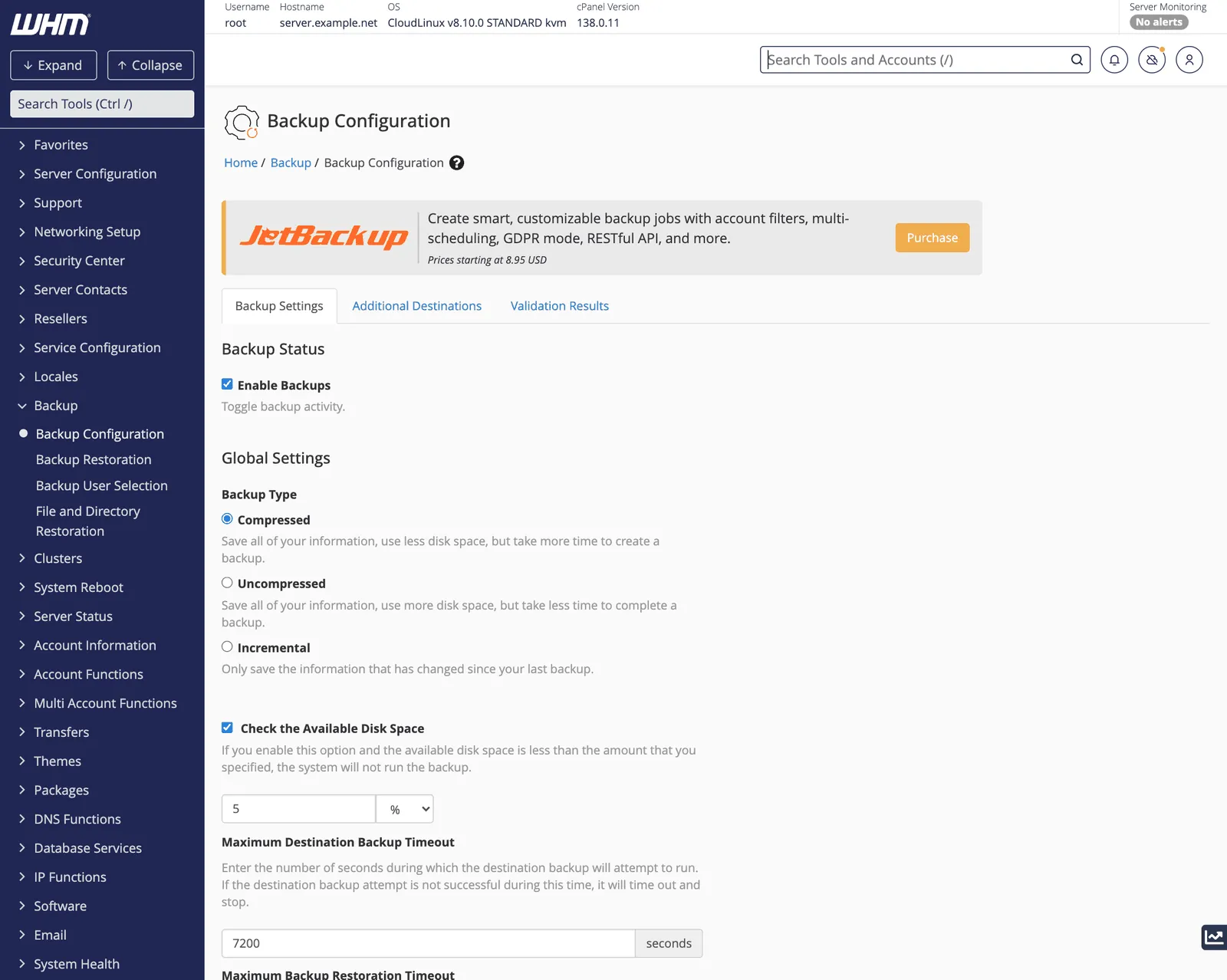
Backup type
| Type | Disk use | Speed | Notes |
|---|---|---|---|
| Compressed | Least | Slowest to create | The safe default |
| Uncompressed | Most | Faster | Rarely worth the space |
| Incremental | Low after the first run | Fastest | Only keeps one copy per period; no compression |
Check the Available Disk Space stops a backup run if the backup drive is nearly full, which prevents the server’s disk filling up. Keep it on.
Schedule and retention
Further down, choose Daily, Weekly and Monthly backups and how many of each to keep. A common pattern:
| Frequency | Keep |
|---|---|
| Daily | 7 |
| Weekly | 4 |
| Monthly | 3 |
That gives a week of daily restore points and about three months of history. More retention needs more disk, so check the backup destination’s space.
Files and databases
- Back up user accounts: on, and choose Select Users in Backup User Selection if only some accounts need backups.
- Back up databases: Per Account and Entire MySQL Directory is the most complete; Per Account Only is enough for restoring individual accounts.
- Back up system files: on. It saves server configuration, which helps rebuild the server itself.
Destination
The default destination is a folder on the same server, usually /backup. A copy on the same disk does not survive a disk failure, a ransomware attack or the server being lost. Add at least one Additional Destination on the tab of that name:
- S3-compatible storage (Amazon S3, Backblaze B2, Wasabi and others).
- SFTP or Rsync to another server.
- Google Drive.
Use Validation Results to check each destination works. Ideally keep the local copy too, because restoring from it is fastest.
Click Save Configuration. Backups run at night by default; the time is set under Scheduling and Retention.
Third-party backup tools
Many hosts use JetBackup or Backuply instead of, or as well as, the built-in system. They add incremental snapshots, per-file restores and a restore button in each customer’s cPanel. The principles are the same: daily copies, sensible retention, and a destination off the server.
Restore a backup
Backup » Backup Restoration lists available backups by account and date. Choose the account and date, choose what to restore (the whole account, or only files, databases or email), and click Restore. Restoring a whole account overwrites its current files and databases with the backup’s, so take a fresh backup first if the account is still in use.
Customers can also restore their own files and databases from Files » Backup in cPanel when the backups are enabled for them. See backups in cPanel.
Test it
A backup you have never restored is not a backup. Every few months:
- Pick a small account and restore yesterday’s backup to a new account name or a test server.
- Check the website loads and its database has recent content.
- Check the off-server destination really has recent files, and that you can download one.
Related
- How to back up a Linux server, the principles behind this.
- RAID levels explained: RAIDRAID Several hard drives working together, usually so that if one breaks, nothing is lost. It is not a backup. More about RAID → is not a backup.
Something out of date? Software changes. If a step no longer works, tell us and we will check it and update the page.