A package is a hosting plan in WHMWHM WebHost Manager: the administrator side of cPanel, used by whoever runs the server to create and manage hosting accounts. More about WHM →: a named set of limits and options, such as 5 GB of disk, 10 mailboxes and 5 databases. Every account is created on a package, and changing the package later updates the account’s limits in one step.
Open Packages » Add a Package. Name it, set Resources (disk, bandwidthBandwidth How much data your website is allowed to send to visitors each month. Every page view uses a little; images and video use the most. More about Bandwidth →, email accounts, databases, domains), choose the Feature List and cPanelcPanel The most popular hosting control panel: a website where you manage your email, files, databases and domains with point-and-click tools instead of commands. More about cPanel → Theme, and click Add. Move an existing account to it with Account Functions » Upgrade/Downgrade an Account.
Why use packages
- Consistency. Every customer on “Starter” has the same limits, so support and billing stay simple.
- One-step changes. Editing a package updates every account on it.
- Billing integration. Billing systems such as WHMCS create accounts by package name, so the names must match.
1. Name and resources
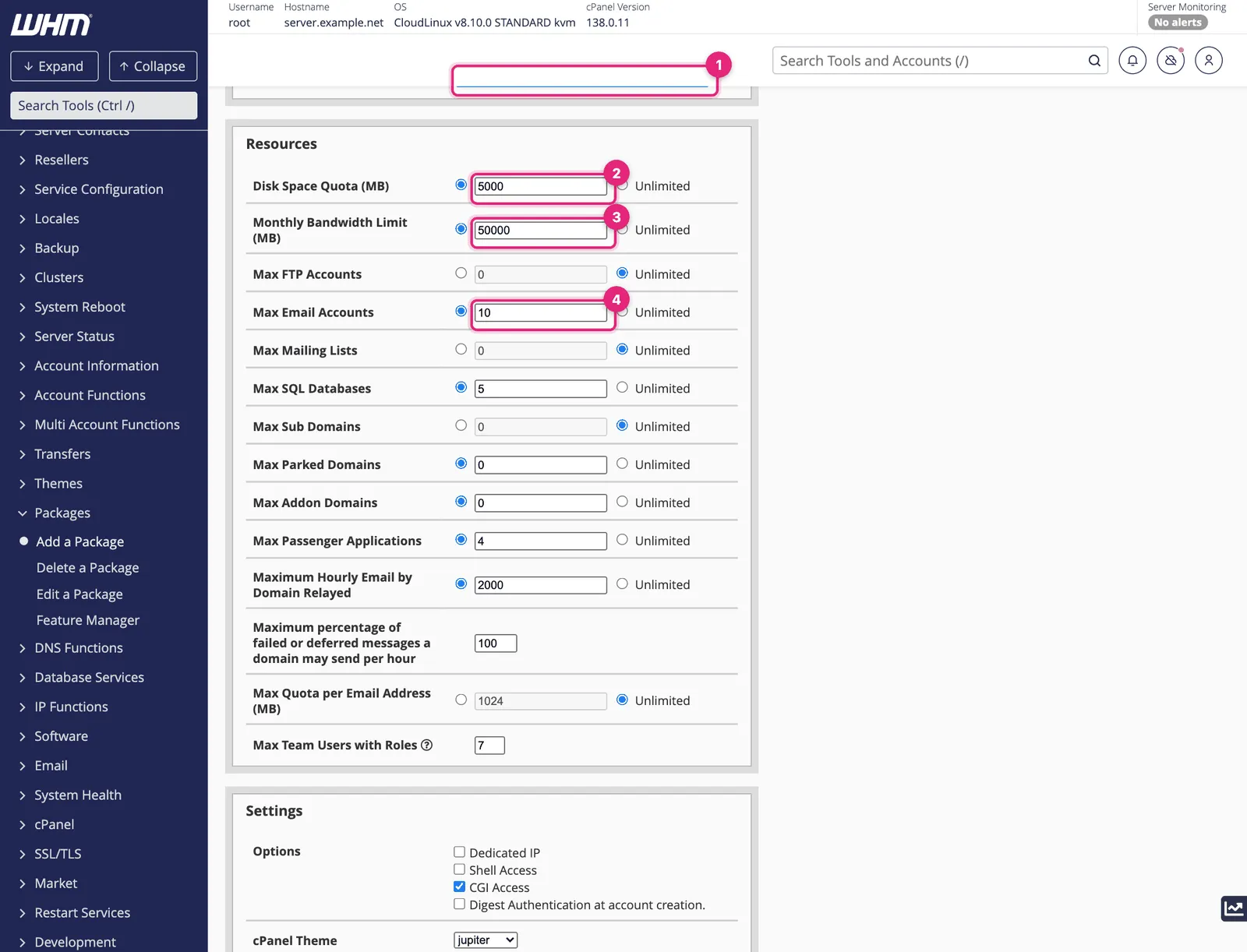
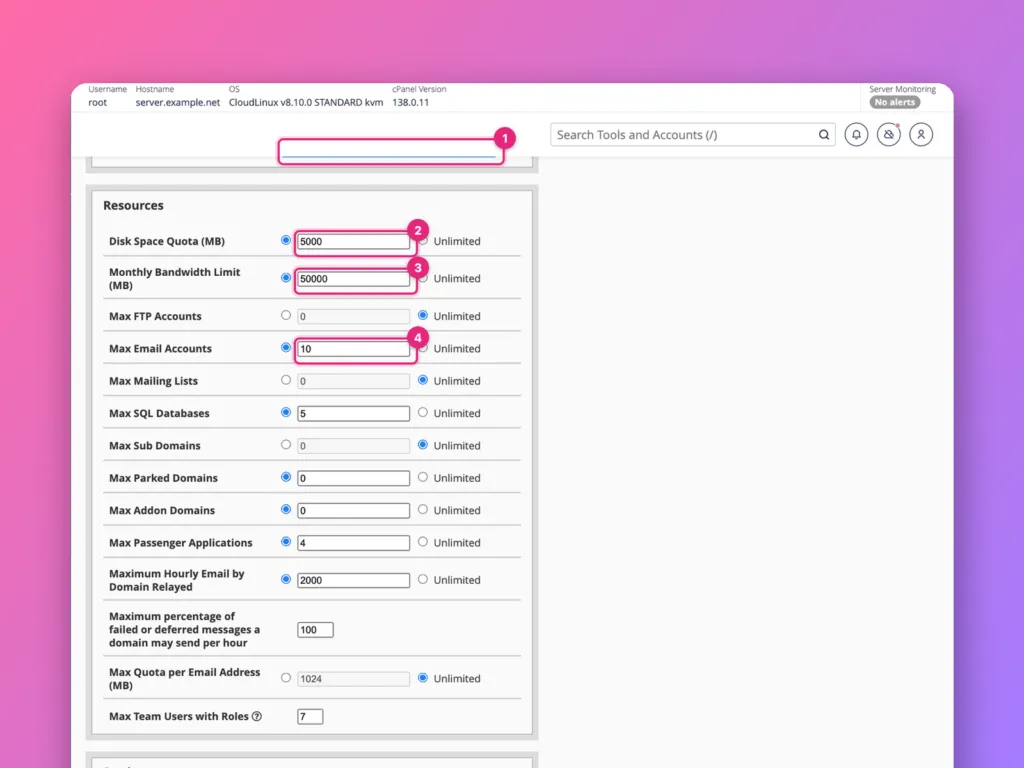
- Package Name: short and clear, such as
Starter,BusinessorAgency. Resellers’ packages get their username as a prefix automatically. - Disk Space Quota (MB): total for files, databases and email.
5000is 5 GB. - Monthly Bandwidth Limit (MB): data sent to visitors each month.
50000is about 50 GB. - Max Email Accounts: mailboxes allowed.
The rest of the list:
| Limit | Typical small-business value | Notes |
|---|---|---|
| Max FTP Accounts | 2 to 5 | Extra FTP logins for developers |
| Max SQL Databases | 5 | WordPress needs one per site |
| Max Sub Domains | 10 | Includes staging copies |
| Max Parked Domains | 2 | Aliases for the main domain |
| Max Addon Domains | 0 to 2 | Separate websites in the same account |
| Maximum Hourly Email by Domain Relayed | 200 to 500 | Lower limits contain damage from a hacked form |
| Max Quota per Email Address | 1024 to 5120 | Stops one mailbox filling the account |
Unlimited is available for most limits, but it removes the guardrails. On a shared server, one account with unlimited email or databases can slow everyone. Set real numbers and raise them on request.
2. Settings and extensions
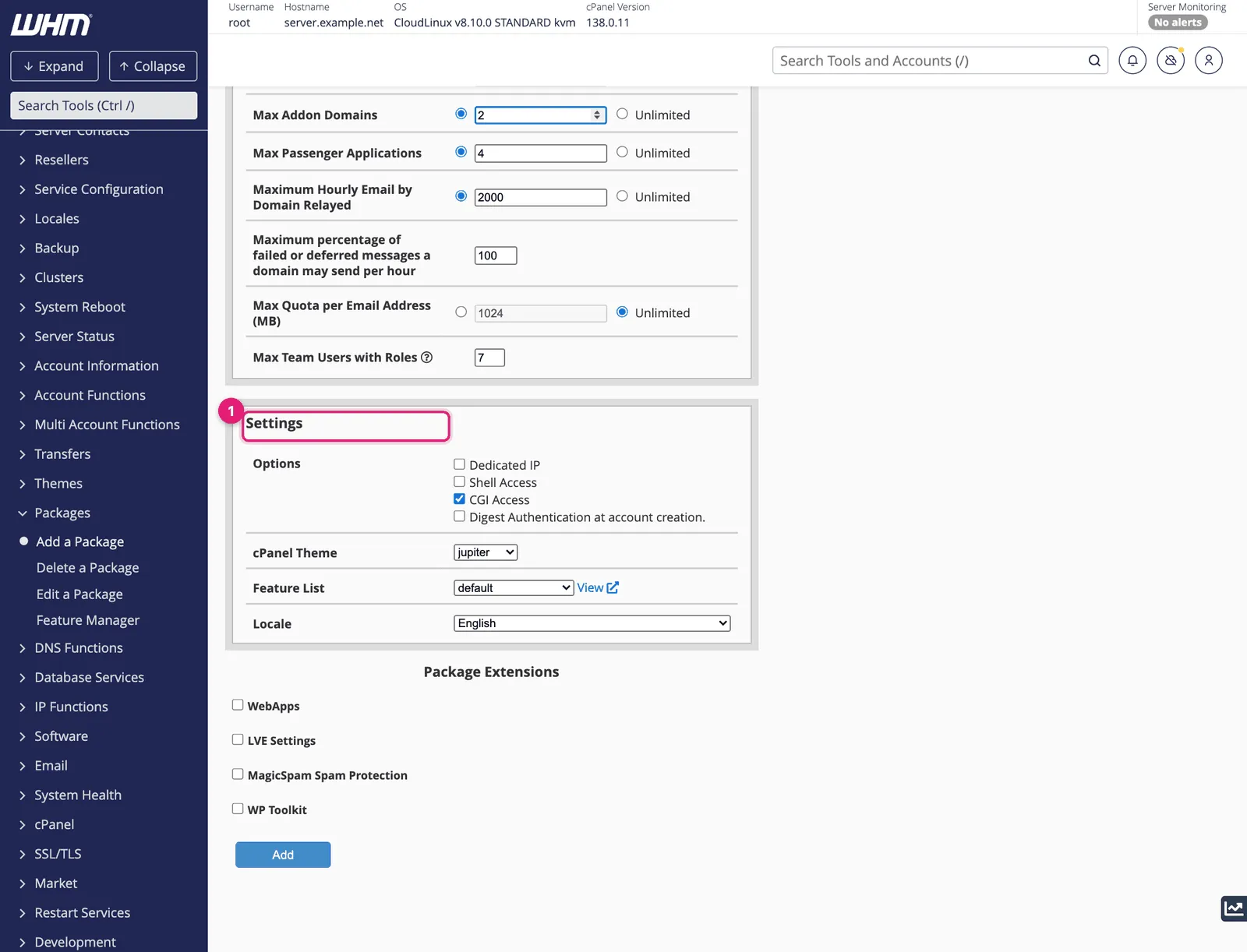
- Dedicated IP: gives each account its own IP addressIP address The number address of a device on the internet, like 203.0.113.10. Computers use it to find each other, the way post uses street addresses. More about IP address →. Rarely needed now that certificates work on shared IPs.
- Shell Access: SSHSSH A secure way to type commands on a server from your own computer, as if you were sitting at it. More about SSH → access to the account. Off by default; enable only for customers who need it, ideally with the jailed shell.
- CGI Access: lets accounts run CGI scripts. Usually left on.
- cPanel Theme: Jupiter.
- Feature List: which cPanel tools the account sees.
defaultshows everything installed. Create restricted lists in Packages » Feature Manager, for example one without Shell Access or Softaculous. - Package Extensions, such as LVE Settings on CloudLinux servers, set extra per-plan limits: CPU, memory and entry processes. These are what produce the Resource Usage limits customers see.
Click Add. The package is now available in Create a New Account.
Move an account to another package
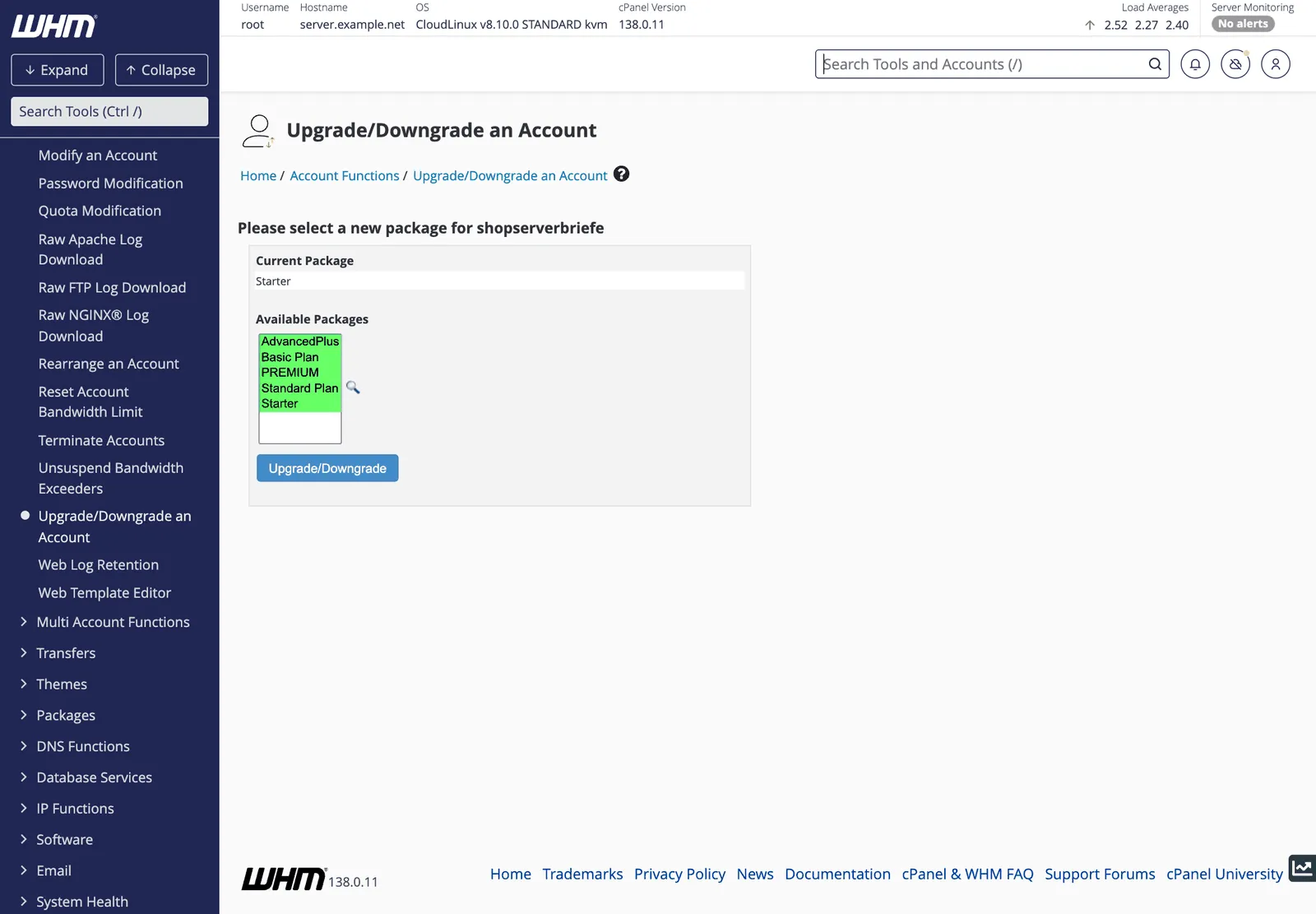
Choose the account, then select the new package and click Upgrade/Downgrade. The account’s limits change immediately. Downgrading below what an account already uses, such as a smaller disk quota than its files take, does not delete anything, but the account cannot add more until it is under the limit.
Edit or delete a package
Packages » Edit a Package changes a package’s limits for every account on it. Delete a Package only works when no accounts use it; move them first.
Related
- How to create a cPanel account in WHM.
- Bandwidth and inode in the glossary.
Something out of date? Software changes. If a step no longer works, tell us and we will check it and update the page.