cPanelcPanel The most popular hosting control panel: a website where you manage your email, files, databases and domains with point-and-click tools instead of commands. More about cPanel → hosting usually includes email on your own domain. This guide creates a mailbox, connects it to a mail app, adds a forwarder, and checks the DNS records that keep your mail out of spam folders.
Go to Email » Email Accounts » Create, enter the part before the @, set a password and click Create. Then use Connect Devices for the settings your phone or mail app needs, and Email Deliverability to make sure SPFSPF A list you publish saying which services are allowed to send email for your domain. Mail from anywhere else looks suspicious. More about SPF → and DKIM are in place.
1. Create the mailbox
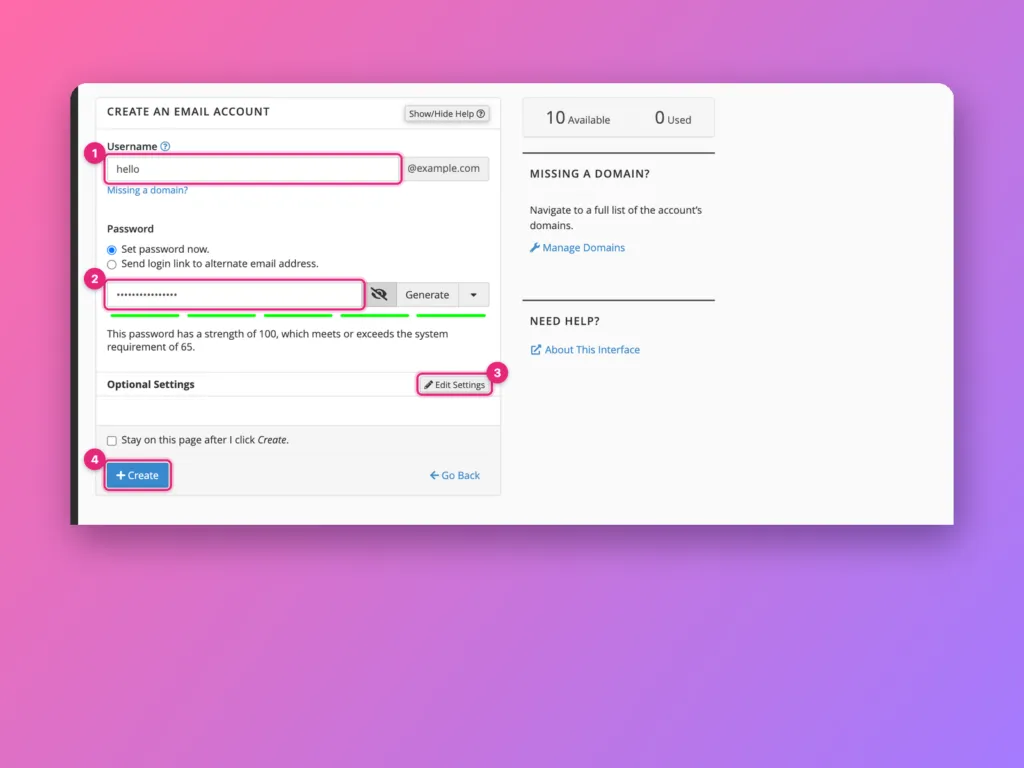
Open Email Accounts from the Email section of the home screen, then click + Create.
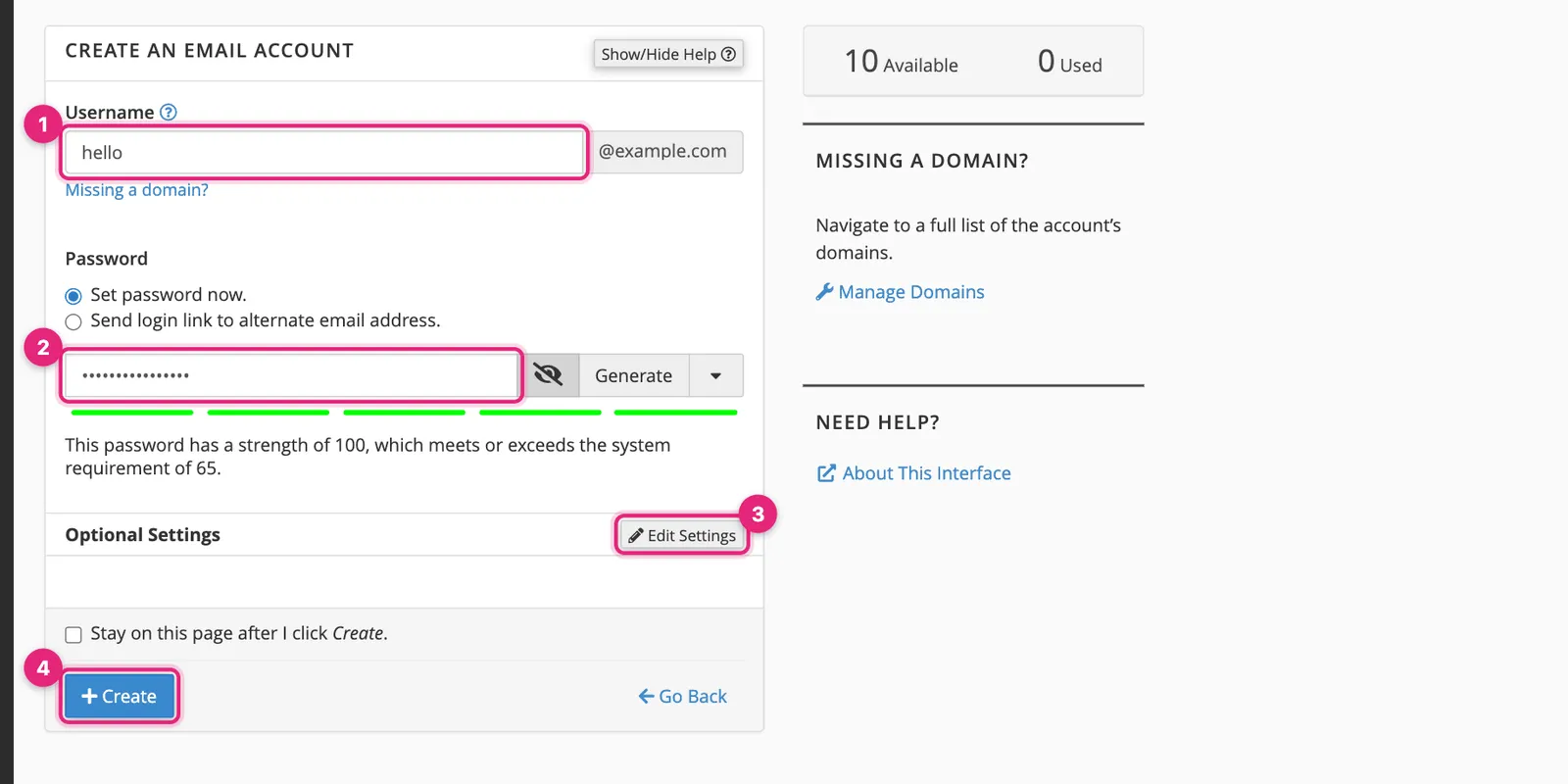
- Username is the part before the
@. The domain is shown on the right; if your account has several domains, it becomes a drop-down. - Password: click Generate for a strong one and copy it somewhere safe, or type your own. cPanel shows a strength meter and refuses passwords below the server’s minimum. Alternatively, choose Send login link to alternate email address to let the mailbox owner set their own.
- Optional Settings controls storage and folders (next step).
- Click Create.
2. Choose the optional settings
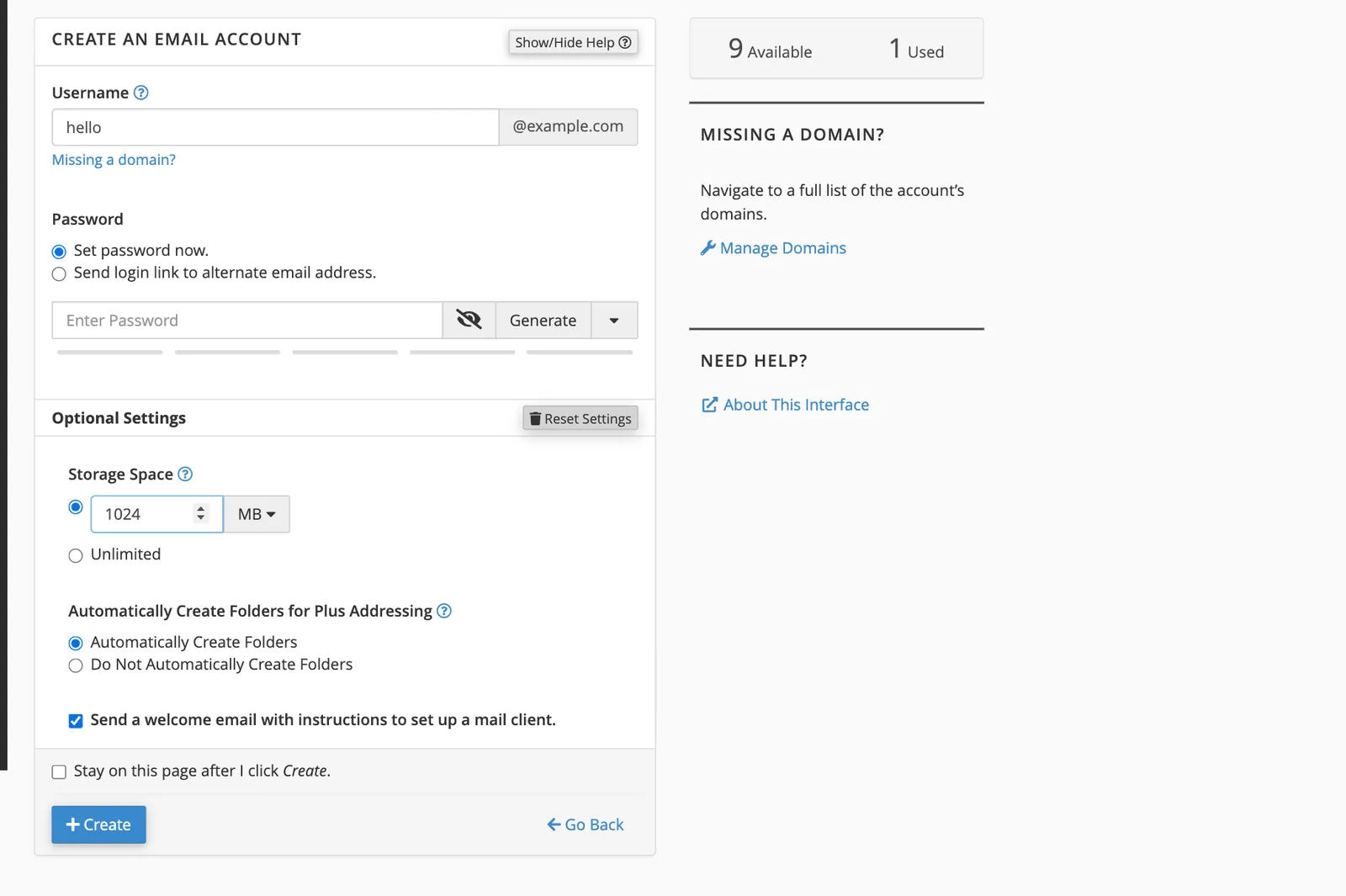
- Storage Space limits the mailbox size. 1 GB suits most people; set Unlimited only if your plan’s disk space can cope, because email counts against it.
- Automatically Create Folders for Plus Addressing files mail sent to
hello+orders@example.cominto an “orders” folder automatically. - Send a welcome email sends setup instructions to the new mailbox.
3. Find it in the list
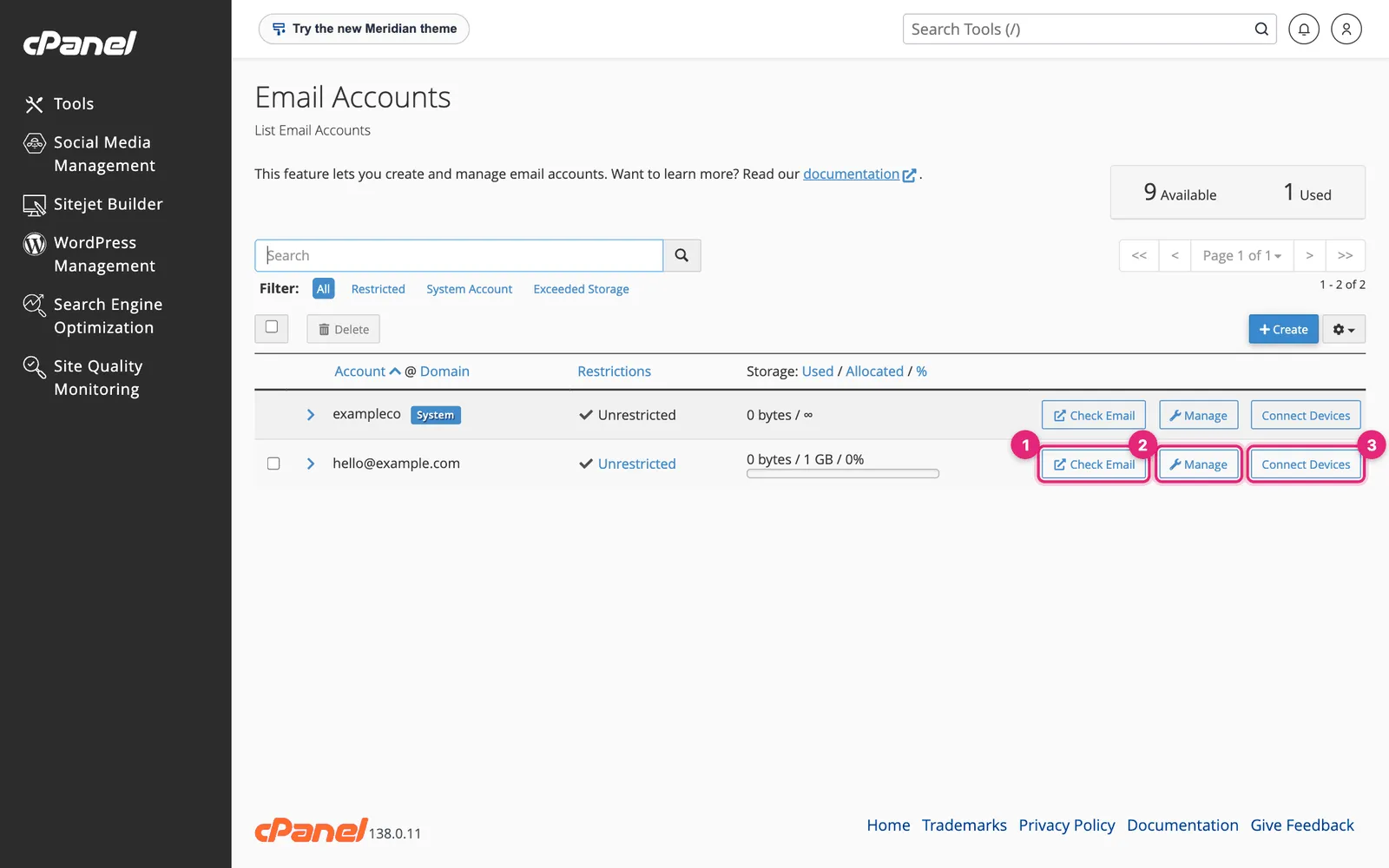
Each mailbox has three buttons:
- Check Email opens webmail in your browser.
- Manage changes the password, storage limit, or suspends sending or receiving.
- Connect Devices shows the settings for mail apps.
The System account is the default mailbox tied to your cPanel username. It collects mail for the server’s own messages; you do not need to use it.
4. Connect your phone or mail app
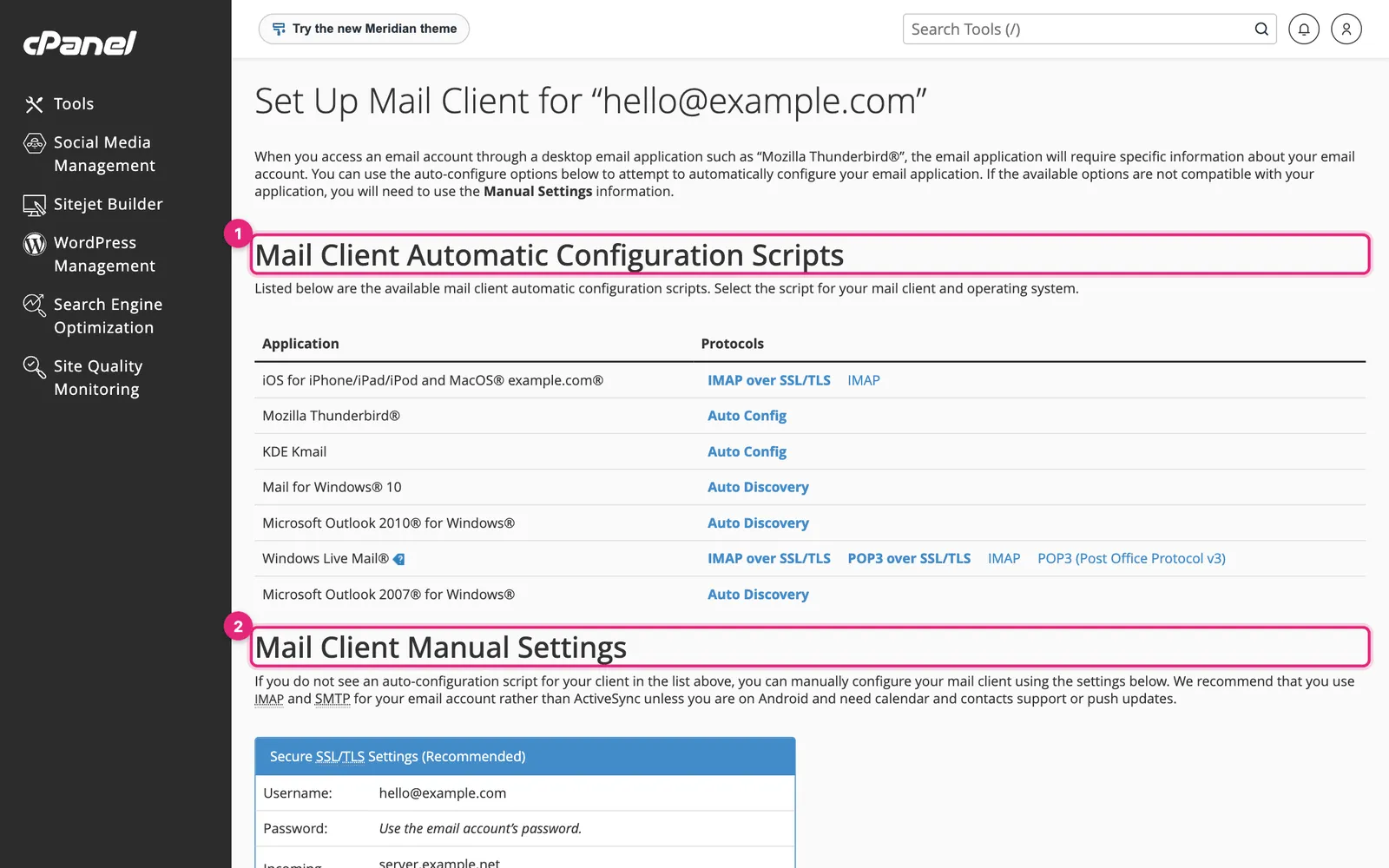
Most apps set themselves up when you enter just the email address and password. If yours asks for details, scroll to Mail Client Manual Settings:
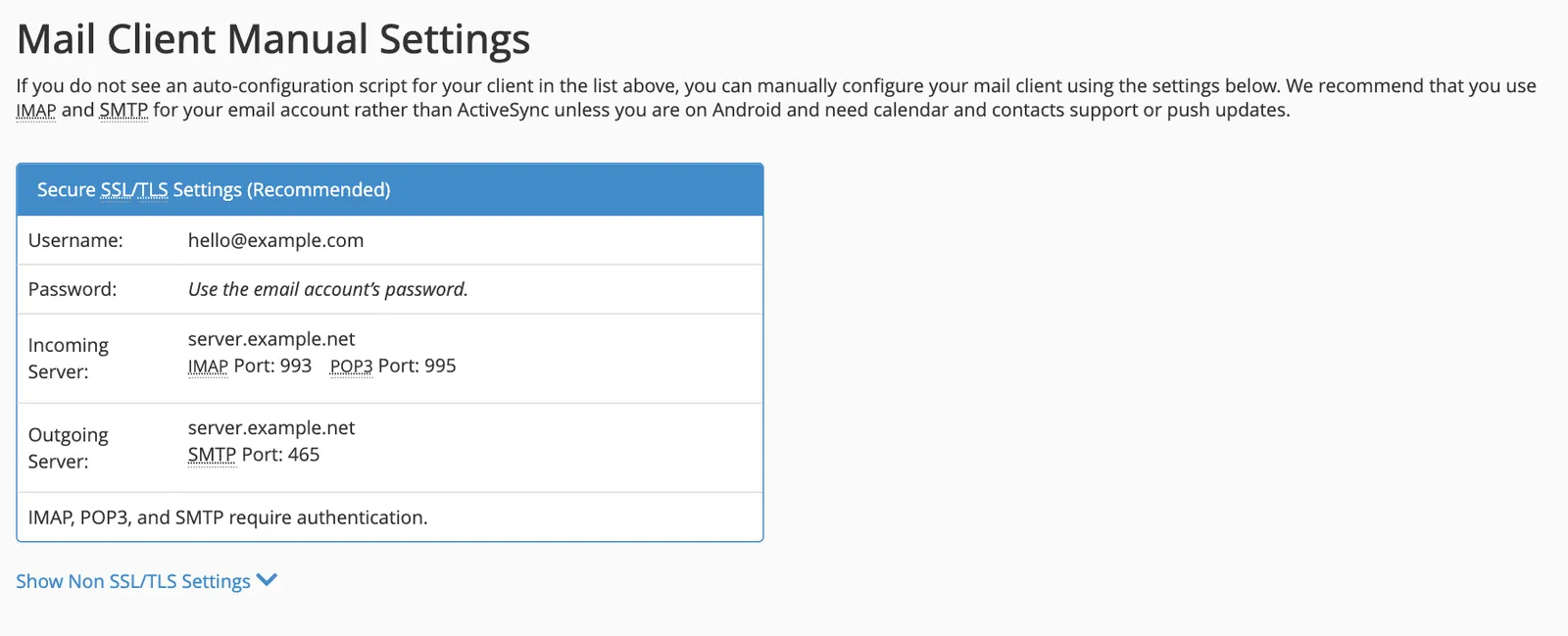
| Setting | Value |
|---|---|
| Username | The full email address |
| Incoming server | As shown, often mail.your-domain or the server’s name |
| Incoming port | IMAP 993 (recommended) or POP3 995 |
| Outgoing server | Same as incoming |
| Outgoing port | SMTP 465 |
| Authentication | Required for both, using the mailbox password |
Choose IMAP if you read mail on more than one device; it keeps every device in sync. POP3 downloads messages to one device and usually removes them from the server.
5. Add a forwarder
A forwarder sends copies of mail for one address to another, without a mailbox of its own. It is ideal for addresses like sales@ or info@ that should land in an existing inbox.
Go to Email » Forwarders » Add Forwarder:
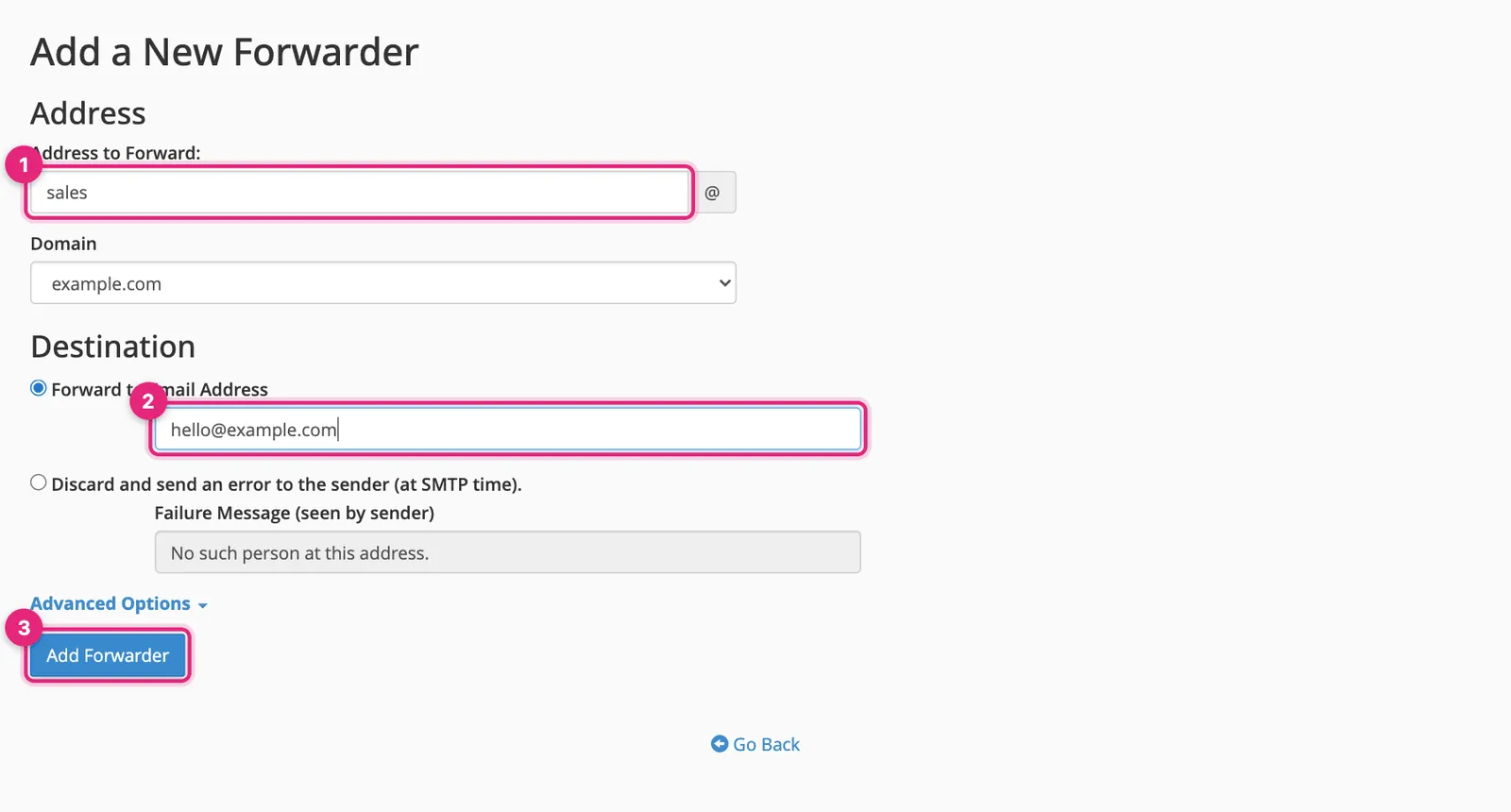
- Address to Forward: the part before the
@, such assales. - Forward to Email Address: where copies should go.
- Click Add Forwarder.
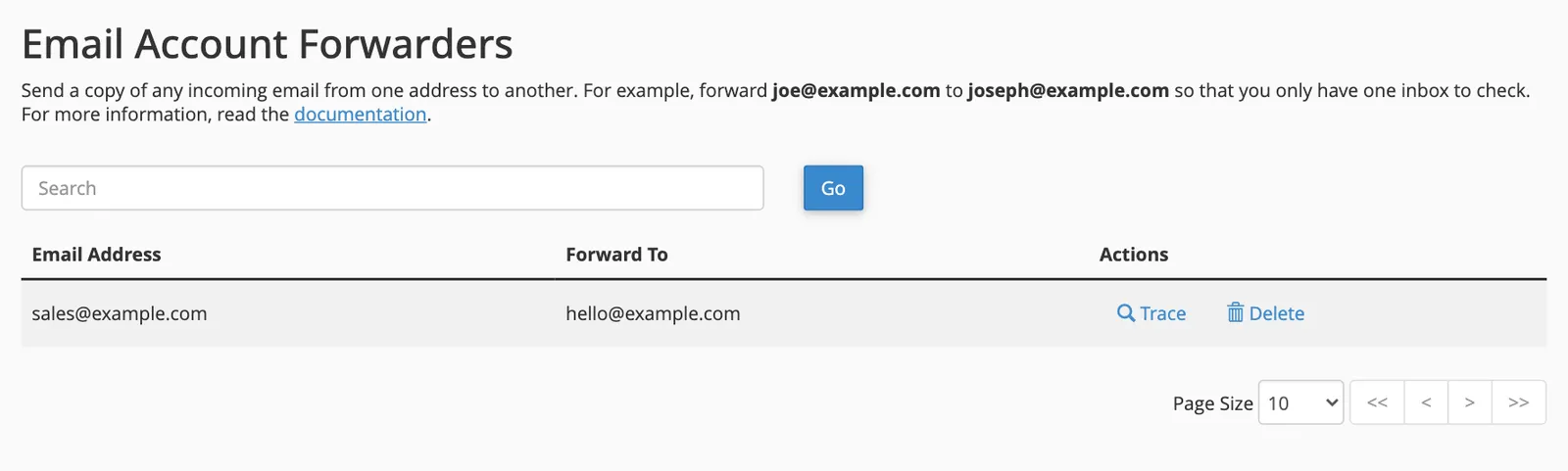
Forwarding to a Gmail or Outlook.com address works, but it is the most common cause of forwarded mail landing in spam, because the forwarding server is not authorised to send for the original sender. Where you can, read the mailbox directly with IMAP instead.
6. Check Email Deliverability
Mail from your domain needs SPF, DKIMDKIM A digital signature added to every email you send, so the receiving side can check it really came from your domain and was not changed. More about DKIM → and PTR records to be trusted. Email » Email Deliverability checks them for every domain:
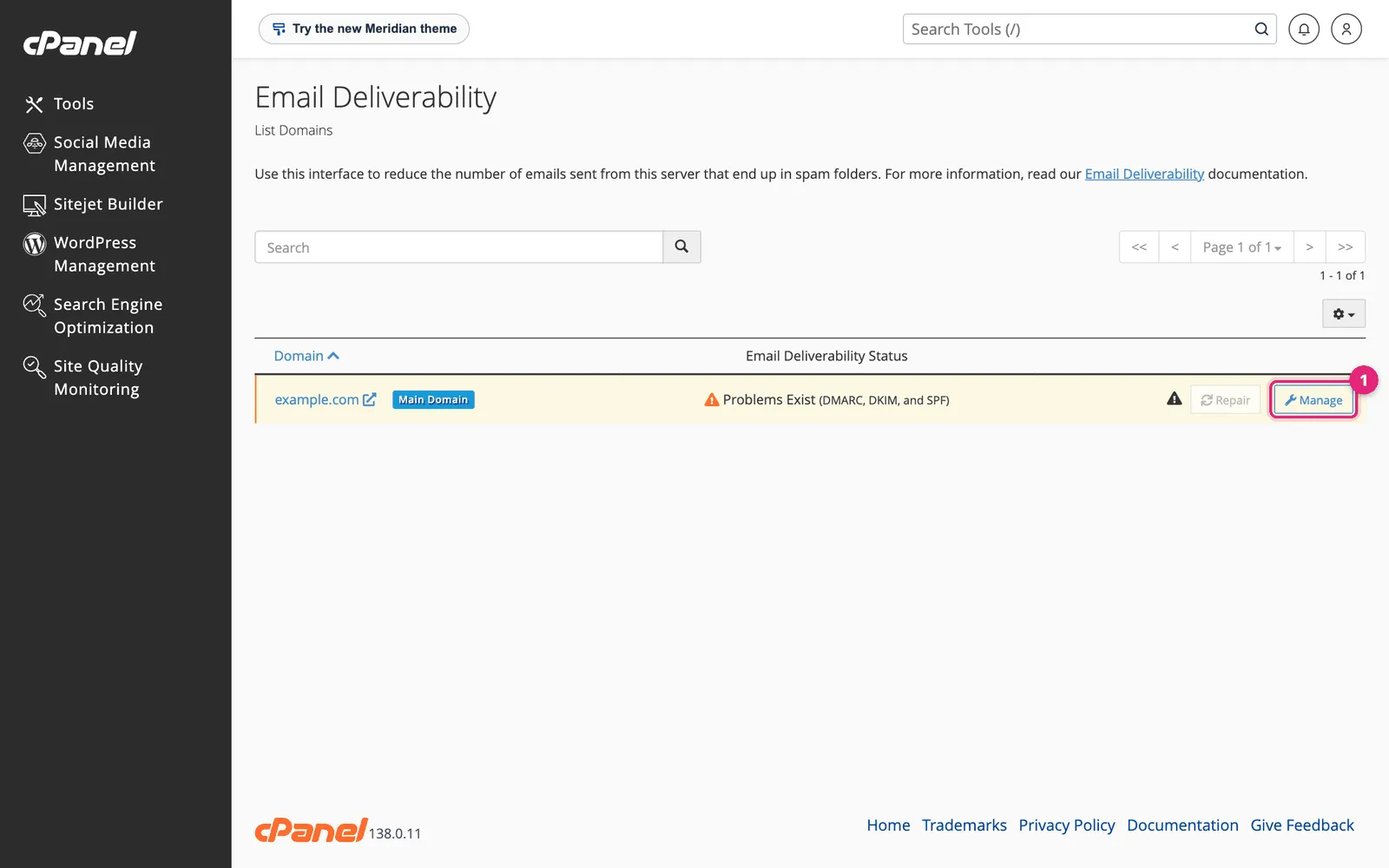
Click Manage to see each record and what cPanel suggests:
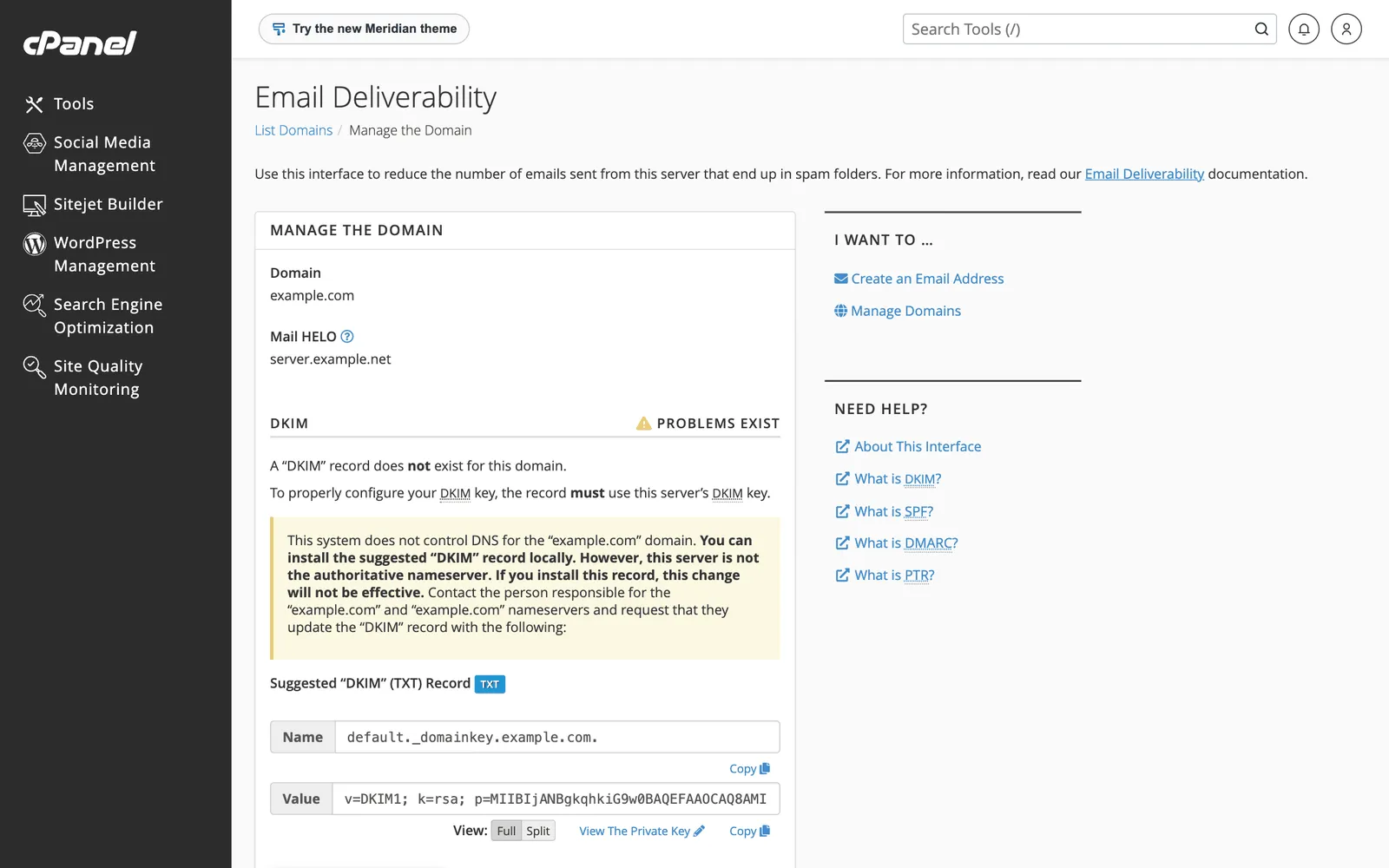
- If this server runs your DNSDNS The internet’s phone book. It turns a name people can remember, like example.com, into the number address computers use to find the server. More about DNS →, click Install the suggested record for each problem.
- If your DNS is elsewhere, such as at your registrarDomain registrar The company you buy and renew your domain name from, and where you choose who handles its settings. More about Domain registrar → or Cloudflare, copy the suggested record’s name and value and add it there, as cPanel explains on this page.
Then add a DMARCDMARC A rule you publish telling email providers what to do with messages that pretend to be from your domain but fail the checks: deliver, send to spam, or reject. More about DMARC → record too. The details of all three are in how to set up SPF, DKIM and DMARC.
If something goes wrong
| Problem | Likely cause |
|---|---|
| Mail app says the password is wrong | The username must be the full address |
| Certificate warning in the mail app | Use the server name shown in Connect Devices, not mail.your-domain, until that has its own certificate |
| Mail sends but lands in spam | SPF, DKIM or DMARC missing: see why emails go to spam |
| Mail does not arrive at all | The domain’s MX record points somewhere else; check Email Routing and your DNS |
| “Mailbox full” bounces | Raise the quota under Manage, or delete old mail |
Official documentation
- Email Accounts, cPanel documentation.
Related
Something out of date? Software changes. If a step no longer works, tell us and we will check it and update the page.