Most websites, including WordPress, store their content in a MySQL or MariaDB database. In cPanelcPanel The most popular hosting control panel: a website where you manage your email, files, databases and domains with point-and-click tools instead of commands. More about cPanel →, a working database needs three things: the database, a user, and permission for that user on that database. The Database Wizard does all three in order.
Open Databases » Database Wizard. Name the database, create a user with a generated password, tick ALL PRIVILEGES, and finish. Your site then connects with the full names cPanel shows, which start with your cPanel username, such as exampleco_crm, and host localhost.
Step 1: Create the database
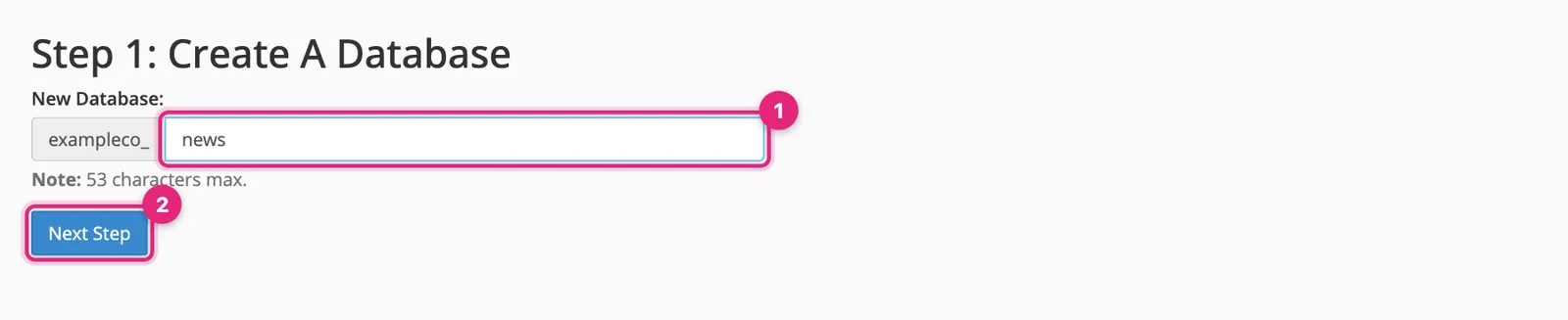
- Type a short name, such as
crmorblog. cPanel adds your username and an underscore in front, so the real name becomesexampleco_crm. - Click Next Step.
Use lowercase letters and numbers. The full name has a length limit, shown under the field.
Step 2: Create the database user
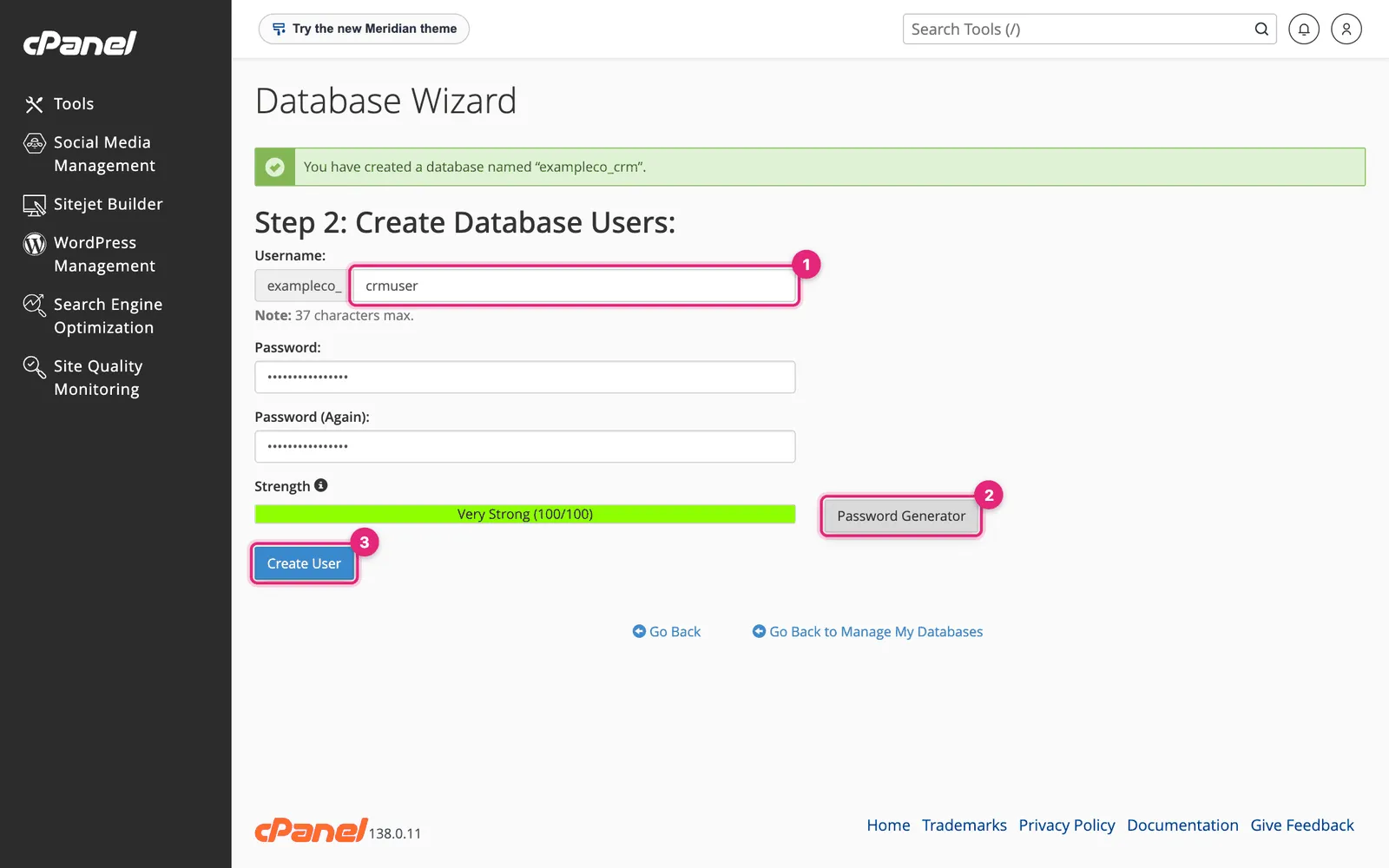
- Username: again, cPanel adds your prefix, giving
exampleco_crmuser. - Click Password Generator, tick I have copied this password in a safe place, then Use Password. A generated password is safest, and you only need it once, for your site’s configuration file.
- Click Create User.
Create a separate user for each website or application. If one site is compromised, its password then opens only its own database.
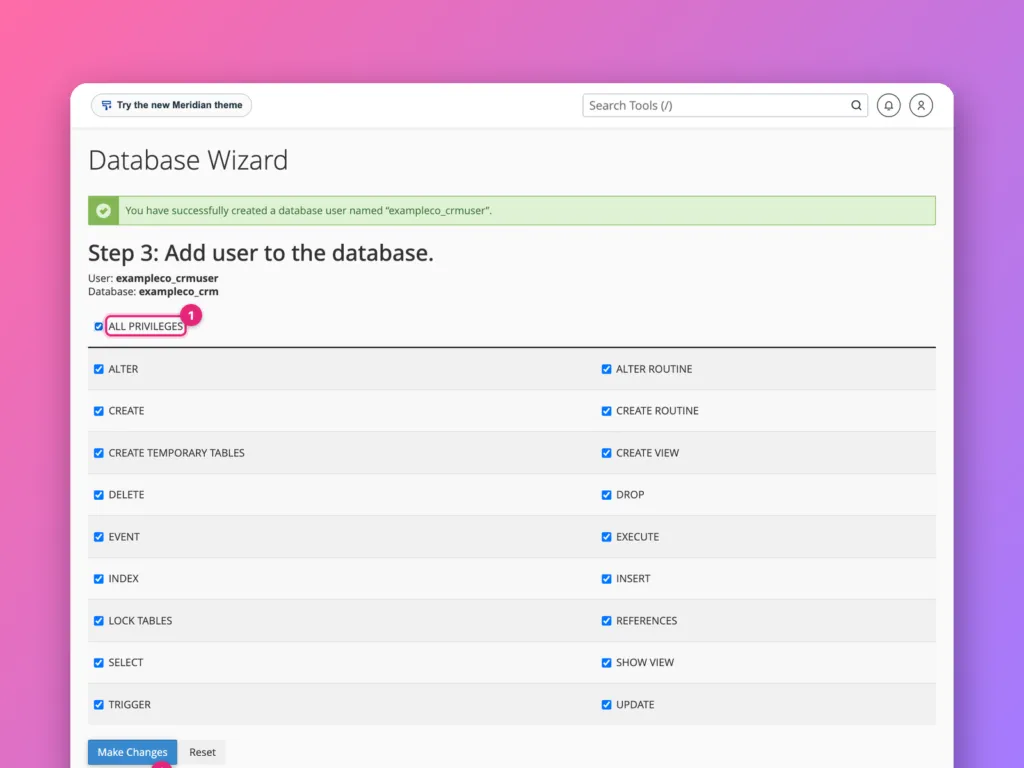
Step 3: Give the user access
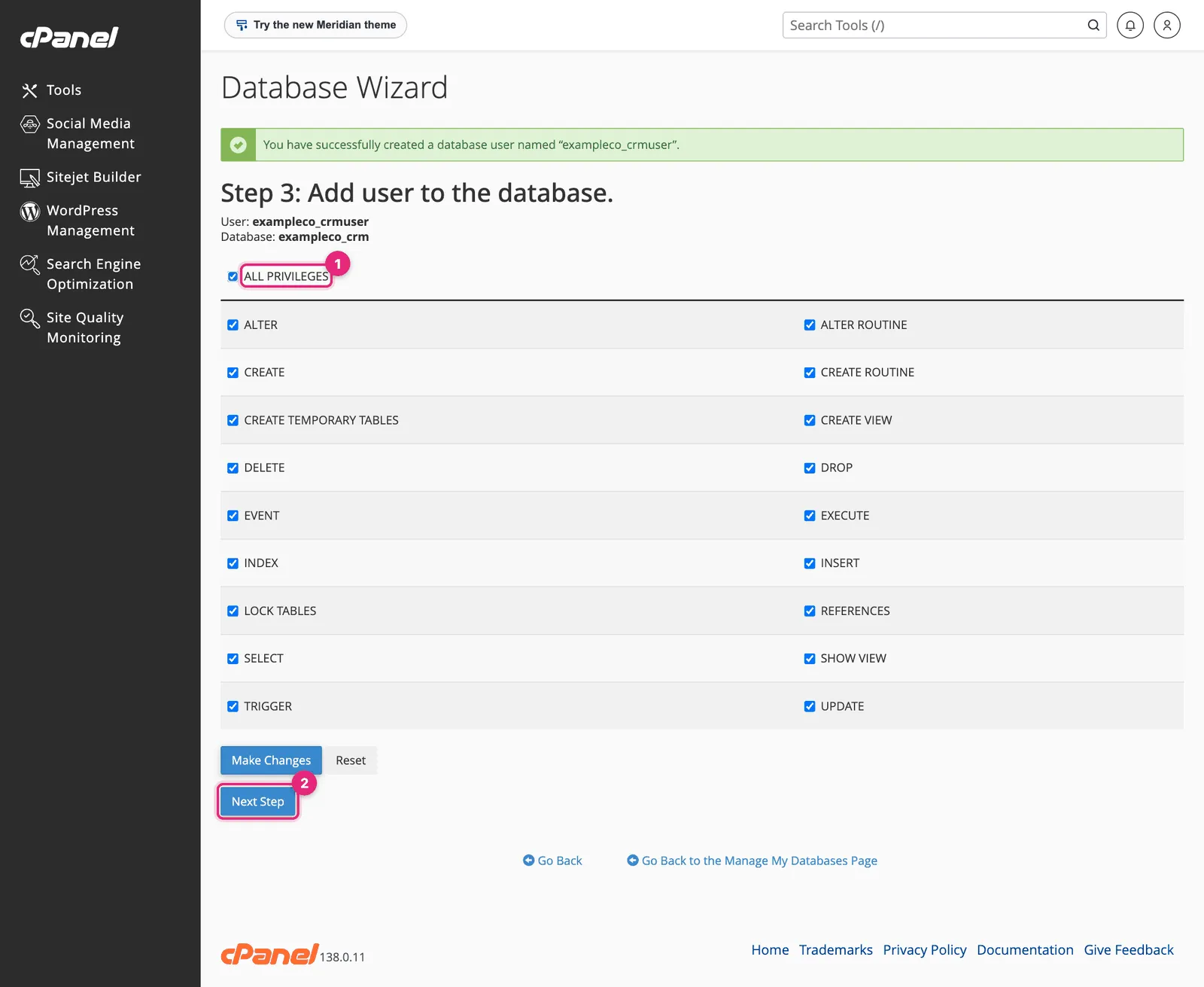
- Tick ALL PRIVILEGES. Web applications such as WordPress need to create and change tables, especially during updates.
- Click Next Step.
Step 4: Done
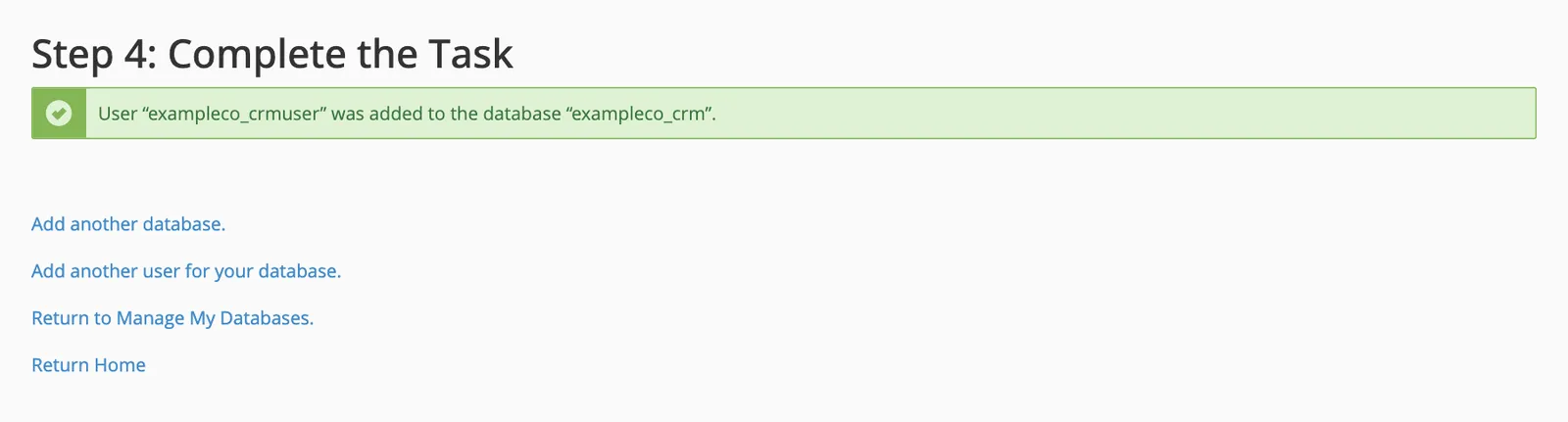
The values your site needs
Your website’s configuration asks for four values. In WordPress they are in wp-config.php:
define( 'DB_NAME', 'exampleco_crm' );
define( 'DB_USER', 'exampleco_crmuser' );
define( 'DB_PASSWORD', 'the-generated-password' );
define( 'DB_HOST', 'localhost' );
Use the full names including the prefix. DB_HOST is localhost on almost every cPanel server, because the database runs on the same machine. If your host gives a different value, use theirs.
Managing databases later
Databases » Manage My Databases lists every database and user:
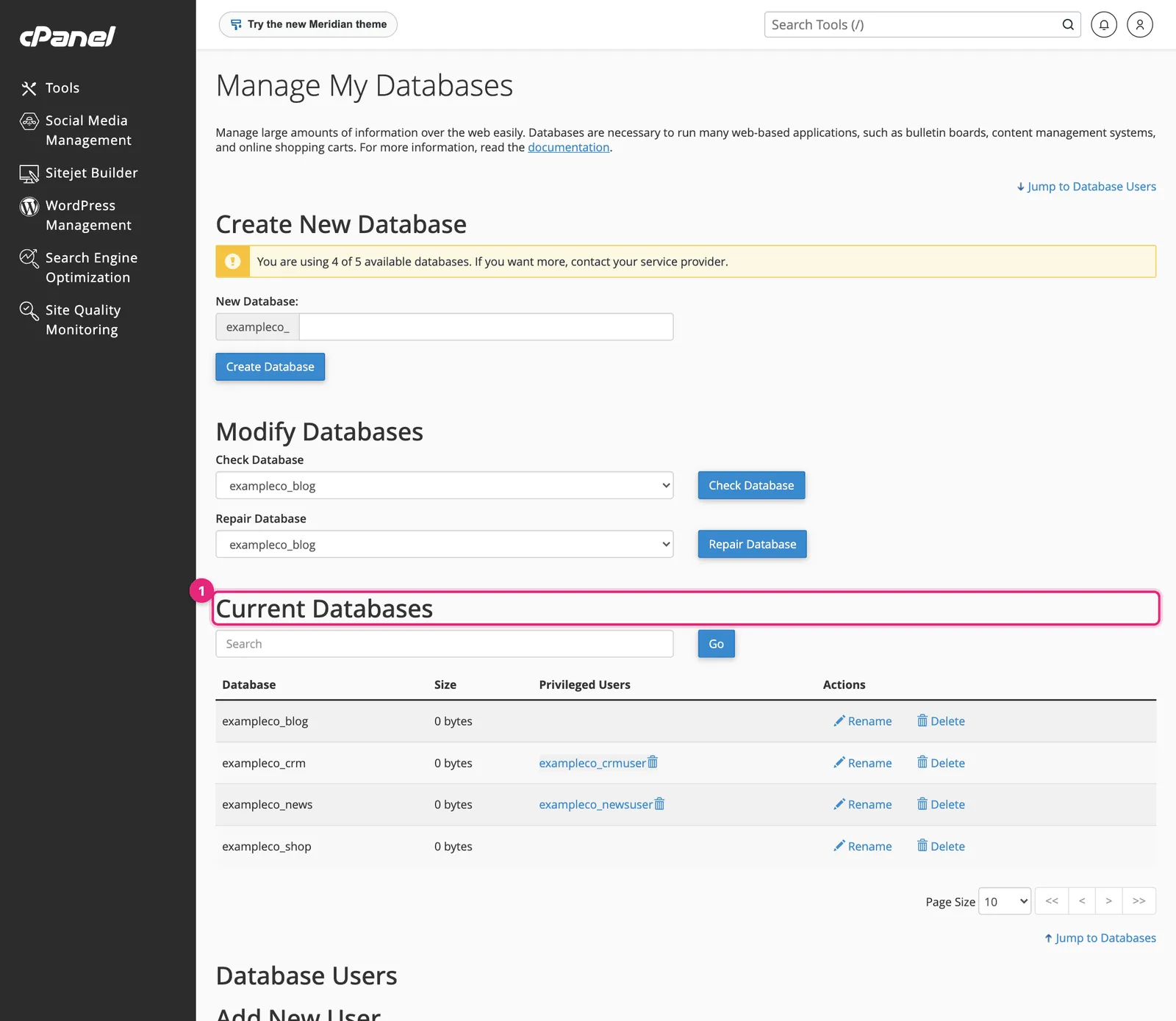
- Current Databases shows size and privileged users, with Rename and Delete.
- Current Users lists users; change a password or delete a user here.
Further down, Add User To Database links an existing user to another database. Check Database and Repair Database fix damaged tables, which is the first thing to try when a site reports a crashed table. Take a backup first.
phpMyAdmin
Databases » phpMyAdmin opens a browser-based tool for looking inside databases: browse tables, run SQL queries, and import or export. It logs you in automatically. Use Export for a quick SQL copy of one database, and Import to load a .sql file into an empty database. For large imports, which time out in a browser, ask your host or use SSHSSH A secure way to type commands on a server from your own computer, as if you were sitting at it. More about SSH →.
Common errors
| Message | Cause |
|---|---|
| Error establishing a database connection | Wrong name, user or password in the site’s configuration, or the user was never added to the database |
Access denied for user | The password is wrong, or the user lacks privileges on that database |
Unknown database | The name is missing its exampleco_ prefix |
| You are using X of X available databases | Your plan’s database limit is reached; delete unused ones or upgrade |
Official documentation
- Database Wizard, cPanel documentation.
Related
Something out of date? Software changes. If a step no longer works, tell us and we will check it and update the page.