AutoSSL issues and renews free certificates for every domain on a cPanelcPanel The most popular hosting control panel: a website where you manage your email, files, databases and domains with point-and-click tools instead of commands. More about cPanel → server, automatically. Once it is set up in WHM, customers get HTTPS without doing anything. This guide sets it up and shows how to find out why a domain did not get a certificate.
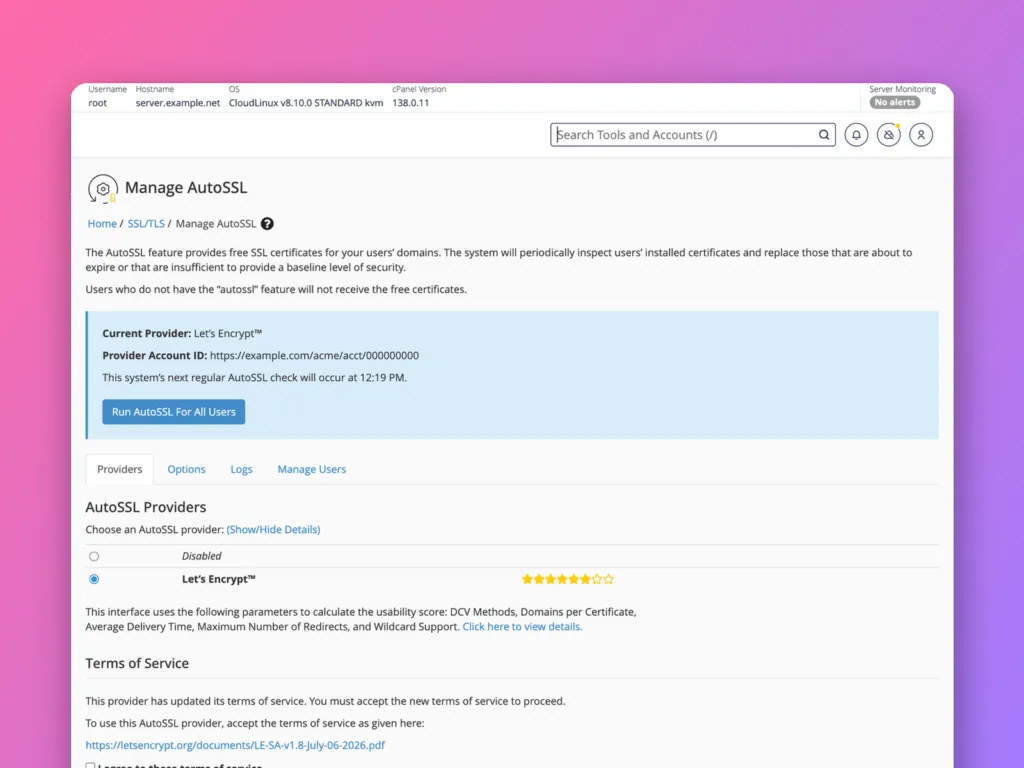
Open SSL/TLS » Manage AutoSSL, choose Let’s EncryptLet’s Encrypt A free, non-profit service that gives websites the certificate they need for the padlock, and renews it automatically. More about Let’s Encrypt → (or Sectigo) under Providers, accept the terms, and save. Then click Run AutoSSL For All Users. Check Logs for any domain that was skipped; the usual cause is DNSDNS The internet’s phone book. It turns a name people can remember, like example.com, into the number address computers use to find the server. More about DNS → not pointing at the server.
Choose a provider
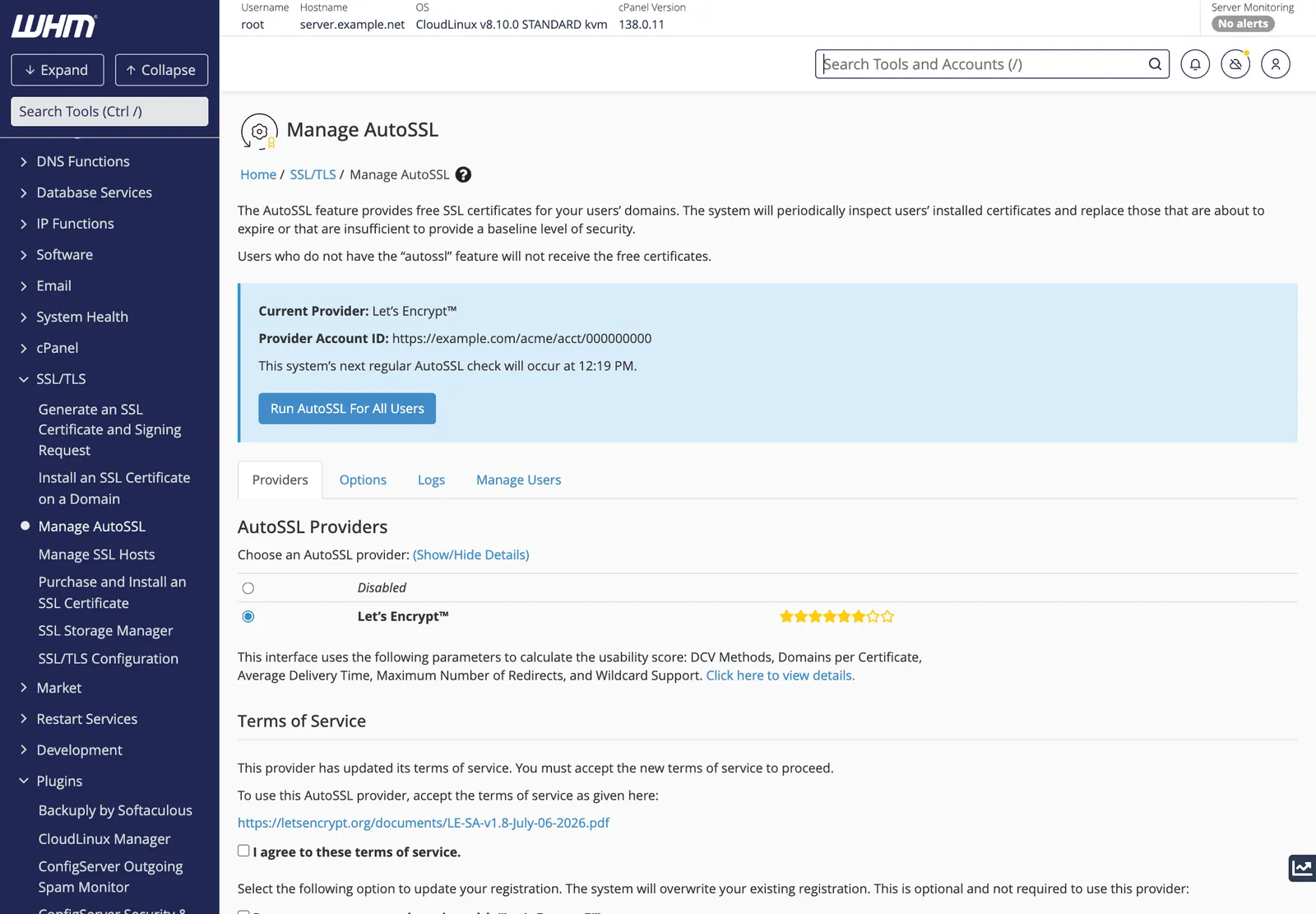
The Providers tab offers:
| Provider | Notes |
|---|---|
| Let’s Encrypt | Free, widely used, 90-day certificates; strict rate limits per domain |
| Sectigo (cPanel) | Free through cPanel; slower to issue but not subject to Let’s Encrypt’s limits |
| Disabled | No automatic certificates |
Choose one, tick I agree to these terms of service, and click Save. Let’s Encrypt is the usual choice. When a provider updates its terms, as on this page, AutoSSL keeps working with the old terms until someone accepts the new ones; accept them promptly.
The blue panel shows the current provider and when the next scheduled check runs. AutoSSL checks every account daily and renews certificates well before they expire.
Run it now
Run AutoSSL For All Users starts a check immediately, rather than waiting for the nightly run. It is useful after enabling AutoSSL for the first time or after a batch of domains was pointed at the server. Large servers take a while; the Logs tab shows progress.
Options
The Options tab controls notifications: who is emailed when certificates are issued, renewed or fail. At minimum, notify yourself of failures, so a domain silently losing HTTPSHTTPS The secure version of the web, shown by the padlock. Everything sent between you and the site is scrambled so nobody in between can read or change it. More about HTTPS → does not go unnoticed. Customers can be notified about their own domains too.
Logs: why was a domain skipped?
The Logs tab lists each run. Each domain shows why it was secured, renewed or skipped. The common reasons:
| Log says | Meaning | Fix |
|---|---|---|
| DNS DCV: the domain does not resolve, or resolves elsewhere | The domain does not point at this server | Fix the A record or nameservers |
| HTTP DCV failed | The validation file could not be fetched | Check .htaccess rules or a CDN in front |
| Rate limit | Let’s Encrypt’s per-domain limits were hit | Wait a week, or use Sectigo for that domain |
| Excluded | The customer or admin excluded the name | Remove the exclusion in cPanel’s SSL/TLS Status |
Names that never point here, such as mail or webdisk subdomainsSubdomain A name in front of your domain, like shop.example.com or blog.example.com. It can show a different site from the main one. More about Subdomain → with no DNS records, are skipped harmlessly; the rest of the domain is still secured.
Manage Users
Manage Users turns AutoSSL on or off per account. Accounts whose feature list lacks the autossl feature are also skipped, so check the Feature Manager if one account never gets certificates.
For customers
Customers see the result in cPanel’s SSL/TLS Status, and can run AutoSSL for their own account there. Send them SSL in cPanel when they ask why their site shows “not secure”.
Related
- How HTTPS works.
- How to get a free SSL certificate with Let’s Encrypt, for servers without cPanel.
Official documentation
- Rate limits, Let’s Encrypt.
Something out of date? Software changes. If a step no longer works, tell us and we will check it and update the page.