After an account is created, most changes happen in WHMWHM WebHost Manager: the administrator side of cPanel, used by whoever runs the server to create and manage hosting accounts. More about WHM →’s Account Functions section. This guide covers the four you will use most: modifying an account, suspending it, changing its password, and terminating it.
Modify an Account changes the domain, username, contact email and limits. Manage Account Suspension suspends an account with a reason, keeping all its data. Password Modification resets its password. Terminate Accounts deletes it and everything in it, so take a backup first.
Choosing an account
Most Account Functions tools start with the same picker: a list of every account with a search box. Type the username or domain, select the account, and click Continue.
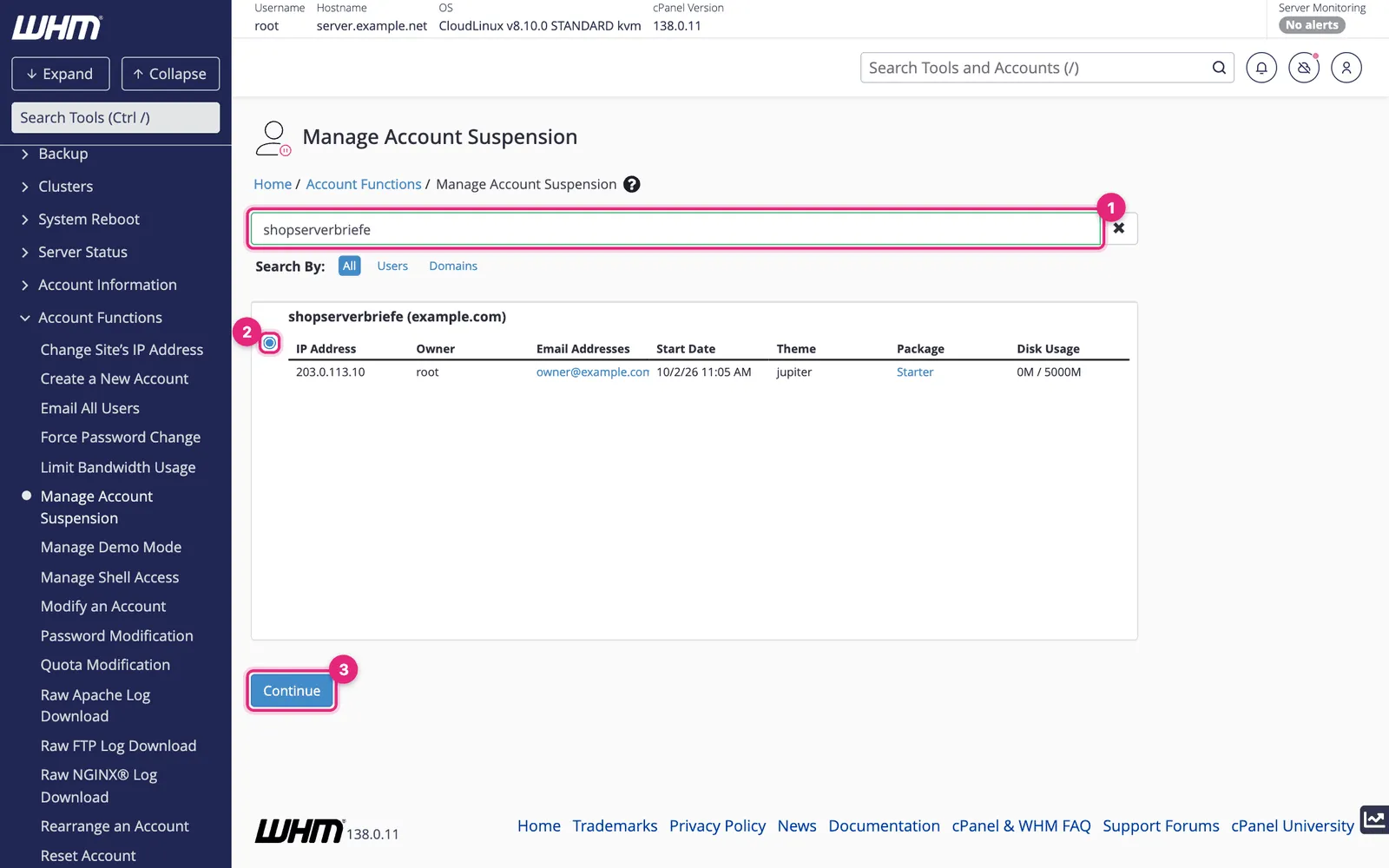
Modify an account
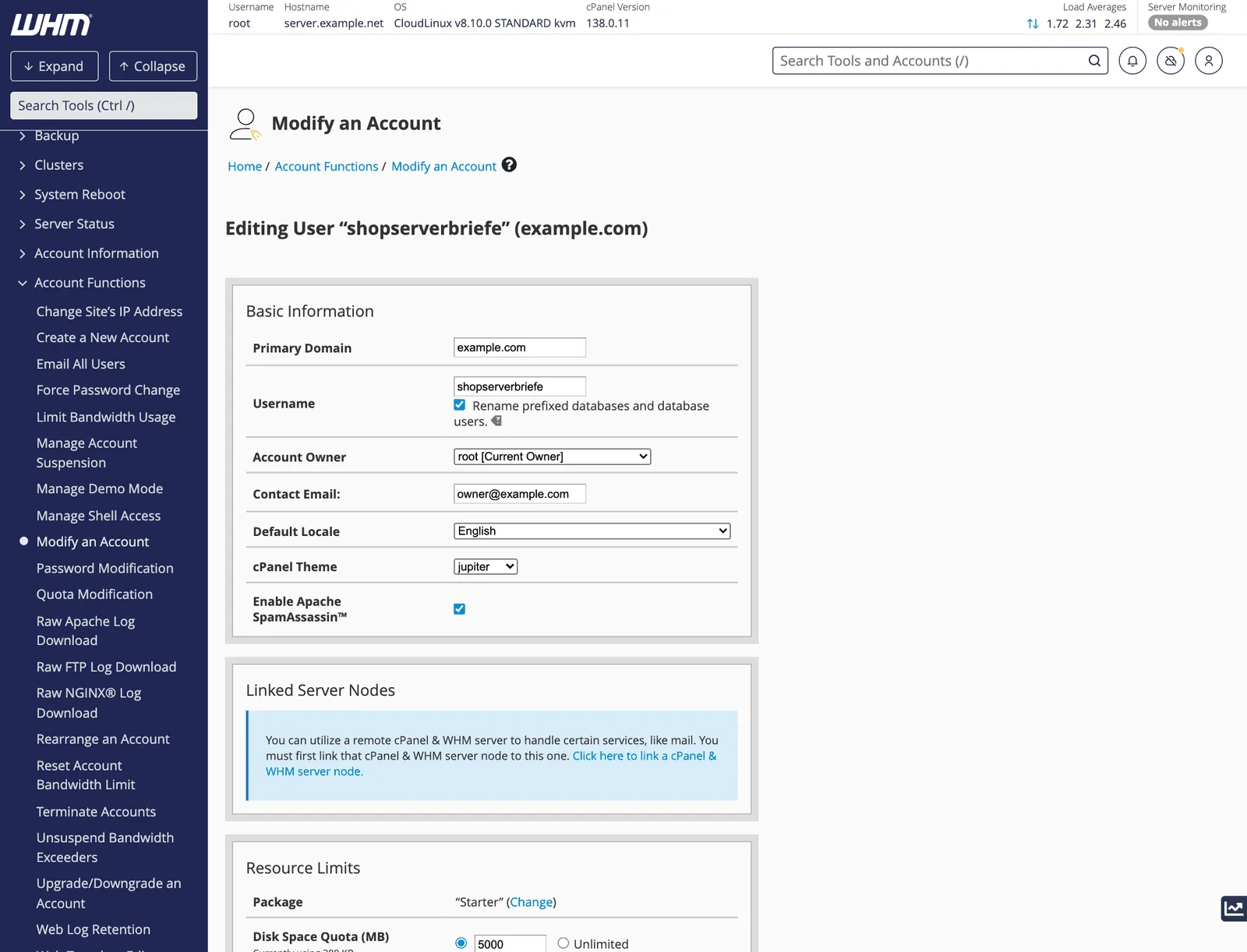
The page shows everything that can change:
- Primary Domain: change the account’s main domain, for example after a rebrand. Update DNSDNS The internet’s phone book. It turns a name people can remember, like example.com, into the number address computers use to find the server. More about DNS → for the new domain afterwards, and add the old one as an alias or redirect if links to it should keep working.
- Username: rename the account. With Rename prefixed databases and database users ticked, WHM renames
olduser_dbtonewuser_db; remember to update the website’s configuration file with the new database names. - Account Owner: which reseller owns it.
- Contact Email and cPanelcPanel The most popular hosting control panel: a website where you manage your email, files, databases and domains with point-and-click tools instead of commands. More about cPanel → Theme.
- Resource Limits: the package, or individual limits if you change them here. Prefer changing the package so accounts stay consistent.
Click Save at the bottom.
Suspend an account
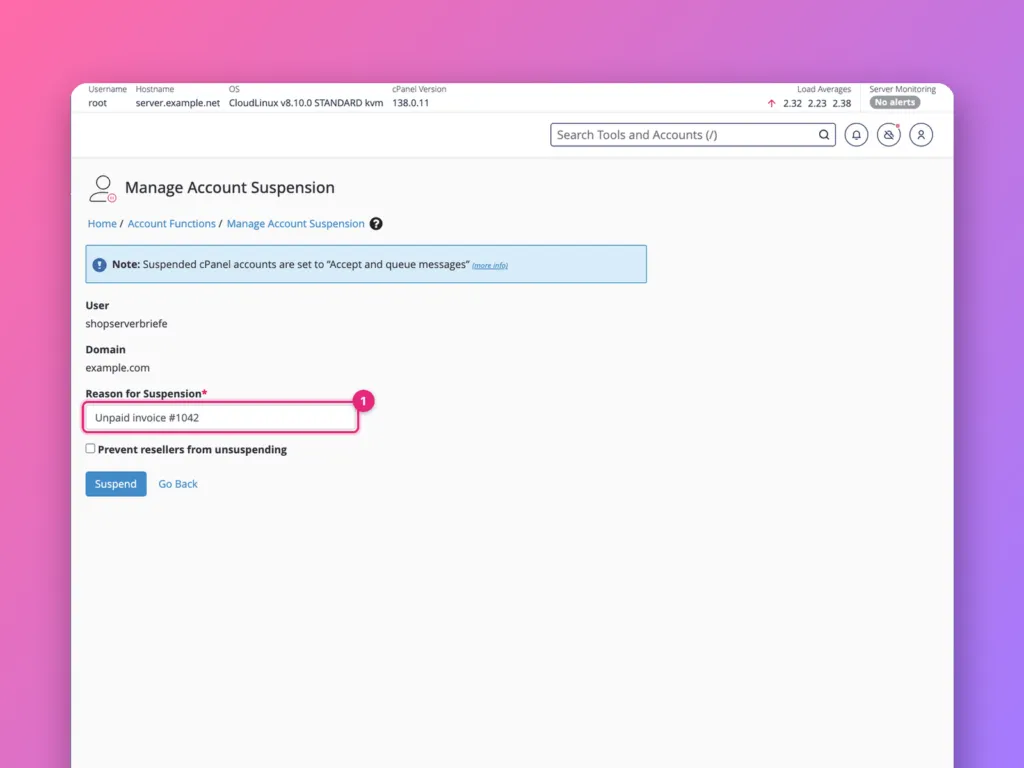
Suspension switches an account off without deleting anything: the website shows a suspension page, and the owner cannot log in. Use it for unpaid invoices, abuse reports or a hacked site you need to stop while you investigate.
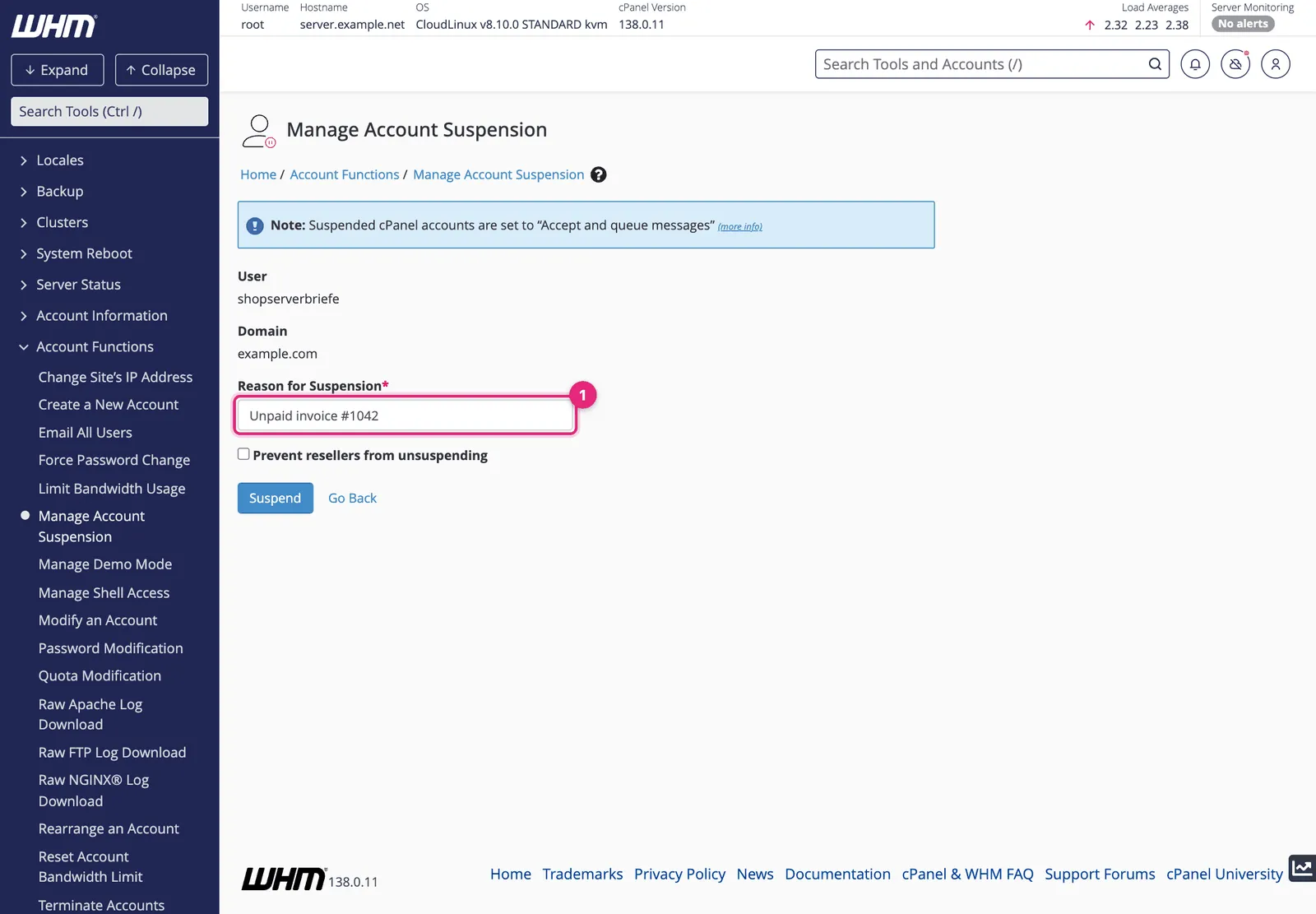
- Enter a Reason for Suspension. Keep it factual: it is shown to the account owner.
- Tick Prevent resellers from unsuspending if a reseller owns the account and you, as root, want to control when it comes back.
- Click Suspend.
Email to a suspended account is accepted and queued, so nothing is lost while it is off. To bring the account back, return to the same page and click Unsuspend. List Accounts highlights suspended accounts in red.
Reset an account’s password
Account Functions » Password Modification: choose the account, enter or generate a new password, and save. Tick Sync MySQL password only for older setups where the database user shares the account password; most WordPress sites use their own database user and are unaffected.
For your own customers, Force Password Change under Account Functions makes them choose a new password at their next login, which is the better choice after a suspected compromise.
Terminate an account
Terminating removes the account and everything in it: files, databases, email, DNS zone and settings. It cannot be undone.
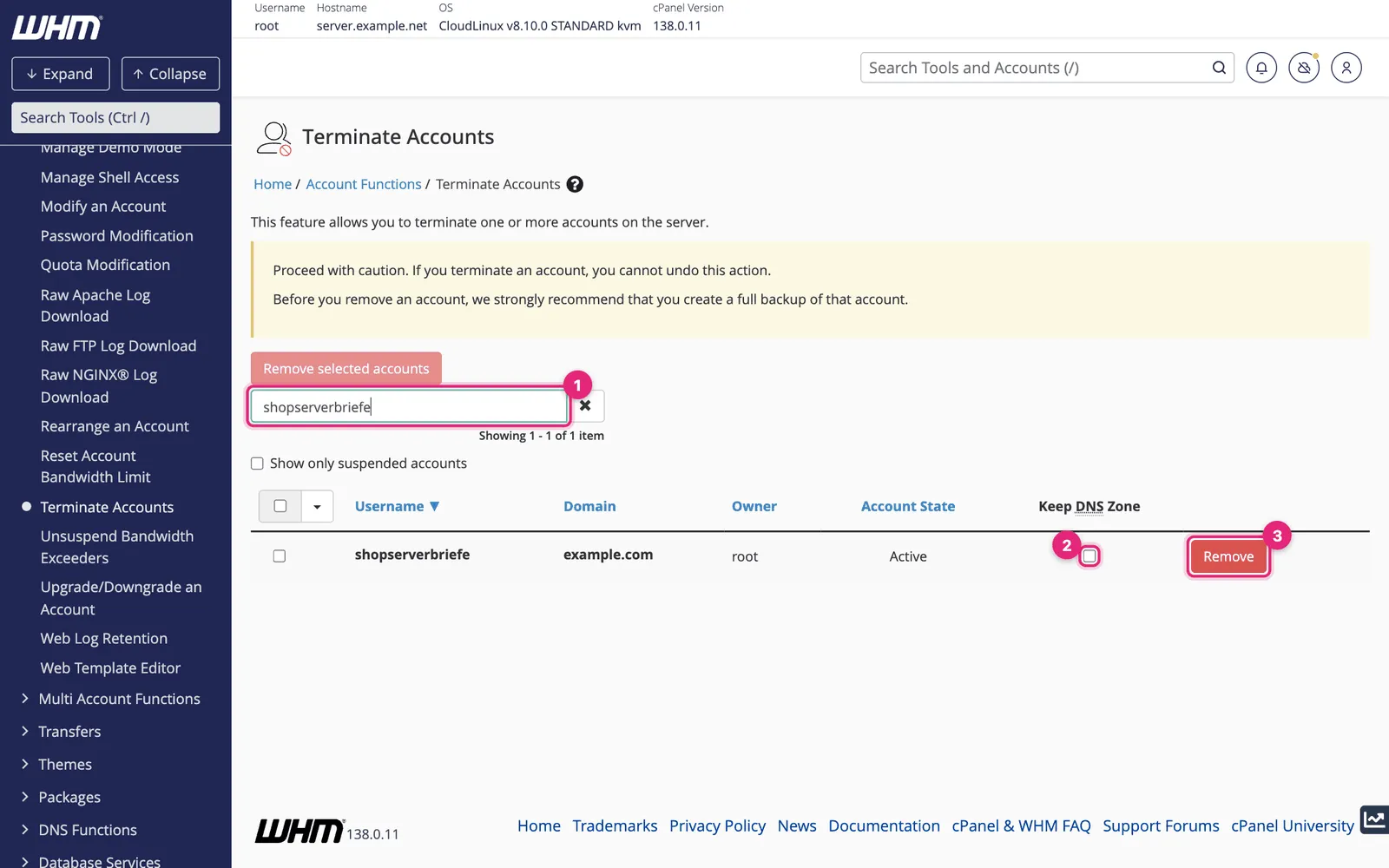
- Search for the account so only it is listed. The page lists every account, and Remove selected accounts acts on all ticked rows, so check the selection carefully.
- Keep DNS Zone keeps the domain’s DNS records on this server. Leave it unticked unless the domain’s DNS must keep working here, for example because the site moved but its email did not.
- Click Remove on that row and confirm.
Before terminating:
- Take a full backup, and keep it somewhere off the server for a few months. See backups in WHM.
- Confirm the domain’s website and email are not still in use here, or have moved.
- Cancel any billing for it, so your billing system does not recreate or re-suspend it.
Related
Something out of date? Software changes. If a step no longer works, tell us and we will check it and update the page.