A cron jobCron job A task the server runs by itself on a timetable, like an alarm clock for jobs. For example, making a backup every night at 3 a.m. More about Cron job → runs a command on a schedule: every five minutes, every night, every Monday. Websites use them for backups, newsletters, imports and housekeeping. cPanel’s Cron Jobs tool sets them up without the command line.
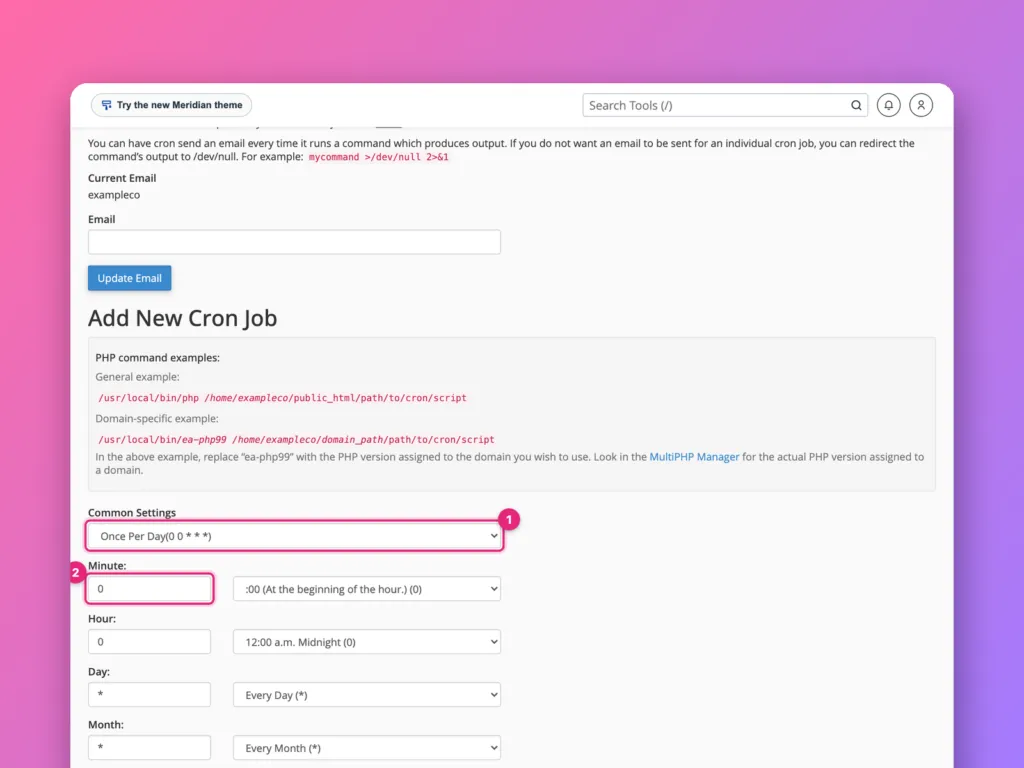
Open Advanced » Cron Jobs, choose a schedule from Common Settings, enter the command, using full paths such as /usr/local/bin/php /home/user/public_html/script.php, and click Add New Cron Job. Add >/dev/null 2>&1 to the end to stop an email being sent every time it runs.
Add a cron job
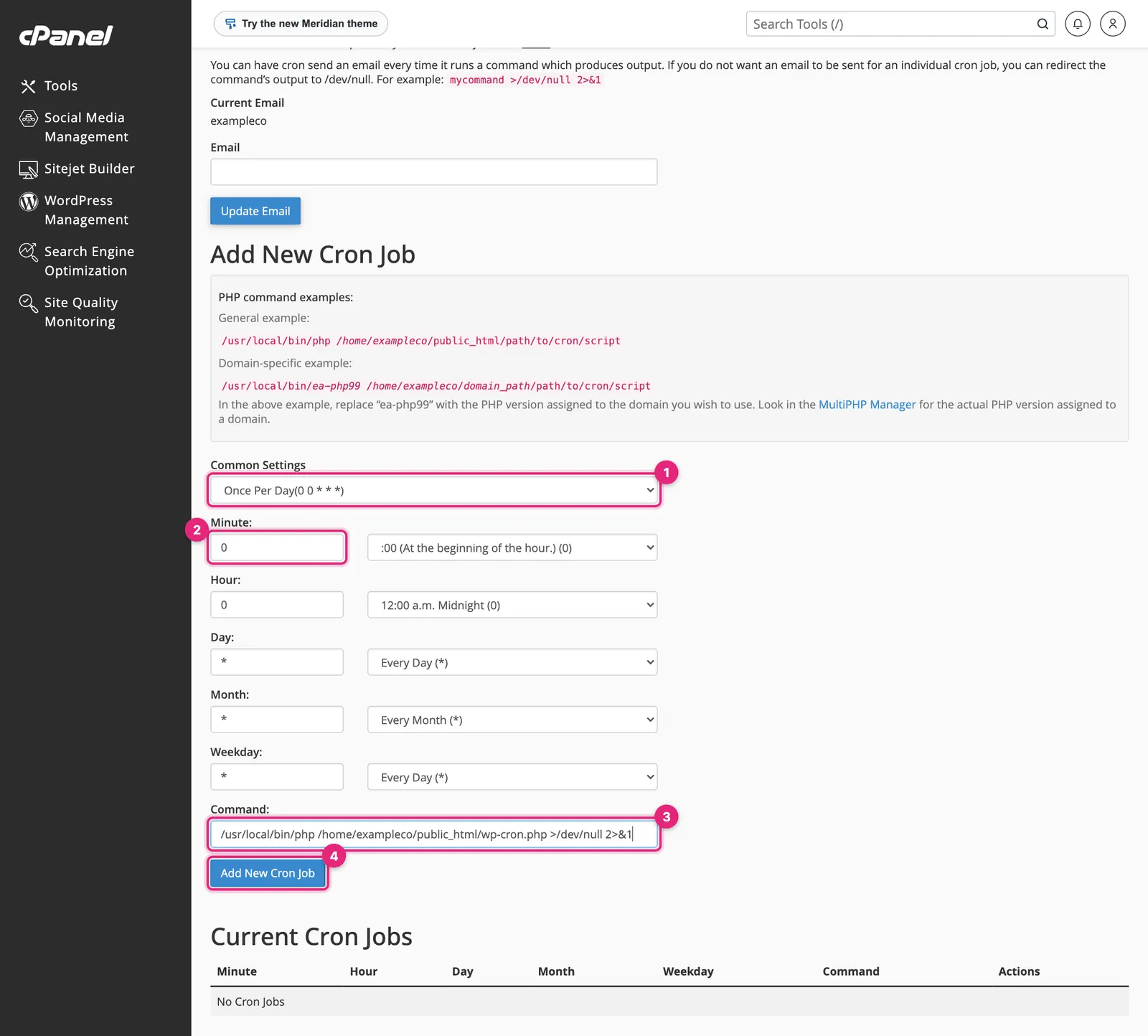
- Common Settings fills in the schedule for you, such as Once Per Day or Twice Per Hour.
- Or set Minute, Hour, Day, Month and Weekday yourself.
*means “every”. - Command: what to run (details below).
- Click Add New Cron Job.
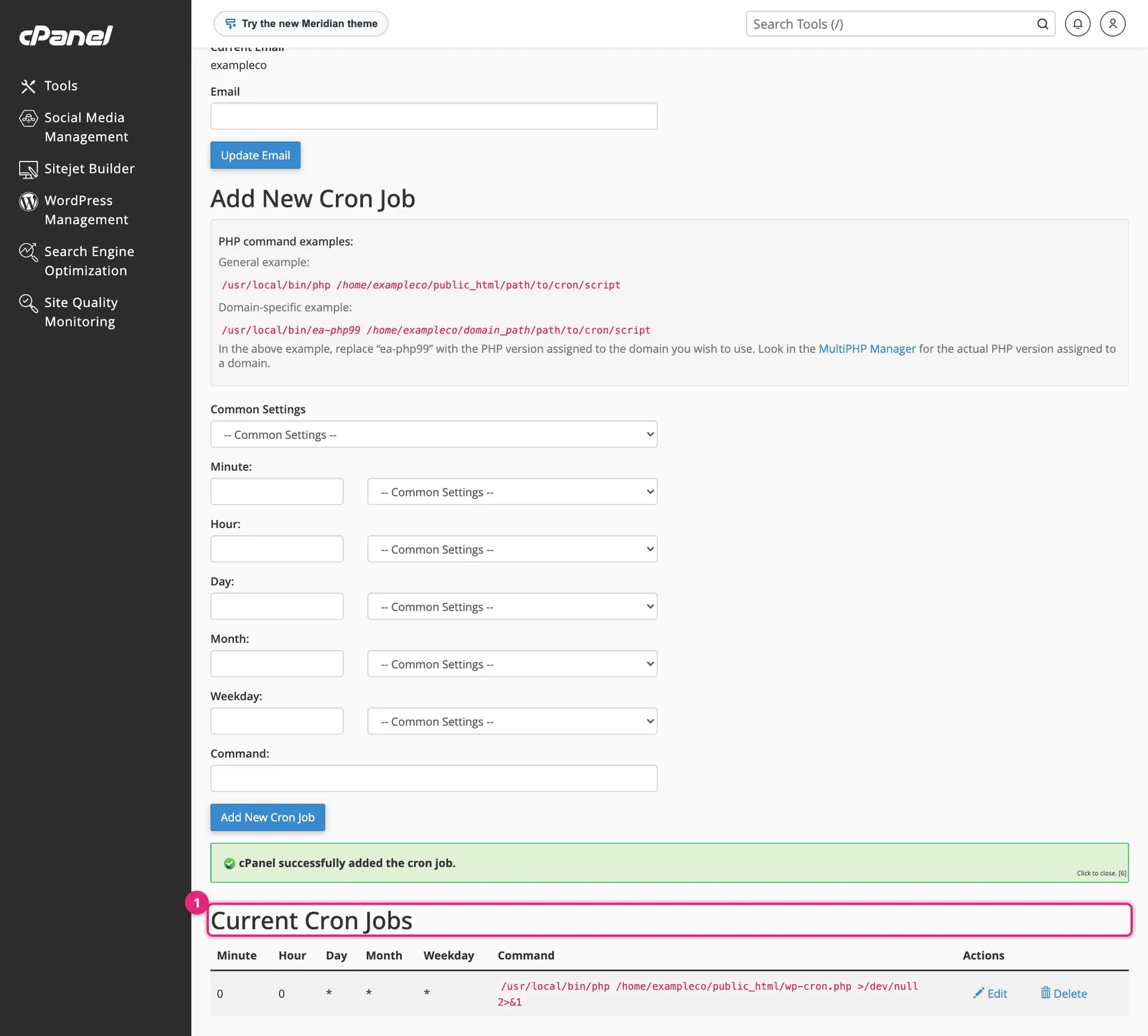
Times use the server’s time zone, which may differ from yours. The page’s examples and the server clock show which it uses.
Writing the command
Cron runs with almost no settings, so use full paths for everything:
/usr/local/bin/php /home/exampleco/public_html/wp-cron.php >/dev/null 2>&1| Part | Meaning |
|---|---|
/usr/local/bin/php | The PHP program. The page shows the right path for your server |
/home/exampleco/public_html/wp-cron.php | The script, by its full path (your home directory is on the cPanel home screen) |
>/dev/null 2>&1 | Throw away the output, so no email is sent |
For a specific PHP version, use its own path, such as /usr/local/bin/ea-php83, as the page’s examples show.
To call a web address instead of a file, use curl:
/usr/bin/curl -s https://example.com/tasks/run >/dev/null 2>&1Cron email
By default, cron emails any output to the address under Cron Email at the top of the page. That is useful while testing, and a flood once a job runs every five minutes. Either remove the output with >/dev/null 2>&1, or keep a log instead:
/usr/local/bin/php /home/exampleco/jobs/import.php >> /home/exampleco/logs/import.log 2>&1WordPress: replace wp-cron
WordPress runs its scheduled tasks, such as publishing scheduled posts, sending emails and running backups, only when someone visits the site. On quiet sites tasks run late; on busy ones it adds work to page loads. Replace it with a real cron job:
- Add to
wp-config.php, above That’s all, stop editing:
define( 'DISABLE_WP_CRON', true );- Add a cron job running every 5 or 15 minutes:
/usr/local/bin/php /home/exampleco/public_html/wp-cron.php >/dev/null 2>&1WP Toolkit’s Take over wp-cron.php switch does both steps for you. See WordPress in cPanel.
If it does not run
- Run the exact command in Terminal (under Advanced) if your host allows it, to see errors.
- Temporarily remove
>/dev/null 2>&1so errors are emailed to you. - Check paths: the most common mistake is a relative path such as
public_html/script.php. - Hosts may limit how often jobs can run. Every minute is often blocked; every 5 minutes is usually fine.
Official documentation
- Cron Jobs, cPanelcPanel The most popular hosting control panel: a website where you manage your email, files, databases and domains with point-and-click tools instead of commands. More about cPanel → documentation.
- Hooking WP-Cron into the system task scheduler, WordPress Developer Resources.
Related
- Cron job in the glossary.
- How to change PHP version in cPanel.
Something out of date? Software changes. If a step no longer works, tell us and we will check it and update the page.