A full cPanelcPanel The most popular hosting control panel: a website where you manage your email, files, databases and domains with point-and-click tools instead of commands. More about cPanel → backup is one .tar.gz file holding an entire hosting account: files, databases, email, DNSDNS The internet’s phone book. It turns a name people can remember, like example.com, into the number address computers use to find the server. More about DNS → and settings. The catch surprises most people: you cannot restore it as a whole from inside cPanel. This guide shows the two routes that work, whole-account restore in WHM, and piece-by-piece restore in cPanel.
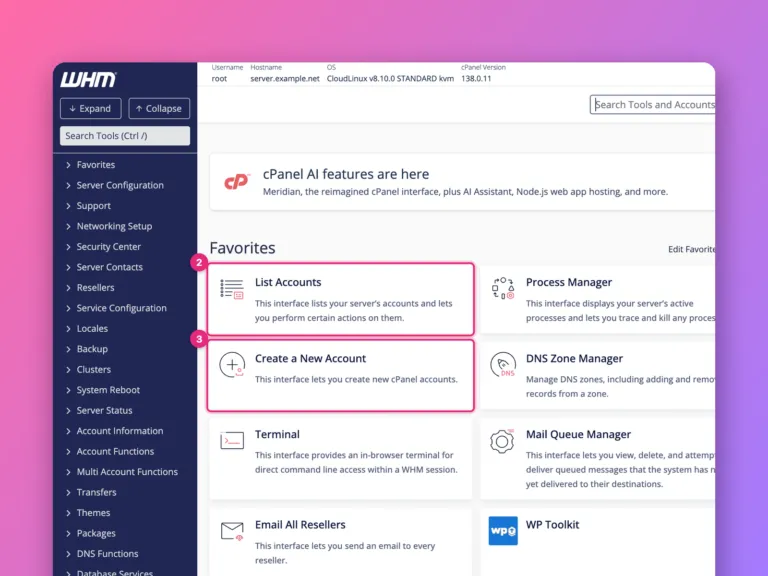
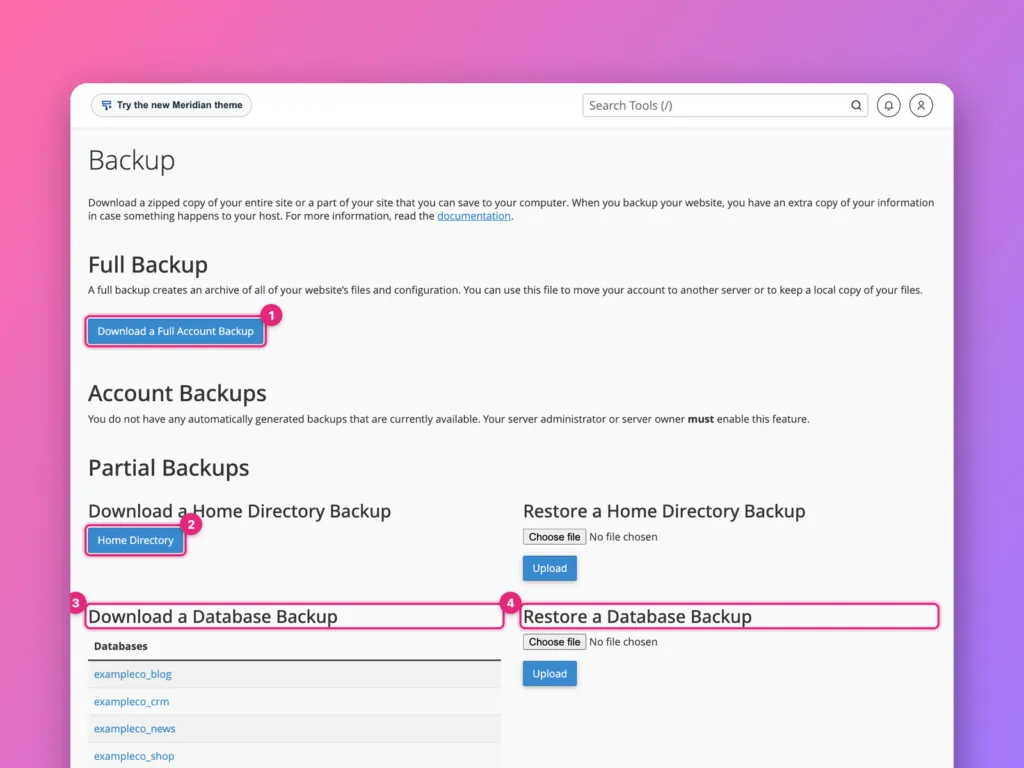
To restore the whole account, use WHMWHM WebHost Manager: the administrator side of cPanel, used by whoever runs the server to create and manage hosting accounts. More about WHM →: Transfers » Transfer or Restore a cPanel Account, upload the backup file, and click Restore. Without WHM access, send the file to your host and ask them to restore it. To restore parts yourself in cPanel, open Backup and use Restore a Home Directory Backup for files and Restore a MySQL Database for each database.
What is inside a full backup
The file is named like backup-10.8.2026_03-00-02_exampleco.tar.gz, where the last part is the account username. Unpacked, it contains:
| Part | What it holds |
|---|---|
homedir | Every file in the account: websites, mail stores, settings |
mysql | One .sql file per database |
dnszones | The DNS zone for each domain |
| Account settings | Domains, email forwarders and filters, cron jobs, SSL certificates |
Making one is covered in back up and restore in cPanel.
Option 1: restore the whole account in WHM
This needs root or reseller access to WHM. It recreates the account exactly as it was, including email and DNS.
- Copy the backup file to the server, for example to
/home, using SFTP orscp. Large files upload more reliably this way than through the browser. - In WHM, open Transfers » Transfer or Restore a cPanel Account.
- Choose the file, either by uploading it or by selecting it from
/homeor another listed folder. - Check the username it detects, then click Restore.
- Watch the log. It ends with a success line once the account, databases and mail are in place.
The restore stops if an account with the same username or domain already exists. Back up and remove the existing account first, or restore under the guidance of your host.
From the command line, as root, the same restore is:
/usr/local/cpanel/scripts/restorepkg /home/backup-10.8.2026_03-00-02_exampleco.tar.gzAfter a whole-account restore
- Point DNS at the server if this is a new host; see how to point a domain to a server.
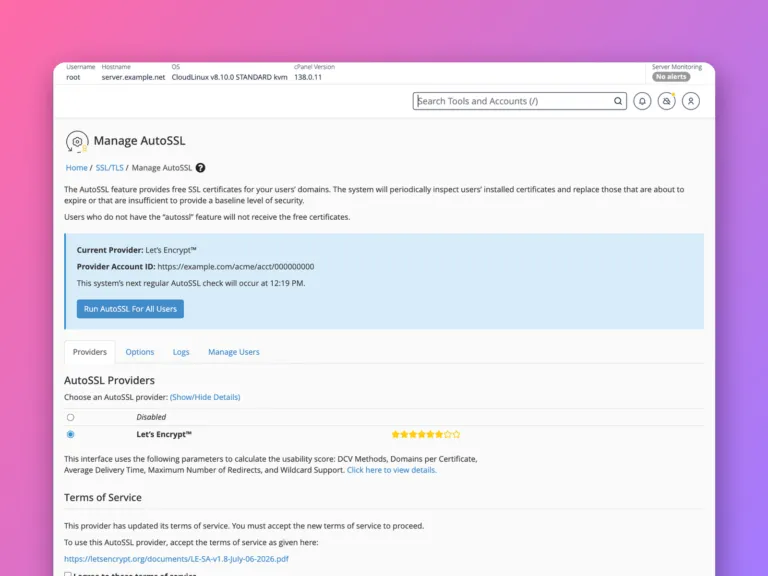
- Run AutoSSL so certificates are issued for the server’s address; see AutoSSL in WHM.
- Check the PHP version for each domain matches what the site expects; see PHP in cPanel.
Option 2: restore parts yourself in cPanel
Without WHM access you can still bring back files and databases. On your computer, extract the full backup (on Windows with 7-Zip, on macOS and Linux with tar -xzf on the file). Inside you will find the home folder and the database dumps.
Files
Pack the contents of the home folder as a .tar.gz file, then in cPanel open Backup and use Restore a Home Directory Backup. This overwrites files with the same names and leaves others alone.
For a single site, it is often easier to upload just that site’s folder with File Manager or SFTPSFTP A secure way to copy files between your computer and a server. Like dragging files into a folder, but the folder is on the server. More about SFTP →.
Databases
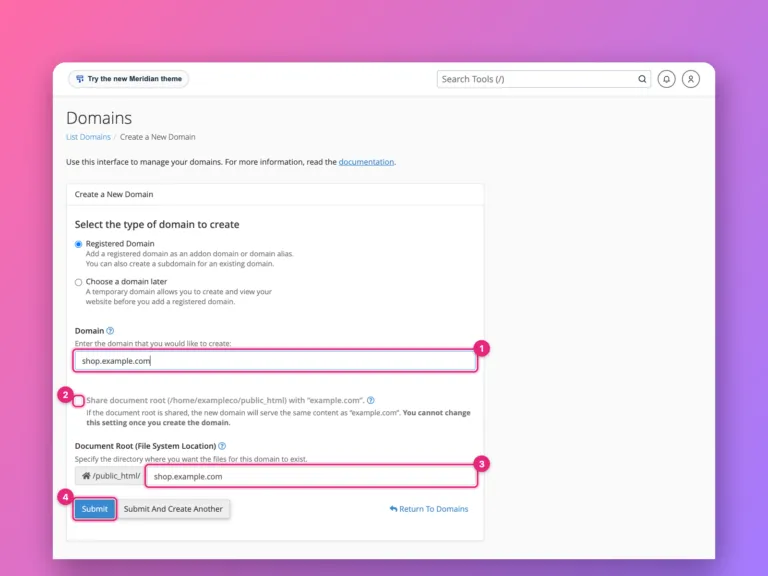
In Backup, use Restore a MySQL Database and upload the database’s .sql file, gzipped if large. The database must already exist with the same name; create it first in Manage My Databases if it does not, and give it a user with the password your site’s configuration file expects.
Email forwarders and filters have their own restore buttons on the same page. Mailbox contents live inside the home folder under mail/, so they come back with the home directory restore.
Common problems
| Symptom | Cause | Fix |
|---|---|---|
| Upload stops or times out | File larger than the browser upload limit | Upload with SFTP, then select it in WHM |
| “Account already exists” | Same username or domain on the server | Remove or rename the existing account first |
| Site shows “Error establishing a database connection” | Database user or password differs | Fix the connection details |
| Site works but email does not | MX records point elsewhere | Check the MX record in the zone |
| Restore of home directory fills the quota | Old backups and caches inside the account | Delete them before packing, or raise the quota in WHM |
Questions people ask
Can I restore a full backup from cPanel without WHM?
Not as a whole. cPanel only restores partial backups: home directory, databases, forwarders and filters. Your host can restore the full file for you, which most will do on request.
Does restoring a full backup overwrite my current site?
Restoring a home directory overwrites matching files. Restoring a database replaces its contents. Take a fresh backup of the current state first, so you can go back.
How do I restore a cPanel backup on a different host?
Ask the new host to restore it with WHM, or use the cPanel to cPanel transfer. For a single WordPress site, see moving WordPress between cPanel accounts.
Official documentation
- Transfer or Restore a cPanel Account, cPanel documentation.
Related
Something out of date? Software changes. If a step no longer works, tell us and we will check it and update the page.