cPanelcPanel The most popular hosting control panel: a website where you manage your email, files, databases and domains with point-and-click tools instead of commands. More about cPanel → is the control panel on most shared hosting. Everything you can change about your hosting account, from mailboxes to PHP versions, is a tool on its home screen. This tour shows where everything is, using cPanel 138 with the default Jupiter theme.
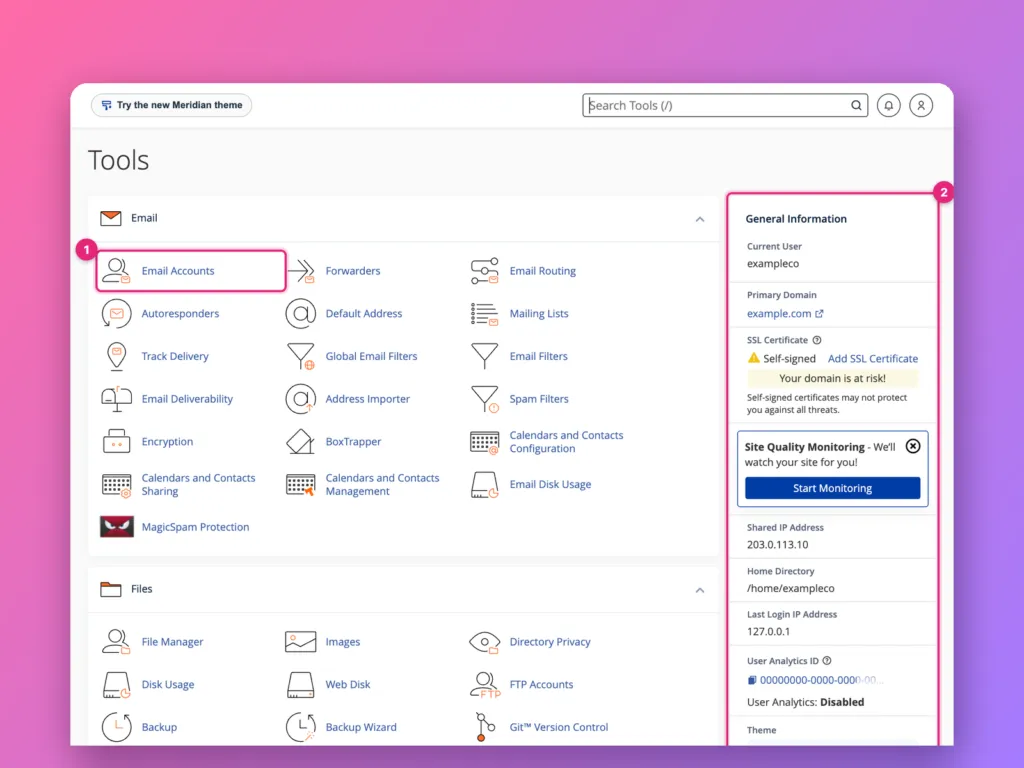
Log in at https://your-domain:2083 (or the link your host gives you). The home screen groups tools into sections such as Email, Files, Databases and Domains. The search box at the top finds any tool by name, and the right-hand column shows your account details and usage.
Logging in
Your host’s welcome email gives you the address, username and password. The usual forms are:
| Address | Notes |
|---|---|
https://example.com:2083 | Your own domain on the secure cPanel port |
https://example.com/cpanel | Redirects to the port above on most servers |
https://server.your-host.com:2083 | The server’s own name; works before your domain points at it |
Many hosts also sign you in to cPanel from their own customer dashboard, so you never type a cPanel password at all. If the address gives a certificate warning, the domain is probably not yet pointing at the server; use the server’s own name instead. See how to point a domain to a server.
The home screen
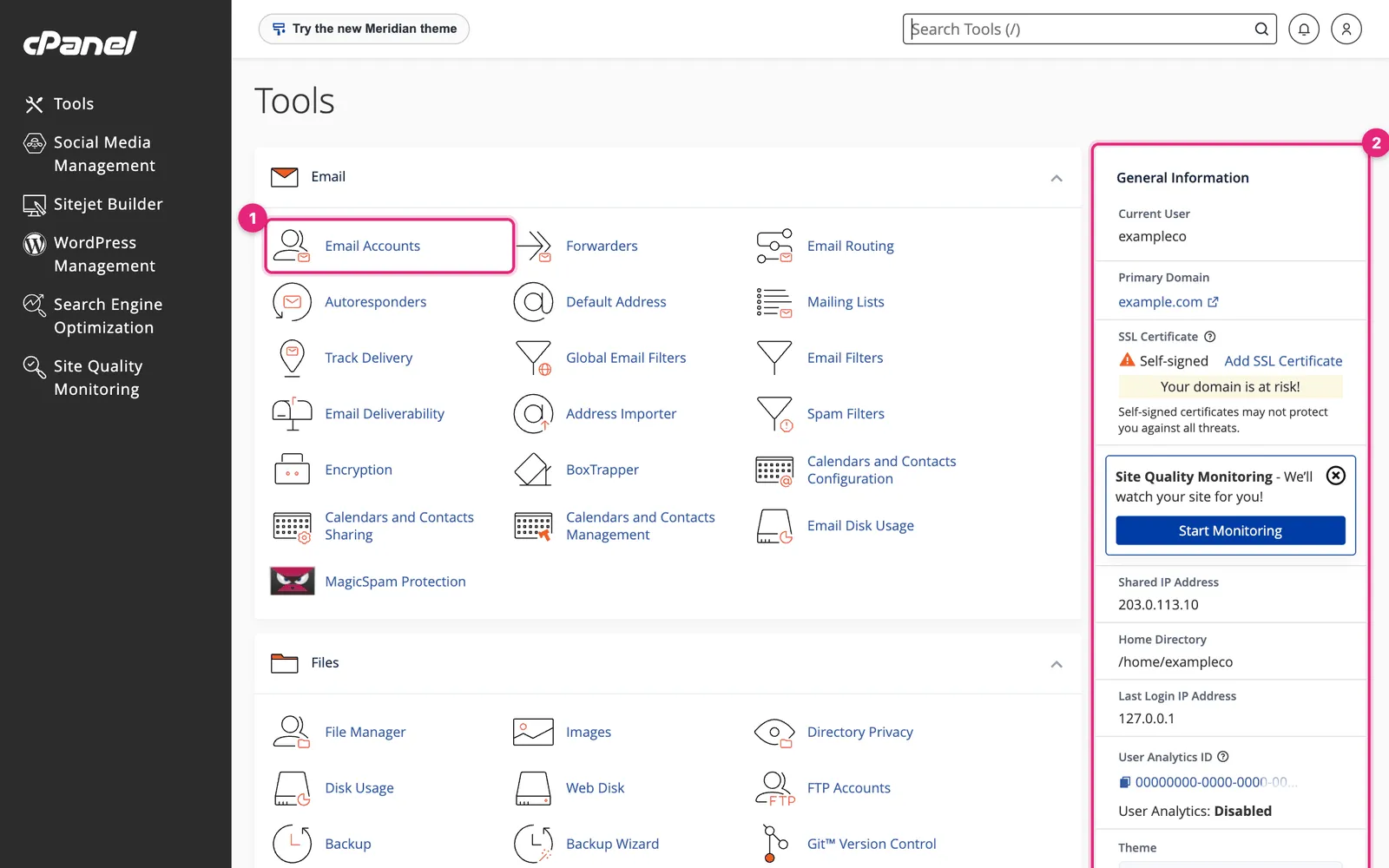
The page is one long list of tool sections. Each heading collapses with the arrow on its right, so you can hide sections you never use. Your host decides which tools appear, so you may see more or fewer than here; some hosts add their own sections, such as website builders or security tools.
The Search Tools box at the top is the fastest way around. Press / anywhere in cPanel, type part of a tool’s name, such as php or backup, and press Enter.
The General Information panel
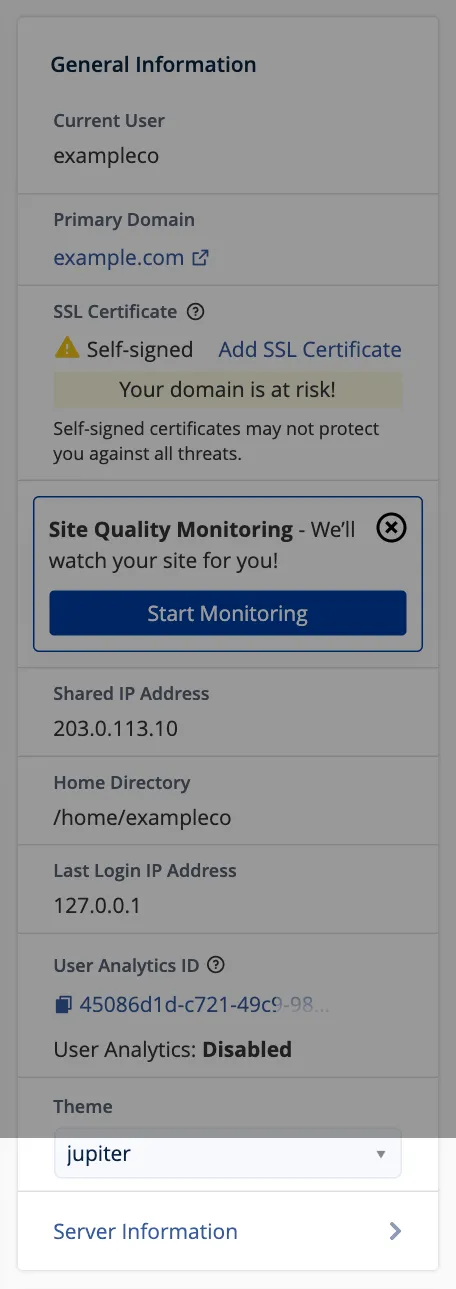
The right-hand column answers most “what are my details?” questions:
| Field | What it is for |
|---|---|
| Current User | Your cPanel username. Database and FTP names start with it. |
| Primary Domain | The account’s main domain. Its files live in public_html. |
| SSL Certificate | Whether the primary domain has a trusted certificate. See SSL in cPanel. |
| Shared IP Address | The server address your domain’s A record should point at. |
| Home Directory | Your account’s folder on the server, such as /home/exampleco. |
| Last Login IP Address | Where the last login came from. An address you do not recognise is worth investigating. |
Further down, the Statistics panel shows usage against your plan’s limits: disk space, databases, email accounts, domains and bandwidthBandwidth How much data your website is allowed to send to visitors each month. Every page view uses a little; images and video use the most. More about Bandwidth →.
The tools you will use most
| Task | Tool | Guide |
|---|---|---|
| Create mailboxes and forwarders | Email Accounts, Forwarders | Email in cPanel |
| Create a database | Database Wizard | Databases in cPanel |
| Install WordPress | WordPress Management (WP Toolkit) | WordPress in cPanel |
| Back up or restore | Backup, Backup Wizard | Backups in cPanel |
| Edit DNS records | Zone Editor | DNS in cPanel |
| Change PHP version or limits | MultiPHP Manager, MultiPHP INI Editor | PHP in cPanel |
| Add a domain or subdomain | Domains, Redirects | Domains in cPanel |
| Get a certificate | SSL/TLS Status | SSL in cPanel |
| Schedule a task | Cron Jobs | Cron in cPanel |
| Find out why the site is slow | Resource Usage, Errors | Resource usage in cPanel |
File Manager
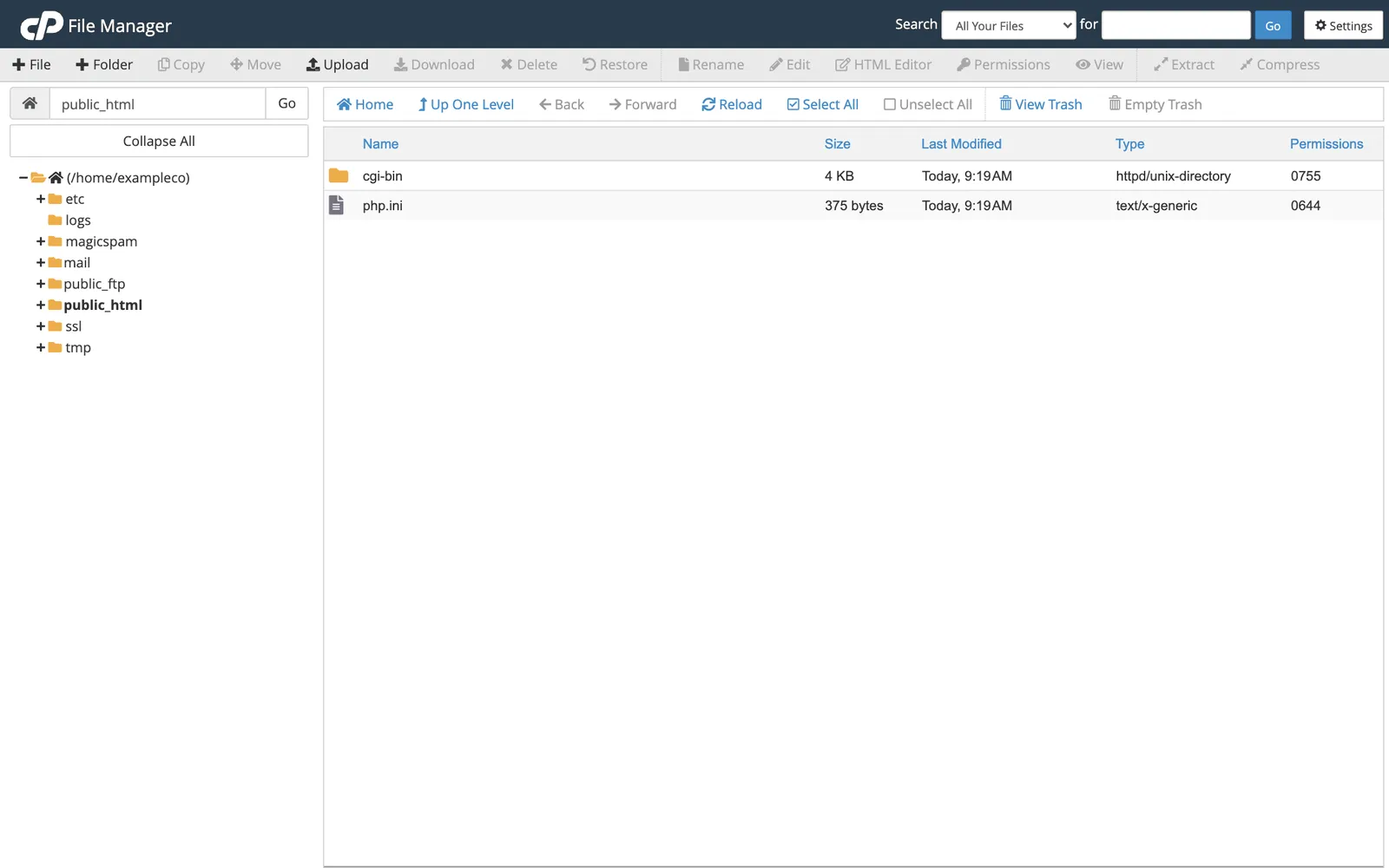
File Manager is a file browser in your web browser. The key folders:
public_htmlholds the primary domain’s website. Anything here is public.mailholds email messages. Do not edit it by hand.logsandtmphold logs and temporary files.etcholds email account settings.
Select a file and use the toolbar to Edit it, change its Permissions (files are normally 644, folders 755), or Extract an uploaded zip. Files you delete go to the trash first unless you tick Skip the trash. For large uploads, an SFTPSFTP A secure way to copy files between your computer and a server. Like dragging files into a folder, but the folder is on the server. More about SFTP → client is faster and more reliable; create a login under Files » FTP Accounts, or use your cPanel login over SFTP if your host allows SSHSSH A secure way to type commands on a server from your own computer, as if you were sitting at it. More about SSH →.
Password and security
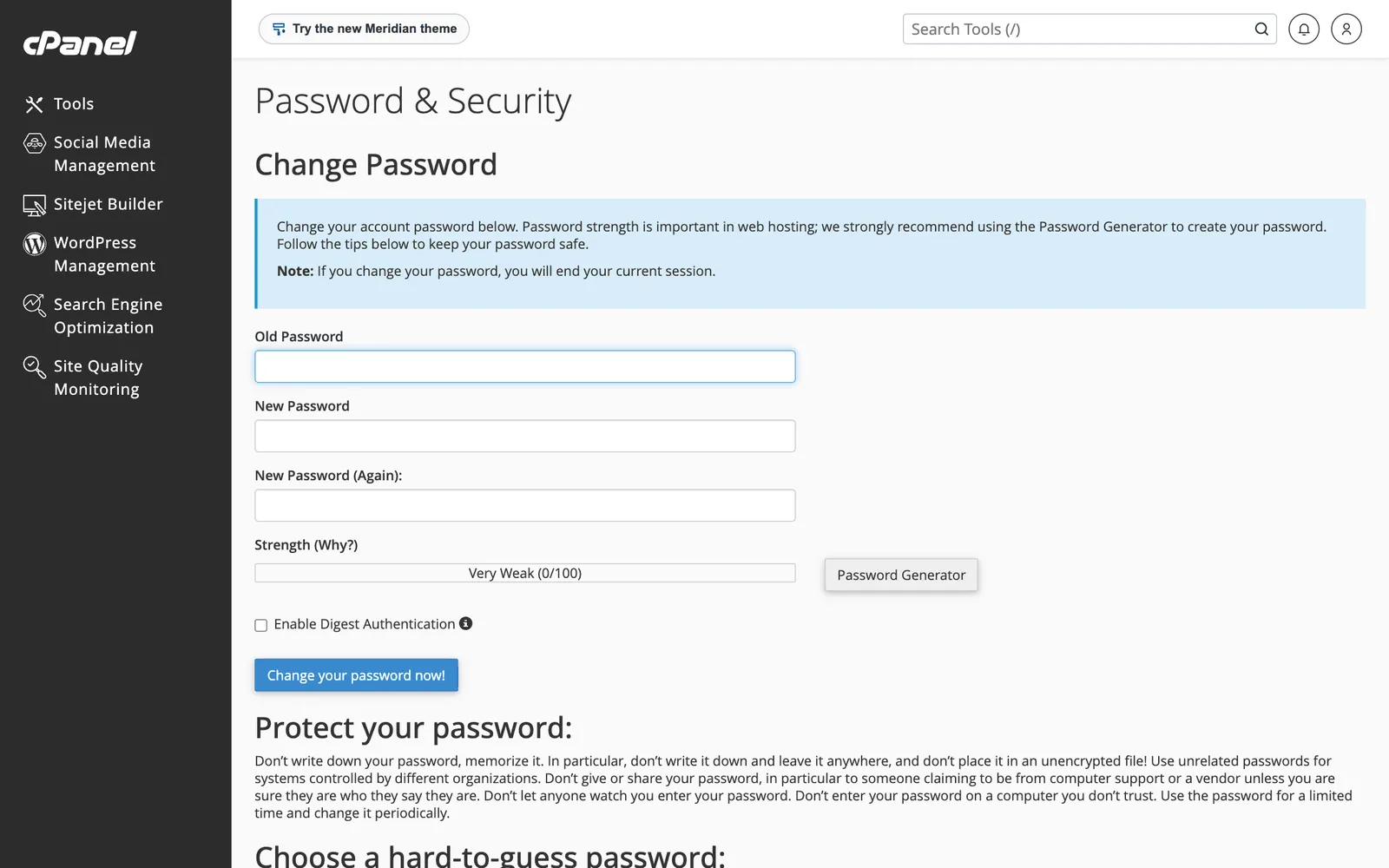
Under Preferences, change your password regularly and turn on Two-Factor Authentication if your host offers it. Your cPanel login controls your website, email and DNSDNS The internet’s phone book. It turns a name people can remember, like example.com, into the number address computers use to find the server. More about DNS →, so it is worth protecting like a bank login. Give developers their own FTP login or a User Manager account rather than your main password.
Jupiter and the new Meridian theme
cPanel 138 includes a preview of a new interface called Meridian, offered by the button at the top of the screen. The tools and their names are the same; only the layout differs. These guides use Jupiter, the default. You can switch back from Meridian at any time.
Related
- What cPanel is (and Plesk).
- The cPanel roadmap, every cPanel guide in order.
Something out of date? Software changes. If a step no longer works, tell us and we will check it and update the page.